Using an api get image call is how you graduate from static, one-size-fits-all visuals to images that are generated on the fly. This simple request can become a powerhouse for creating data-driven content tailored to each user—think adding a customer's name to a welcome graphic or showing real-time data in a custom dashboard.
Why Dynamic Images Are a Game Changer

In a world overflowing with generic content, personalization isn't just a nice-to-have; it's essential for getting noticed. Static images, the old workhorse of web and email content, simply can't keep up. They don't adapt to user data or real-time events, which often creates a jarring disconnect between your message and your audience.
This is exactly the problem that dynamic image generation APIs, like OKZest, were built to solve. Instead of painstakingly creating hundreds of visual variations, you design one template and let the API populate it with unique data for every single user. It's a fundamental shift that makes your digital communication feel incredibly personal and relevant.
Before we dive into the technical side, let's look at the big picture of how this all comes together.
Dynamic Image Generation at a Glance
This table breaks down the entire process, from setting up your template to seeing the personalized image live in your campaign.
| Phase | Key Action | Objective |
|---|---|---|
| Setup & Design | Create an image template in OKZest with dynamic layers. | Build a flexible visual foundation for personalization. |
| Integration | Construct the API request URL with unique data parameters. | Prepare the specific call that will generate the custom image. |
| Execution | Make an API GET request to the generated URL from your app. | Trigger the image creation process on the server. |
| Delivery & Caching | Receive the image as a binary response and serve it via a CDN. | Ensure fast, reliable delivery of the visual to the end user. |
| Implementation | Embed the image URL in emails, web pages, or social media. | Display the personalized content in its final context. |
This high-level view shows how a few connected steps can automate what would otherwise be a massive manual effort.
The Power of Personalization at Scale
Imagine sending an email where every single person sees an image with their name beautifully woven into the design. Or a social media ad that automatically updates with the latest sales numbers. These aren't just parlor tricks; they're powerful ways to grab and hold attention.
This is all possible because services like ours handle the heavy lifting of image rendering on the back end. Your application just needs to send a request with the right data, and the API returns a finished, personalized image. This technology is quickly becoming a core part of the modern marketing stack. The global image recognition market, valued at around USD 45.02 billion in 2022, is a testament to how crucial visual data processing has become.
Practical Applications and Benefits
The use cases for dynamic visuals are incredibly broad, solving real-world problems for marketers, developers, and founders.
- Email Marketing: Embed one-of-a-kind images in your newsletters to make subscribers feel seen, driving up engagement.
- Social Media: Automatically generate endless visual variations for ad campaigns, each tailored to a specific audience segment.
- E-commerce: Things like AI product photo generators can slash content creation costs for online stores.
- User Dashboards: Display custom charts, progress reports, or completion certificates directly inside your app or portal.
The real win here is efficiency. When you automate visual content creation, your team saves countless hours and can finally run the kind of hyper-targeted campaigns that used to be impossible to manage by hand. If you want to go deeper, our guide on https://okzest.com/blog/dynamic-image-generation offers a more detailed look.
Making Your First API Image Request
Alright, before you can pull your first personalized image from the API, there's a tiny bit of prep work. We need to get your credentials sorted and understand the basic shape of the request you’re about to send. It all kicks off with authentication—that’s just how the API confirms you’re allowed to ask for things.
With a service like OKZest, this is handled with a simple API key. Think of it as a secret password just for your app. You'll find this key in your account dashboard after you sign up. It’s super important to keep this key safe, just like a password. Never, ever put it in your website's front-end code or check it into a public code repository.
Getting Authentication and Headers Right
Most modern APIs, especially for generating media like images, use a straightforward method called Bearer Authentication. All this means is that every single request you send needs to include an Authorization header. The value for this header is just the word "Bearer," a space, and then your secret API key pasted right after.
This header is the very first thing the server looks at. If it’s missing or the key is wrong, your request gets bounced, usually with a 401 Unauthorized error. It’s a simple but rock-solid way to keep things secure.
Think of an API request like sending a certified letter. The endpoint URL is the delivery address, the parameters are what you've written inside, and the Authorization header is the official wax seal proving it came from you.
The Anatomy of an API Get Image Request
Now that you have your key, you can start building your first api get image call. A request really only has three main parts that work together to tell the server what you need.
- The Endpoint URL: This is the specific web address you’re sending the request to. It points your call to the right place—in our case, the image generation service.
- Headers: Besides authentication, headers can carry other useful info. For example, you can tell the server you expect a PNG image back by including
Accept: image/png. - Query Parameters: This is where the real personalization happens. These are the key-value pairs tacked onto the end of the URL, like
?name=John&score=95. The API uses this data to customize the image on the fly.
Nailing these three components is the foundation for every single successful API call you'll make. If you want to see how this fits into the bigger picture of API design, you can read more about building a REST API for images. Getting this structure right from the beginning will save you a ton of headaches later.
Alright, let's move from theory to practice. This is where we get our hands dirty and actually pull down some personalized images from the API. I’ll walk you through three different ways to make an api get image request, covering the most common scenarios you're likely to encounter.
We'll start with a quick curl command for testing, then jump into a JavaScript example for your web apps, and finally, a Python script for any backend work. Each snippet is ready to go, but I’ll also break down what's happening so you know why it works.
First, a quick look at the overall flow. It's simple, but getting it right is crucial.
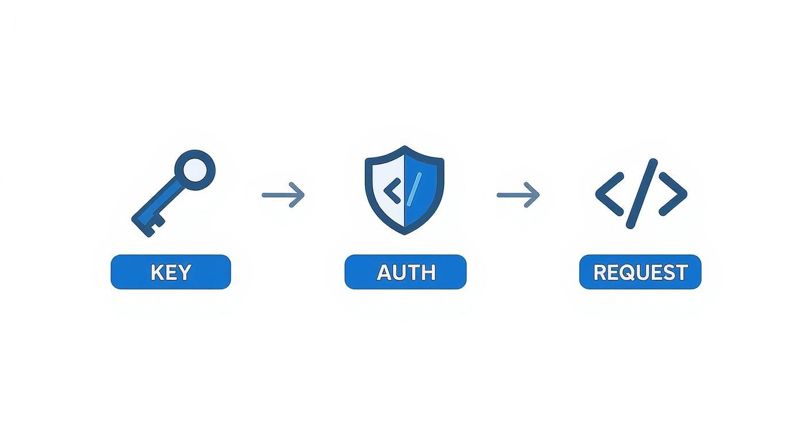
As you can see, everything starts with your secure key. Proper authentication is the gatekeeper—get that right, and your request will sail through.
Testing on the Command Line with cURL
Before I ever write a line of application code, I test my API calls with curl. It's the absolute fastest way to confirm my API key is valid and that I'm structuring the request correctly. It strips away all the other variables and lets you focus purely on the API interaction itself.
Here’s how you can request an image personalized with the name "Alex" and save it directly to a file called alex-welcome.png.
curl -X POST "https://api.okzest.com/v1/templates/your-template-id/images"
-H "Authorization: Bearer YOUR_API_KEY"
-H "Content-Type: application/json"
-d '{"modifications": [{"name": "name_layer", "text": "Alex"}]}'
--output alex-welcome.png
The magic here is the --output flag. It tells curl to treat the response as a binary file and save it. Without it, your terminal would try (and fail) to display raw image data, which is never pretty.
Requesting Images in JavaScript for Web Apps
When you're building for the web, the Fetch API is the way to go. This is perfect for generating images on the fly to display in a user's browser, like for a personalized dashboard or welcome message. The key difference from other methods is how you handle the binary data, which arrives as a Blob.
const apiKey = 'YOUR_API_KEY';
const templateId = 'your-template-id';
const userName = 'Maria';

fetch(`https://api.okzest.com/v1/templates/${templateId}/images`, {
  method: 'POST',
  headers: {
    'Authorization': `Bearer ${apiKey}`,
    'Content-Type': 'application/json'
  },
  body: JSON.stringify({
    modifications: [{
      name: 'name_layer',
      text: userName
    }]
  })
})
.then(response => {
  if (!response.ok) {
    throw new Error('Network response was not ok');
  }
  return response.blob(); // Handle the response as a binary Large Object
})
.then(imageBlob => {
  const imageUrl = URL.createObjectURL(imageBlob);
  const imgElement = document.getElementById('user-image');
  imgElement.src = imageUrl;
})
.catch(error => console.error('Error fetching image:', error));
That
URL.createObjectURL(imageBlob)bit is a fantastic browser feature. It creates a temporary, local URL from the image data you just received. You can then assign this URL directly to an<img>tag'ssrcattribute—no need for messy Base64 conversions.
Using Python for Backend Image Generation
Finally, let's cover a backend scenario. If you're using Python, the requests library is an absolute must-have for its simplicity. This is the approach you'd take if you were generating images to attach to emails, upload to cloud storage like S3, or process further on your server.
The logic is a lot like our curl example, just wrapped in a bit of Python. We make the request, check that it was successful, and then write the raw image content to a file.
import requests

api_key = "YOUR_API_KEY"
template_id = "your-template-id"
user_name = "David"

url = f"https://api.okzest.com/v1/templates/{template_id}/images"

headers = {
    "Authorization": f"Bearer {api_key}",
    "Content-Type": "application/json"
}

data = {
    "modifications": [
        {"name": "name_layer", "text": user_name}
    ]
}

response = requests.post(url, headers=headers, json=data)

if response.status_code == 200:
    with open("david-welcome.png", "wb") as f:
        f.write(response.content)
    print("Image saved successfully!")
else:
    print(f"Error: {response.status_code} - {response.text}")
Pay close attention to the "wb" mode in the open() function. The "w" stands for write, but the "b" is critical—it specifies binary mode. Forgetting it is a common mistake that leads to corrupted image files. With these examples, you have a solid foundation for just about any api get image task you can think of.
Putting Your Dynamic Images to Work

Making a successful api get image call is one thing, but the real magic happens when you get that image in front of your audience. Let's walk through how to take that raw image data and put it into action where it matters most: in your marketing emails and on your website.
The idea is to make the whole process feel completely natural, like the personalized image was always part of the plan. And with today's tools, it's a lot simpler than you might think.
Embedding Images in Emails with Merge Tags
Email marketing is where dynamic images really come alive. A personalized visual can make a recipient feel like the message was crafted just for them, which does wonders for engagement.
The best part? You can use the same merge tag system your Email Service Provider (ESP) already has.
If you're already using something like *|FNAME|* to pop a subscriber's first name into an email, you're 90% of the way there. You apply that exact same concept to build a unique image URL for every single person on your list.
Here’s the breakdown:
- Grab your base URL. Start with the API endpoint for your image template.
- Tack on the dynamic bits. Append your query parameters, but instead of static text, use your ESP’s merge tags as the values. It’ll look something like this:
?name=*|FNAME|*&points=*|POINTS|*. - Drop it in your email. Just place that complete URL into the
srcattribute of an<img>tag in your email's HTML.
When you hit 'send' on your campaign, your ESP handles the rest. It automatically swaps the merge tags with each subscriber's data, which in turn tells our API to generate a perfectly unique image for every email.
Your email provider does all the heavy lifting here. It builds hundreds or thousands of unique image URLs on the fly, and each one triggers a custom
api get imagecall to OKZest—no extra code required on your end.
Displaying Images Directly on a Webpage
For websites and web apps, the process is even more straightforward. You can drop the API request URL directly into an <img> tag’s src attribute. When a user’s browser loads your page, it makes the GET request to our API and renders the image that comes back. Simple as that.
This is an incredibly efficient way to work. It cuts out the middleman—you don't have to download the image to your server first and then serve it yourself. That saves you bandwidth, complexity, and a potential headache.
Here's a quick example for a user profile page:
<!-- The user's name is dynamically inserted by your backend (e.g., PHP, Node.js) -->
<img src="https://api.okzest.com/v1/templates/your-template-id/images?name=Johnathan_Doe" alt="Personalized welcome banner for Johnathan Doe">
This is perfect for user dashboards, personalized welcome banners, or even generating social sharing images on the fly. We cover more advanced techniques in our complete guide to the OKZest API for images.
This kind of tech is part of a massive trend. The computer vision and AI market is on track to hit USD 58.29 billion by 2030, and a lot of that growth is being driven by practical API applications. In fact, many leading APIs are now focusing on automatically checking image quality before processing, a crucial feature for industries like banking. You can read more about how these vision APIs are evolving.
Making Your Images Fast and Failsafe
Generating personalized visuals in real-time is a game-changer, but in a live application, performance and reliability are everything. Every single api get image call uses resources, so you need to be smart about how you manage them to keep your user experience snappy and your costs down. Just as important is having a solid plan for when things inevitably go sideways.
Let's walk through two strategies you can't afford to ignore: caching to boost speed and intelligent error handling to make sure your app doesn't fall over if the API has a hiccup. These aren't just suggestions; they're essential for building a professional-grade experience.
Use Caching and CDNs for Speed and Savings
Calling the API to generate the exact same image over and over again is a huge waste. It adds pointless delays for your user and drives up your API usage for no good reason. The solution is caching—storing the image after the first request and serving that saved copy for any future requests that are identical.
A Content Delivery Network (CDN) is the perfect tool for this.
- Here's how it works: You point your API image URLs through a CDN service. The first time anyone requests an image, the CDN grabs it from our API and sends it to them.
- And here's the magic: The CDN then stashes a copy of that image on its servers all around the world. The next time someone asks for that exact same image, the CDN serves it directly from its cache—often from a server much closer to the user—without ever bothering our API again.
This one change can dramatically slash your load times, cut your API call volume, and give your users a much faster, smoother experience.
Your best friend for performance is a well-configured CDN. By caching images at the edge, you can serve millions of requests while only making a handful of actual API calls. That saves both time and money.
Build in Robust Error Handling
Let's be realistic: no API has 100% uptime. Network glitches, server maintenance, or even a typo in your request can cause an api get image call to fail. If your application isn't ready for that, your users will be stuck looking at a broken image icon, which instantly looks unprofessional and erodes trust.
The trick is to plan for failure and have a backup ready. A simple and incredibly effective strategy is to use fallback images. When an API request fails, instead of showing a blank space, you display a generic, pre-made image. This keeps the user experience intact and looking clean.
You can easily spot a failure by checking the HTTP status code from the API response.
- A 200 OK status means it all went smoothly.
- A 4xx status (like
401 Unauthorizedor400 Bad Request) means there was a problem with your request. - A 5xx status (like
503 Service Unavailable) tells you there's a problem on the API's end.
This kind of proactive error handling is becoming the standard, especially as APIs integrate more deeply with AI. As a recent article on the state of the API in 2025 on devopsdigest.com points out, future API strategies will depend on clear error contracts to support both human and AI interactions. By handling errors gracefully, you’re not just fixing a bug; you’re building a more reliable and professional application.
Got Questions About Image Generation APIs?
Whenever you start digging into a new API, you're bound to have a few questions. I've helped tons of developers get up and running, and a few common themes always pop up. Let's tackle them head-on so you can get a better feel for what’s happening behind the scenes when you make an api get image call.
URL vs. Raw Image Data: What’s the Difference?
This is usually the first question people ask. Should you get a link to an image or the raw binary data itself? It really just depends on what you're trying to do.
URL Response: In this case, the API just hands you back a link. The image lives on the API provider's servers, and you get a URL to it. This is super convenient for the web—you just drop it straight into an
<img>tag'ssrcattribute and you're done.Binary Data Response: Here, the API sends back the actual image file. Your code receives this raw data, usually with a
Content-Type: image/pngheader, and then it's up to you to figure out what to do with it. You might save it to a file, convert it to Base64 for an email, or pass it to another service.
For just displaying an image on a website, a direct URL is almost always the easiest path. But if you're doing something on the backend, like attaching a personalized ticket to a transactional email, you’ll need to get your hands dirty with the binary data.
Dealing with Rate Limits and International Content
Another big one: "How do I avoid getting rate-limited when I need to generate thousands of images?" The smartest move here is to be proactive with caching. Don't ask the API for the same image twice if you don't have to.
If you know you're about to fire off a big batch of requests, it's a good idea to build a small, polite delay between your calls. And always, always check the provider's documentation for their specific rate-limiting policies.
What about creating images in different languages? No problem. A solid image generation API will fully support Unicode (UTF-8) characters. This means you can pass in text in just about any language you can think of. The only catch is making sure your image template is set up with a font that actually supports the characters you need.
What About Security?
Finally, let's talk security. Is it safe to send user data over to an image API?
You should only ever work with services that have a crystal-clear privacy policy and use HTTPS for every single request. My advice is to avoid sending any sensitive personally identifiable information (PII) unless it's absolutely essential for the image you're creating.
If you want to get a more technical look at how these systems work from the ground up, this guide on understanding image generation APIs is a great place to start.
Ready to create stunning, personalized visuals for your audience? With OKZest, you can automate your image creation for emails, social media, and websites in minutes. Start for free and see how it works!