You wrote the email carefully. The offer is solid, the segmentation looks sensible, and the send goes out on time. Then the results come back flat. Opens stall, clicks barely move, and the campaign feels interchangeable with everything else in the inbox.
That usually isn't a copy problem. It's an attention problem.
Organizations commonly personalize subject lines and first names. Customers barely notice that anymore. The stronger move is to automate personalized images for customers so the message looks specific before the reader processes a single sentence. A badge with their name, a certificate with their achievement, a sales image with their company logo, or a newsletter graphic designed for a live offer lands differently because it feels made for one person, not blasted to thousands.
The part many guides skip is the operational side. Personalization breaks when data is missing. It gets messy when multiple people touch the same campaign. It slows down when every image version turns into manual design work. The practical playbook is not just “merge a name into a picture.” It’s building image campaigns that still work when your CRM is imperfect, your team is busy, and your channels all need different formats.
Why Generic Marketing No Longer Cuts It
Generic creative fades into the background because customers see too much of it. A standard hero banner, a broad stock photo, and a line of copy with a first-name token don't create much relevance. They signal automation, but not care.
That gap matters because personalization isn't a cosmetic upgrade anymore. Companies that excel in personalization generate 40% more revenue from those efforts compared to peers, according to McKinsey’s research on the next frontier of personalized marketing. The reason is straightforward. AI makes customized content practical at scale, so teams can move from one-size-fits-all creative to assets that match the person, offer, and moment.
Text personalization hits a ceiling
A lot of campaigns stop at “Hi Sarah.” That still has value, but it doesn't change the visual experience. The reader opens the email and sees the same image everyone else received. The message says personal. The design says mass send.
Personalized images close that gap. They let you reflect details people instantly recognize:
- Identity cues like a first name, company, membership level, or event type
- Context clues such as a city, date, product category, or current offer
- Action prompts like a custom QR code, unique landing page destination, or individualized certificate text
The point isn't novelty. It's relevance that can be understood in a glance.
Practical rule: If the image would still make sense for every recipient on your list, it probably isn't personalized enough to change behavior.
Visual relevance changes attention
People process visuals before they read body copy. That's why image personalization works especially well in crowded channels like email, newsletters, social DMs, and event messaging. A customized image can tell the recipient, “This is for you,” without asking them to decode a paragraph first.
That’s also why generic creative keeps losing ground. The inbox is full of polished messages. Polish alone doesn't stand out anymore. Specificity does.
A campaign image with a person's name, their company logo, or a live metric tied to their account creates a different kind of attention. It feels closer to a one-to-one interaction, even when the workflow is automated.
The real shift is operational
The teams getting results from personalization don't treat it as a one-off design trick. They build it into campaign execution. The image is generated from data. The URL is inserted automatically. The fallback is already defined if a field is missing.
That’s the difference between testing personalization and running it consistently. Once the workflow is stable, visual personalization becomes part of how you communicate, not just a special campaign idea.
Planning Your Personalized Image Strategy
Start with the campaign, not the tool. Teams get into trouble when they open a design editor first and only later ask what the image is supposed to do. The fastest way to waste time is to automate something that wasn't strategically useful in the first place.

The upside of planning properly is big. Businesses using automated image generation can cut production time by 80-90%, and hyper-personalization can produce up to 20x higher engagement rates, as described in Pixelixe’s analysis of automated image generation in marketing. Those gains only show up when the image, audience, and data source line up.
Pick one job for each image
A personalized image should do one clear job. If you try to make a single asset handle awareness, education, urgency, and conversion at once, it gets cluttered fast.
Choose one primary objective:
- Drive action: Register for an event, book a call, claim an offer
- Increase recognition: Make the email feel immediately relevant in the inbox
- Support trust: Show the customer their name, plan, progress, or achievement
- Strengthen outreach: Give sales or account teams a more specific first touch
This sounds simple, but it affects everything that follows. A certificate image needs different fields than a sales prospecting image. A newsletter banner pulls different data than a webinar ticket.
Audit the data before design
Most personalization problems are data problems wearing a design costume. Before you build anything, inspect what you have access to.
Check these sources:
CRM fields
Names, company names, plan types, account owners, event datesSpreadsheets
Good for controlled campaigns, batches, and one-time sendsESP merge data
Useful when the image only needs fields already available in the email platformExternal APIs or databases
Better for live details like appointment times, course status, or changing offers
If you're unsure which fields matter, review your audience assumptions first. A practical resource on building effective buyer personas can help narrow which attributes should appear in the creative instead of being dumped into it because they exist.
Weak personalization uses whatever fields are available. Strong personalization uses the few fields the recipient will immediately recognize as relevant.
Decide what belongs in the image
Not every data point deserves a place in the visual. Keep the personalized elements obvious and legible.
A strong image usually includes:
- One identity variable such as first name or company
- One contextual variable like event date, location, offer, or milestone
- One action element such as a QR code, CTA button graphic, or destination URL marker
That structure keeps the image readable. It also lowers the chance of breakage when a field is missing.
For a broader framing of where this fits in a campaign system, OKZest’s article on what personalization means in marketing is useful because it separates shallow token replacement from actual relevance.
Plan for constraints early
Before anyone designs a polished template, answer the awkward questions:
| Planning question | Why it matters |
|---|---|
| What happens if the first name is missing? | You need fallback text before launch day |
| Will the image appear in email, web, or DMs? | Channel affects size, layout, and readability |
| Does the campaign need live data? | Static exports break if the underlying data changes |
| Who signs off on the template? | Shared ownership prevents late-stage brand disputes |
Campaigns usually fail in the details nobody wanted to discuss at the start. Solve those before the build, and the rest gets much easier.
Building Your First Dynamic Image with OKZest
A personalized image workflow works best when it follows a simple production pattern. The useful framework is a four-stage pipeline: ingest the base template, tag the dynamic elements, apply cropping rules where needed, and export the final variants. According to Autophoto’s workflow guide for product image automation, this kind of process can reduce manual rework by over 80%.
That same logic applies outside ecommerce. Whether you're making a conference badge, a certificate, or a prospecting image, the sequence matters because it keeps the build predictable.
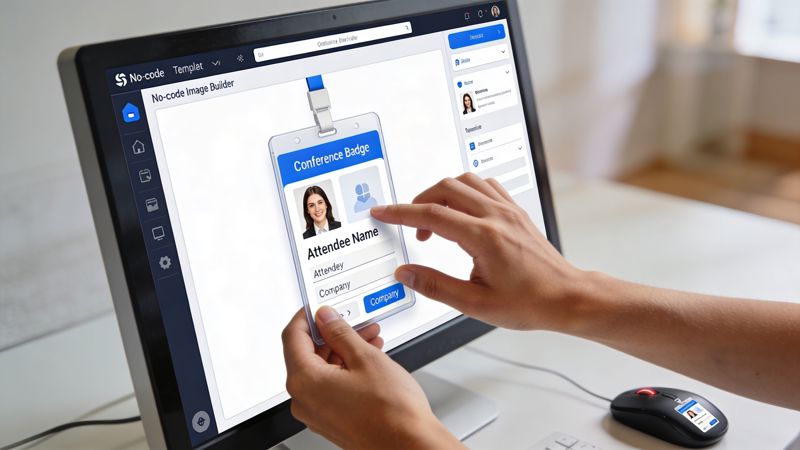
Start with a base template
Use a design that would still look good if every dynamic field were replaced with placeholders. That's the easiest test of whether the layout is structurally sound.
Good starter templates include:
- Event badge: Name, company, ticket type, QR code
- Certificate: Recipient name, course name, completion date
- Sales image: Prospect name, company logo, personalized headline
- Newsletter banner: Audience-specific headline, offer, CTA panel
Keep the static design layer clean. Don't overcrowd the canvas. Dynamic elements need room because text lengths change and logos vary.
Add dynamic text fields
The first variable should usually be text because it proves the concept quickly. Add a text layer where the personalized value will appear. Link that layer to a field such as name, company, or offer_title.
Three practical checks matter here:
Length tolerance
“Amy” and “Alexandria” need to fit the same space.Font weight
Thin fonts often break visually when names vary in length.Alignment rules
Centering is forgiving for badges. Left alignment is better when several fields stack.
If the image says “Hi [First Name]” in large type, test with short names, long names, blank values, and awkward capitalization before you move on.
Add visual variables
The next layer is usually an image placeholder. This might be a customer logo, a profile photo, a product image, or a background that changes based on the segment.
Here’s where the workflow becomes more than name-merging. You’re building image logic. One campaign can use the same master design while swapping in different visual assets per recipient.
Common examples:
- Company logo block for outbound sales
- Speaker photo area for event passes
- Course badge graphic for certificates
- Offer artwork matched to a segment or plan type
For teams using spreadsheets as the source, a practical next step is learning how to create dynamic images from spreadsheet data. That approach is often the quickest route for a first production campaign because it's easy to inspect the source values before anything goes live.
Build the image so the personalized parts are obvious within a second. If people have to study it to notice the relevance, the effect weakens.
Add a QR code or unique destination
One of the most useful dynamic elements is a QR code tied to a recipient-specific link. This is especially effective for events, direct mail tie-ins, sales outreach, and account-based campaigns.
A QR code works well when:
- the recipient needs a unique check-in or claim link
- the asset may be viewed on mobile and desktop
- you want the image itself to carry the call to action
Make sure the QR code has enough quiet space around it and isn't reduced too aggressively. Decorative design choices often hurt scannability.
Prepare exports that match the channel
Don't make one image and force it everywhere. Export variants that match where the asset will appear.
A practical setup might include:
| Channel | Best use | Build note |
|---|---|---|
| Email header | Newsletters and promotions | Keep text large and concise |
| Social DM image | Outreach and follow-up | Prioritize immediate recognition |
| Certificate download | Coaching and education | Use higher visual formality |
| Event pass | Registration and access | Keep QR area uncluttered |
No-code image tools are particularly useful. They let you generate many variants from one source template instead of duplicating design files manually. OKZest fits here as one option because it supports drag-and-drop template creation, dynamic image URLs, fallback values, and delivery into email or web workflows without writing code.
What usually doesn't work
Some design choices look clever in the editor but fail in production:
- Tiny personalized text that disappears on mobile
- Long sentences in the image instead of a short headline
- Too many variables competing for attention
- Uncontrolled logo uploads with no padding or placement rules
- No preview testing across short and long field values
A first build should feel restrained. One strong template with a few high-signal dynamic elements will outperform an overloaded image almost every time.
Integrating Images Into Your Marketing Channels
Generating the image is only half the job. The campaign works when the right person receives the right image inside the system you already use. That last-mile setup is where many otherwise solid personalization projects stall.
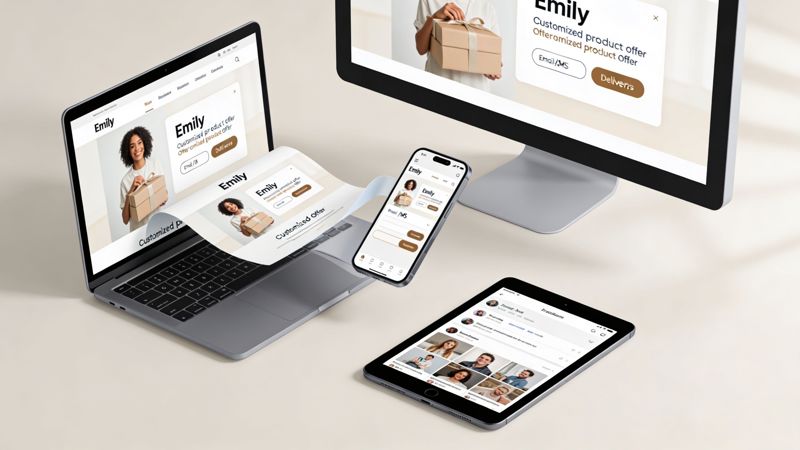
The good news is that deployment is usually much simpler than the image build. In practice, you’re inserting a dynamic image URL into an email, page, or message template so the personalized version renders automatically.
Email platforms
Email is the clearest use case because it already relies on merge fields. The image URL follows the same logic. Instead of merging only text into the body copy, you merge recipient-specific data into the image request.
A typical setup in tools like Mailchimp, Klaviyo, or Instantly looks like this in principle:
- Use an image block in the email editor
- Paste the generated image URL from your image platform
- Pass merge fields through that URL if needed
- Preview with test records before sending
This works well for onboarding emails, newsletters, webinar reminders, certificates, and sales sequences. If your team wants examples focused specifically on email deployment, the guide to personalized images for email marketing is a useful reference.
Websites and landing pages
Personalized images also work on web pages, especially when you want a returning user or campaign visitor to see a relevant banner, welcome message, or offer image.
In that case, deployment is usually handled with a basic HTML image embed or a script snippet supplied by the image platform. The key question is where the dynamic value comes from:
| Web scenario | Dynamic value source |
|---|---|
| Logged-in dashboard | User account data |
| Campaign landing page | URL parameters |
| Booking page | CRM or session data |
| Customer portal | Database or API response |
The design rule for web is slightly different from email. The image has to work alongside surrounding interface elements, so it shouldn't repeat information already shown elsewhere on the page.
If the page headline already says the user's name, use the image to add context or action, not duplicate the same line for no reason.
Social and message-driven channels
Visual personalization offers a more immediate impact. A personalized image sent through a DM workflow, chatbot, or outbound sequence can create a stronger first impression than plain text because it collapses context into one visual.
Use this carefully. The image should be relevant, not creepy. Company name, event name, achievement, or a clear business context is usually enough. You don't need to stuff every known attribute into the creative.
There’s a useful parallel here with other AI-assisted creative workflows. The challenge isn't just generating a polished asset. It's making sure the final output still feels intentional and on-brand. A good example of that mindset appears in Curb Appeal AI’s piece on professional-grade design with AI, where the emphasis is on controlling the result, not just producing it quickly.
Channel-specific checks before launch
Before you publish, verify the basics:
- Image loading behavior across email and web previews
- Fallback rendering when a field is missing
- Mobile readability for text-heavy banners
- Link destination accuracy for QR codes and CTA areas
- Caching behavior if live data updates after send time
The cleaner your deployment method, the easier it becomes to scale the same image system across multiple channels without rebuilding it each time.
Advanced Strategies for Unbreakable Campaigns
Most image personalization demos look good because they run on perfect data. Real campaigns don't. Names are missing, logos are broken, APIs fail, and someone on the team uploads a spreadsheet with inconsistent formatting five minutes before launch.
That’s why the advanced work matters more than the flashy part. A campaign is only scalable when it survives bad inputs.
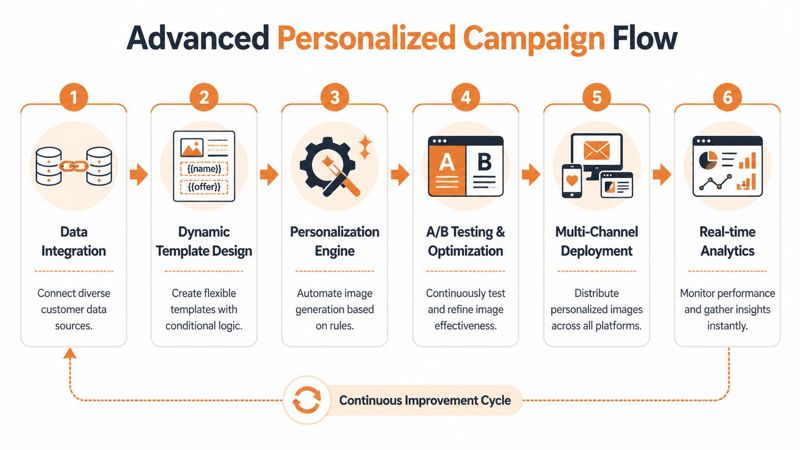
Build fallback logic first
A major weak point in personalization is handling missing data. As noted in this discussion of personalization failure points and fallback needs, incomplete data causes many projects to fail, which is why no-code systems with effective fallback mechanisms matter if you want 100% delivery rates.
The practical fix is simple. Every dynamic field needs a backup value.
Examples:
- If
first_nameis empty, use there - If
company_nameis missing, use your team - If
course_titleis unavailable, use this program - If a profile image fails, show a default branded graphic
That way the image still renders as a polished asset instead of exposing a blank token or broken layout.
Field rule: Never add a dynamic variable to an image unless you've already decided what appears when that variable is empty.
Use live data only when it improves the message
Real-time data is powerful, but it also adds complexity. Use it when the timing changes the value of the image.
Good uses of dynamic data include:
- course or program progress
- appointment details
- local event information
- current pricing or inventory context
- account milestones
Poor uses usually involve pulling live data just because it's technically possible. If the image doesn't become more useful with real-time information, keep the source static and reduce failure points.
Connect databases and APIs carefully
When you connect a database, webhook, or API to image generation, separate the workflow into parts rather than treating it as one black box.
A reliable structure looks like this:
Fetch the data
Pull the values needed for the imageValidate the fields
Check for blanks, malformed URLs, or missing assetsApply fallback values
Replace weak or empty inputs before generationGenerate the image
Render the final personalized versionStore the URL or output
Push it back into your ESP, CRM, or app
That order matters. If you generate first and validate later, you end up debugging broken renders instead of preventing them.
Keep templates stable and logic flexible
A common mistake is rebuilding the design every time the campaign changes. The better approach is to keep the visual system mostly stable and change the data logic behind it.
That means:
| Better practice | Risky practice |
|---|---|
| One master template with controlled variables | New design file for every audience segment |
| Shared fallback rules | Manual edits when fields are blank |
| Centralized data mapping | Each team member maps fields differently |
| Reusable export settings | One-off image sizes by channel |
This is what makes large-scale campaigns manageable. You don't want ten near-identical templates floating around because each one becomes another place for things to break.
Decide when to use no-code and when to use an API
No-code is usually the right starting point for marketers, agencies, and event teams. It’s faster to launch, easier to preview, and better for collaborative review. API-driven generation becomes more useful when images need to be triggered programmatically inside a product, app, or high-volume automation system.
Use no-code when you need:
- quick setup
- campaign previews
- marketing ownership
- simpler channel deployment
Use an API when you need:
- image generation inside product workflows
- large-volume automated requests
- application-level logic
- tighter engineering control
The trade-off is speed versus flexibility. No-code gets campaigns moving. API workflows give developers more control over how and when generation happens.
Prevent quiet failures
The most expensive problem isn't a loud error. It's a silent one. The campaign sends, but the personalization is wrong, generic, or broken for a slice of the audience.
Reduce that risk with a short release checklist:
- Preview edge cases such as blanks, long names, and broken image links
- Test live records from multiple segments
- Review mobile renders before launch
- Lock template permissions so approved designs aren't casually overwritten
- Store a default output for worst-case fallback
If the system can tolerate imperfect data and shared workflows without falling apart, you've moved beyond a neat demo into something teams can rely on.
Use-Case Blueprints for Every Team
The easiest way to spot a workable campaign is to tie the image to a real task someone already does. Event teams issue passes. Coaches send certificates. Sales reps need outreach that doesn't look copied and pasted. Agencies need repeatable client workflows without version chaos.
This is also where collaboration becomes more important than often anticipated. Team collaboration is often ignored in image personalization, yet platforms with built-in project management can prevent up to 25% of errors in team settings and improve consistency, according to Imgix’s discussion of image personalization and team workflows. Once more than one person touches templates, data, approvals, and exports, structure starts to matter.
Quick blueprints you can adapt
| Team/Role | Use Case | Dynamic Elements |
|---|---|---|
| Event organizer | Digital ticket or attendee badge | Name, company, event type, QR code |
| Coach or consultant | Certificate of completion | Recipient name, program title, completion date |
| Sales team | Prospecting image for outbound email | First name, company logo, custom headline |
| Email marketer | Newsletter hero image | Segment headline, tailored offer, CTA text |
| Nonprofit team | Donor thank-you image | Donor name, campaign name, recognition line |
| Real estate agent | Follow-up image after inquiry | Prospect name, property image, location text |
Event organizers
A good event image has one job. Get the attendee into the event smoothly while reinforcing that the registration is theirs.
The strongest layout is usually simple: attendee name, event name, ticket type, and a scannable QR code. Add too much text and it starts looking like a flyer instead of an access asset.
Coaches and consultants
Certificates are ideal for automated personalization because the perceived value is high and the variable set is predictable. The image can be used in email, on a download page, or as a shareable social asset.
What works well:
- recipient name as the visual focal point
- consistent signature area
- restrained branding
- a clean fallback if a completion field is missing
Sales teams and agencies
Outbound images work when they support the message, not replace it. A simple visual with the prospect’s name, their company logo, and a relevant headline can make a cold email feel less mass-produced.
Agencies should think in systems. One approved template per campaign type is usually better than custom creative for every account manager. If the campaign later expands into ecommerce retention or post-purchase messaging, resources on proven ecommerce upsell tactics can help shape the offer logic that sits behind the visual.
Shared templates reduce friction. Shared rules reduce mistakes.
Team workflow habits that save trouble
When several people work on image campaigns, use a few hard rules:
- Assign template ownership so one person controls final approval
- Separate design from data mapping when possible
- Use naming conventions for variants and exports
- Lock approved layouts before campaign launch
- Keep a library of fallback text that everyone uses consistently
The difference between a smooth operation and recurring chaos is rarely the image engine. It's whether the team treats personalization like a managed workflow instead of a pile of one-off assets.
Start Building Deeper Customer Relationships Today
Personalized images work because they make marketing feel specific again. Not fake-specific with a token first name. Actually specific. The person sees something built around their context, their event, their company, or their milestone.
That shift matters because it changes both attention and execution. You can automate personalized images for customers in a way that still feels human, but only if the workflow is sound. The image needs a clear purpose. The data needs to be mapped before launch. The fallback needs to exist before something goes missing. The team needs a shared process so the campaign doesn't unravel in production.
The practical opportunity is clear. You don't need to rebuild your entire marketing system to start. Pick one campaign where the visual matters, keep the template tight, use a small number of meaningful variables, and make sure the asset still looks good when data isn't perfect.
That's how personalized image automation becomes sustainable. Not as a clever trick, but as part of how you communicate with customers.
If you're ready to put this into production, OKZest lets you create dynamic image templates, merge in static or live data, use fallback values when fields are missing, and deploy personalized images into email or web workflows without rebuilding your stack.