Batch cropping isn't just a technical trick—it's the process of automatically applying the same crop settings to a huge number of photos all at once. For anyone managing digital assets, this is an absolute lifesaver. It literally shaves hours of repetitive work off your plate and keeps your visuals consistent across an entire project.
Why Batch Cropping Is a Non-Negotiable Marketing Skill
Let's paint a picture. Your team is gearing up for a big virtual summit. You've got headshots for 50 different speakers, and every single one needs to be perfectly sized for the website, email blasts, social media, and digital ads. Cropping all those images one by one? It’s not just tedious; it’s a recipe for burnout and a serious bottleneck that can delay your entire campaign launch.
This is where the real power of batch cropping images comes into play. It's so much more than a time-saving hack—it's a core strategy for keeping your brand looking sharp and getting marketing materials out the door faster.
The True Cost of Inconsistent Visuals
When image sizing and framing are all over the place, it makes a brand look amateurish and weakens its message. A user might see a perfectly centered headshot on your website, but then a terribly cropped version on social media. It creates a jarring, disjointed experience that can quietly chip away at their trust and perception of your brand's value.
A consistent visual identity is fundamental to brand recognition. Batch cropping ensures every image, from product shots to event photos, adheres to the same high standard, reinforcing brand quality at every touchpoint.
I’ve seen this firsthand. One marketing team was constantly struggling to prep assets for their multi-channel campaigns. They spent days on manual crops until they finally automated the task. The shift was immediate. Their creative folks were freed up to focus on more strategic work, like A/B testing ad copy and digging into performance metrics, instead of mind-numbing pixel-pushing.
Scaling Your Marketing Efforts Effectively
If you want to scale your marketing, you have to master batch processing. It’s that simple. Think about all the repetitive visual tasks that eat up valuable time:
- E-commerce Product Photos: Making sure every product image has the same 1:1 aspect ratio for a clean, uniform grid on your online store.
- Social Media Content: Quickly turning landscape photos into 9:16 vertical versions for Instagram Stories or TikTok.
- App Store Assets: To really nail app store growth, you have to understand the specific and often quirky app store screenshot requirements for each platform. This often means precise sizing across dozens of images.
By automating these jobs, you create a much more agile marketing operation. You can jump on trends faster, launch campaigns more efficiently, and rest easy knowing every visual asset representing your brand is polished and professional. This isn't just a technical chore—it's a foundational skill for any modern marketer.
Choosing the Right Batch Cropping Toolkit
Picking the right tool to batch crop your images really comes down to three things: your team's skills, the size of your project, and your budget. There’s no magic bullet here. The "best" tool is simply the one that slots neatly into your existing workflow, preventing you from wasting hours on a solution that just doesn't fit.
Getting this choice right is the difference between a smooth, automated process and a major headache. First, you need to decide if batch cropping even makes sense for what you're doing.
This quick flowchart can help you figure that out.
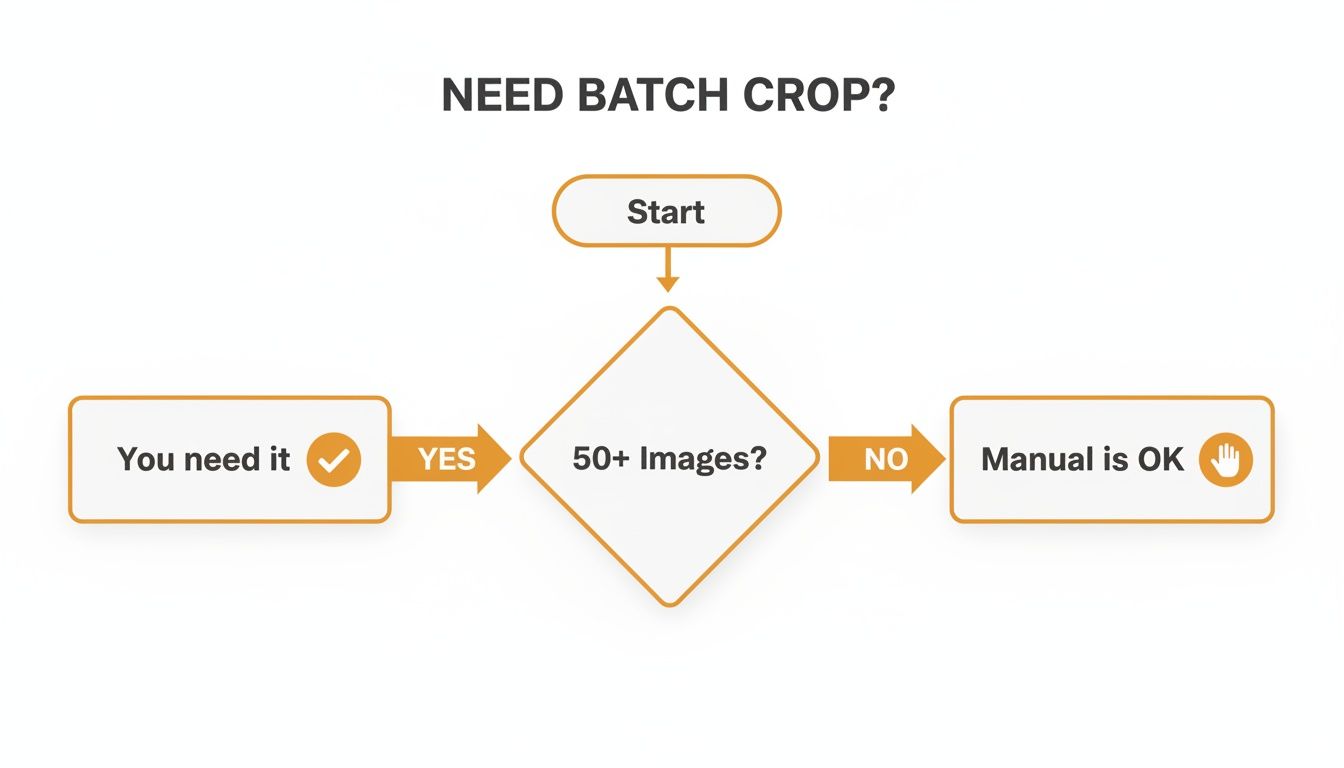
As you can see, once you're dealing with more than 50 images, the time you save with automation makes batch processing a no-brainer.
Match the Tool to Your Team
If your creative team practically lives in Adobe, then sticking with Photoshop Actions or Lightroom presets is the natural choice. They can build out complex workflows for cropping, resizing, and exporting without ever leaving the software they know and love. This flattens the learning curve and makes the most of tools they’re already paying for.
On the other hand, a more tech-minded marketer or developer might feel right at home with a command-line interface (CLI) like ImageMagick. It's incredibly powerful and flexible, letting you write custom scripts that can be plugged into bigger automated systems. It takes a bit more technical know-how, but the level of control and scalability is unmatched.
The real goal isn't just to crop images faster. It's to build a sustainable, repeatable process that anyone on your team can run. That's why picking a tool that aligns with your team's current skills is so important for making it stick long-term.
For professionals in specialized fields, it’s worth checking out dedicated software. For example, a good guide to real estate photo editing software will often highlight tools with powerful, built-in batch features designed specifically for that industry's needs.
Consider Your Budget and Scale
Your budget and the sheer volume of images you need to process are huge factors. A small business or freelancer who just needs to prep a few dozen photos for a social media campaign can get everything they need from a simple online tool. Many are free or very affordable, work right in your browser, and are perfect for those quick, one-off jobs.
But when you get to the enterprise level—where you need personalized images generated in real-time—an API-driven solution is really the only way to go. This isn't just about processing a folder of images anymore; it's about true automation. You can generate and crop images on the fly, customized for individual users in an email blast or on your website. If that sounds interesting, you can find more ideas in our guide on how to automate your designs.
To make the decision a bit easier, here’s a quick comparison of the most common methods.
A Comparison of Batch Cropping Methods
This table breaks down popular batch cropping tools across a few key criteria, helping you pinpoint the right solution for your specific situation.
| Method | Best For | Technical Skill | Scalability | Cost |
|---|---|---|---|---|
| Photoshop/Lightroom | Creative teams already using Adobe | Low to Medium | Good for hundreds of images | Part of Creative Cloud subscription |
| Command-Line (e.g., ImageMagick) | Developers needing custom scripts & automation | High | Excellent; scales to thousands+ | Free (Open-Source) |
| Online Tools | Small businesses & one-off tasks | Very Low | Limited; best for small batches | Free to Low-Cost |
| API Solutions (e.g., OkZest) | Enterprise-level, real-time personalization | Medium to High | Virtually unlimited | Subscription-based |
Ultimately, weighing these factors—your team's comfort zone, your budget, and the number of images you're tackling—will lead you straight to the perfect tool for your batch cropping needs.
If you're already living in the Adobe suite, you know it's more than just software—it's your creative command center. So why export images to another tool when you can build batch cropping right into your existing flow? This is a huge time-saver.
Instead of breaking your stride, you can automate cropping directly within the programs you use every day. It's a game-changer for prepping a whole series of blog post headers to a perfect 16:9 aspect ratio or making sure every speaker headshot for an event website is a clean, consistent square.
The real advantage here is that you keep total creative control and never have to mess with your high-quality original files.
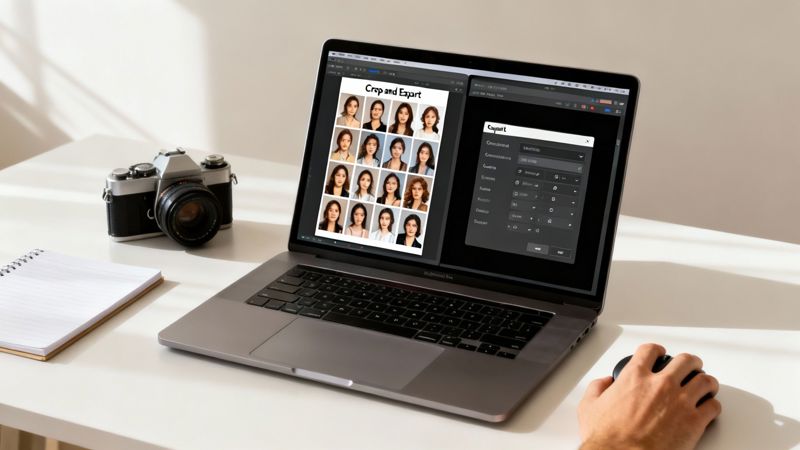
Mastering Photoshop Actions for Batch Cropping
In Photoshop, "Actions" are your secret weapon for automating just about anything. Think of an Action as a recording of a sequence of steps. Once you save it, you can replay that exact sequence on a single image or an entire folder with just one click. It's like creating your own custom editing button.
You start by recording yourself cropping a sample image. The trick is to use the Crop tool's settings to lock in a specific aspect ratio or fixed dimensions instead of cropping by hand. This forces every image processed by the Action to conform to the exact same shape.
Here’s how you can create a solid Action for cropping:
- Open a sample image. Pick one that's a good representation of the whole batch.
- Start recording a new Action. Go to the Actions panel and click "Create new action." Give it a descriptive name like "Crop to 16x9 Banner."
- Set your crop. Select the Crop tool and enter your fixed aspect ratio (like 16:9) in the top toolbar. Adjust the crop box on your sample image and commit to it.
- Add your export steps. While still recording, include a "Save As" or "Export for Web" step. This tells the Action to automatically save the new, cropped file to a specific folder.
- Stop recording. That's it. Your custom Action is ready to go.
With the Action saved, you can unleash it on a whole folder by navigating to File > Automate > Batch. This opens a dialog where you point Photoshop to your source folder, select the Action you just made, and choose a destination for the finished files. A task that could have taken hours is now done in minutes.
A pro tip I've learned the hard way: if your source folder has a mix of landscape and portrait photos, create separate Actions for each orientation. Running a landscape crop on a portrait image can result in some seriously awkward, unusable pictures. Sort your images first for a guaranteed clean result.
Streamlining Exports with Lightroom Presets
Lightroom handles batch cropping a bit differently, but it's just as powerful. Its strength lies in its non-destructive workflow, which is perfect for photographers and marketers managing huge galleries.
Instead of recording steps, you apply crop settings to a group of images right in the Library module and then export them all at once. You can quickly sync a 1:1 crop ratio across hundreds of photos for an Instagram post without ever touching the original files. The magic happens during the export, where Lightroom applies your settings to create perfectly consistent JPEGs or PNGs.
The workflow couldn't be simpler:
- In the Library grid, select all the images you want to crop.
- Go to the Quick Develop panel on the right and apply a crop ratio (e.g., 1:1 for squares, 4:5 for vertical posts).
- Click the "Sync" button to apply that same crop setting to every photo you selected.
- Finally, hit "Export." Lightroom will process the entire batch with your synchronized crop settings.
This method gives you a fast, visual way to check for consistency across a large set of images before you commit to the final export. It's an essential skill for anyone doing high-volume creative work.
Unlocking Efficiency with Command-Line and API Automation
When you're ready to graduate from graphical interfaces and tap into true, scalable automation, command-line tools and APIs are your best friends. This is definitely for those who are comfortable with a bit of code, but the payoff is immense—you gain total control and can slot batch cropping directly into larger, automated workflows.
Forget clicking through menus. Imagine writing a simple script that churns through thousands of images in just a few minutes. That's a fundamental shift for any business trying to scale its digital operations. And the demand for this kind of efficiency is exploding. The global photo editing software market was valued at $449.2 million in 2023 and is expected to nearly double to $886.2 million by 2032. This isn't just growth; it's a clear signal that the industry is leaning heavily into automated image processing.
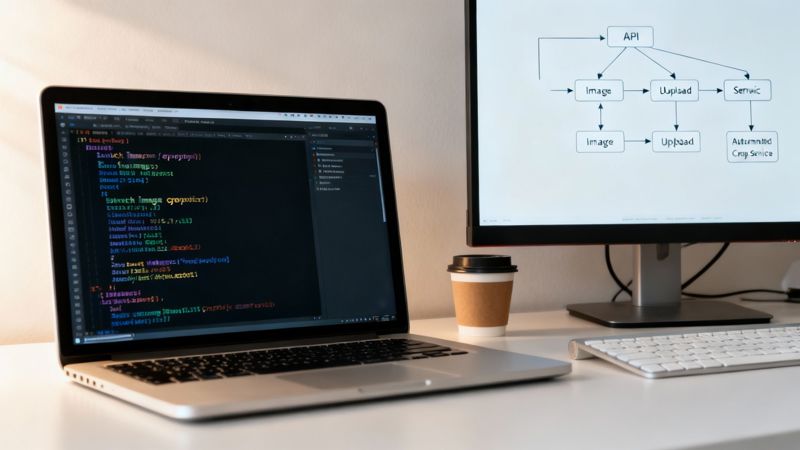
Harnessing ImageMagick for Scripted Cropping
Let's talk about ImageMagick. It’s a free, open-source beast for image manipulation. Don't look for a user interface, because there isn't one. You interact with it entirely through text commands in your terminal. That might sound a bit old-school, but its real power is in its simplicity and scriptability.
You can whip up single-line commands to perform incredibly complex tasks on entire folders of images. Got a folder of product photos with inconsistent whitespace? One ImageMagick command can trim the excess from every single one automatically.
Here’s a practical, copy-and-paste example to get your feet wet. This command finds all JPG files in your current directory, crops them to a 1200x628 pixel rectangle from the center, and saves the new versions in a cropped subfolder.
mkdir cropped mogrify -path cropped -gravity center -crop 1200x628+0+0 +repage *.jpg
These little scripts are the building blocks of a bigger system. You can schedule them to run, trigger them when a file is uploaded, or chain them together for multi-step image transformations.
Once you get the hang of command-line tools, you start seeing automation opportunities everywhere. A task that used to kill an afternoon becomes a script that runs in the background while you focus on work that actually matters.
The Future is Real-Time API Processing
Command-line scripts are fantastic for scheduled jobs, but the most advanced setup is real-time, API-driven processing. With this approach, the whole idea of a "batch job" disappears. Instead of processing a folder of images, you generate perfectly cropped and even personalized images on the fly, right when you need them.
Services like OKZest are built for this. A single API call can grab a base image, overlay personalized text for a specific user, and crop it to the perfect dimensions for an email campaign—all in milliseconds. This is how you send out a massive email blast where every single person sees a unique image with their name on it, perfectly framed for their device.
This opens up a ton of possibilities that are just impossible with traditional methods:
- Personalized Event Certificates: Generate thousands of unique certificates with attendee names, all cropped and ready for download.
- Dynamic Social Media Content: Create custom images for social media direct messages based on what a user does.
- Real-Time Website Visuals: Serve images on your site that are automatically cropped to fit different layouts and screen sizes perfectly.
This level of image automation transforms image processing from a manual chore into an integrated, hands-off part of your marketing machine. It's how you deliver a truly personalized experience at scale.
How Smart Cropping Directly Impacts Engagement
Let’s be honest, batch cropping sounds like a purely technical, time-saving task. But it's so much more than that. The way you frame an image has a genuine psychological impact on the viewer, guiding their eye and shaping how they feel about your brand. It’s the subtle difference between a passive glance and real engagement.
Strategic cropping is really just applying classic composition principles at scale. When you use automation to follow guidelines like the rule of thirds, you can consistently put your product or key subject in the most visually appealing part of the frame. This isn't just about making things look nice; it's about drawing the user's eye exactly where you want it to go.

From Visual Principles to Business Outcomes
Picture this: you're running an A/B test for an email campaign promoting a virtual summit. Version A has a gallery of headshots where speakers are off-center, awkwardly cut off, or looking away from the camera. Version B uses perfectly cropped images where every single speaker makes direct eye contact, creating an immediate, personal connection.
Which one do you think performs better? It's not even close.
Thoughtful cropping makes your content feel more professional and engaging, which translates directly into better business results. In fact, research shows that well-executed image cropping can boost click-through rates by up to 17%. If you're managing large-scale campaigns, that kind of lift is a clear sign that automating your visual optimization is a smart move. You can see the data for yourself to understand the full impact.
Good cropping does more than just make things look neat—it elevates your brand and improves the entire user experience. It's a small detail that signals professionalism, builds trust, and ultimately drives more conversions.
Enhancing Engagement Across Channels
This isn't just about one channel; it's about creating a cohesive visual identity everywhere. Smart, consistent batch cropping ensures your brand looks polished and professional at every touchpoint.
Here’s how it plays out in the real world:
- Email Marketing: When you crop headshots to focus on a person's eyes, it builds a much stronger connection with the reader. This makes them far more likely to click through. For a deeper look, check out our ultimate guide to using images in email to transform campaign performance.
- Social Media: On a visually-driven platform like Instagram, cropping product shots to fill the frame and cut out background noise makes them pop. Your products instantly look more important and desirable.
- Website Banners: A well-cropped image can use leading lines to naturally guide a visitor's gaze right toward your "Shop Now" or "Learn More" button, directly improving conversions.
When you implement a smart batch cropping strategy, you stop just posting pictures and start architecting a visual experience. It's an intentional approach that makes every single image work harder to grab attention and drive the actions that grow your business.
Common Questions About Batch Cropping Images
Once you start thinking about batch processing, a few common questions always seem to pop up. Nailing down the answers to these is the key to building a workflow you can actually rely on. Let's walk through the most frequent hurdles that marketers and creators run into.
How Do I Handle Different Aspect Ratios in One Batch?
This is the classic dilemma. You’ve got a folder full of images—some portrait, some landscape—but you need them all to fit the same dimensions. How you tackle this really comes down to the look you're trying to achieve.
Your first option is to enforce a uniform shape, like a 1:1 square for social media profiles. To do this, you'll need to pick a crop "gravity," which tells the software what part of the image to prioritize. Most tools default to the center, which works great sometimes, but it also means you’ll inevitably chop off parts of the original image.
Another approach is to add padding, often called "letterboxing." This method fits the entire original image inside your target dimensions by adding colored bars (usually black or white) to the sides. It preserves the whole photo, which is great, but it doesn't always look as clean or professional. For a more sophisticated solution, some AI-powered tools can actually detect the main subject in each photo and intelligently crop around it, giving you the best of both worlds without the manual effort.
Will Batch Cropping Images Reduce Their Quality?
It's a common fear, but cropping itself doesn't degrade your image. All you're doing is slicing away pixels from the edges. The real risk of quality loss comes when you save the new file, especially with a compressed format like JPEG.
To stay on the safe side, always, always work with copies. Keep your original, high-resolution files somewhere safe and untouched. When you save your newly cropped JPEGs, make sure you're using a high-quality setting. A value of 85 or higher is usually a solid bet to avoid noticeable compression artifacts.
If your process also involves resizing the image down, you might see a slight loss in sharpness. That’s just the nature of resampling an image. You can minimize this by using a high-quality algorithm like 'Bicubic Sharper' in a tool like Photoshop.
It's easy to confuse cropping and resizing, but they're not the same. Cropping removes pixels from the outside in, while resizing changes the dimensions of the whole image by resampling pixels. They're often done together, but they are two distinct steps.
For example, a common workflow is to first batch crop a folder of images to a 16:9 aspect ratio, and then batch resize them all to 1920x1080 pixels for a website banner.
Can I Batch Crop Images for Free?
Absolutely. There are some fantastic free options out there. If you're comfortable with a command-line interface, a tool like ImageMagick is incredibly powerful, open-source, and completely free.
For those who prefer a graphical interface, plenty of free online batch croppers can handle one-off jobs quickly. Just be sure to glance over the privacy policy and terms of service before uploading a large batch of images to any web-based tool.
Ready to automate your image creation from start to finish? With OKZest, you can generate thousands of personalized, perfectly cropped images in minutes using our no-code and API solutions. Start creating for free today at okzest.com.