You’ve probably had this experience. You build a campaign carefully, write a solid subject line, segment the audience, and send it out. Then the visuals land with a thud because every recipient sees the same banner, the same product shot, the same generic hero image.
That gap matters more than is often realized. Copy can feel personal while the image still feels mass produced. When that happens, the message and the visual work against each other.
Dynamic image URLs solve that problem in a surprisingly practical way. They let marketers turn one visual template into many personalized versions, generated in real time from customer data, without needing to manually export endless image variations.
Beyond Generic Visuals Why Personalization Matters
A marketer sends an abandoned cart email with the right name, the right subject line, and the right timing. Then the customer opens it and sees a generic banner that could belong to anyone.
That is often where momentum drops.
People read visuals before they read the rest of the message. If the image feels generic, the whole campaign can feel generic, even when the copy is well targeted. A donor thank-you page with warm language and a stock photo creates the same problem. So does a sales email that mentions a prospect’s company while showing a banner built for a broad audience.
Why generic visuals underperform
Personalization works best when the message and the visual tell the same story. If the text says "we know who you are" but the image says "this was sent to everyone," trust weakens. The campaign feels less specific, less timely, and less useful.
For marketers, this is a significant shift. Personalization is not just about adding a first name to copy. It is about helping someone recognize, at a glance, that the message relates to their situation. If you want broader context on that strategy, this explanation of personalization in marketing lays out the bigger picture.
Visual personalization fits into the same stack as email segmentation, product recommendations, and personalized landing pages. That is why teams evaluating content personalization software often end up asking a practical question: can the image change too, or only the text?
The shift from static assets to adaptable visuals
A static image is a finished poster. A personalized image is closer to a template with changeable parts.
That difference matters in day-to-day marketing work. Instead of creating separate files for every product, location, customer tier, or deadline, you prepare one design that can adapt. The headline, product shot, countdown, badge, map, score, or offer can change based on the viewer.
Personalization is not only about novelty. It helps people orient themselves faster. They can see, almost instantly, whether the content connects to their last action, current status, or likely interest.
The strongest personalized campaigns change what the customer sees, not only what the copy says.
Dynamic visuals find utility for non-technical teams, not just developers. Tools like OKZest help marketers set up image templates that respond to data, so the process feels much closer to configuring merge tags than building custom software.
Why marketers care now
For a long time, personalized imagery sounded good in theory but was painful in practice. A team had to design, export, name, store, and insert large numbers of image variations by hand. That made visual personalization expensive to maintain and hard to scale.
Dynamic image workflows change that operating model. You create the template once, connect the changing parts to data, and let the system generate the right version when needed. For marketers, that means less production bottleneck and more room to test relevant visuals across email, landing pages, ads, and sales outreach.
The strategic benefit is simple. Better visual relevance helps the campaign feel more coherent from first glance to final click.
What Are Dynamic Image URLs
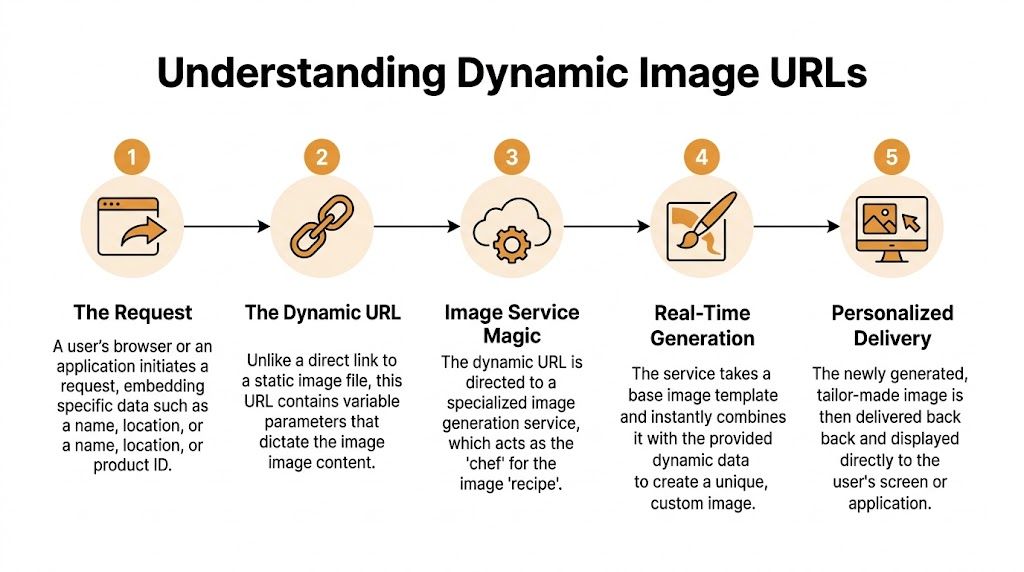
A dynamic image URL is a link that builds an image at the moment someone loads it.
For a marketer, the easiest way to understand it is to compare it to merge tags in email. You already know how {{FirstName}} can drop a name into subject lines or body copy. Dynamic image URLs apply that same idea to the visual itself, so the image can change based on customer data, timing, location, or behavior.
A simple definition
Dynamic image URLs are image links that use variables to generate a customized image in real time, based on the viewer’s data or context.
That small shift changes how you should think about an image. A standard image URL points to one finished file. A dynamic image URL points to a template plus instructions for what to change.
The URL works like a set of image merge tags
Instead of storing hundreds of separate banners, you create one design and let the URL pass in the changing parts.
Those parts might include:
- A name: Show “Hi Sarah” instead of a generic greeting
- A product: Display the item someone viewed or added to cart
- A date or countdown: Reflect a live deadline or event start time
- A score or status: Useful for dashboards, reports, and progress updates
- A recommendation: Swap in an offer based on interest or segment
The URL does more than just locate an asset; it also tells the image service how to assemble the final version.
Why marketers should care
Dynamic image URLs give marketers a practical way to use visual personalization without turning every campaign into a design production project.
That is the strategic shift.
You are no longer choosing from a folder full of static variations. You are setting rules for one template and letting the system generate the right image for each person or situation. For teams using no-code tools such as OKZest, that makes dynamic images much more approachable. The setup feels closer to mapping fields than writing software.
What this looks like in practice
A webinar campaign is a good example. One image template can show the event title for everyone, while changing the attendee’s first name, registered session, local time, and countdown automatically.
A post-purchase email works the same way. The banner can pull in the customer’s name and the product category they bought, so the visual matches the action that triggered the message.
A dynamic image URL turns a design template into a live marketing asset.
If you want a clearer picture of the mechanics behind this idea, this guide to image API URLs for marketers connects the business use case to the technical structure without dropping you into developer documentation.
The value proposition
The value is not only personalization. It is repeatable personalization that a marketing team can manage.
One template can produce many variations without manually exporting, naming, storing, and inserting a huge library of image files. That reduces production work, but the bigger benefit is control. Marketers can test more relevant visuals, launch faster, and make personalized creative part of normal campaign operations instead of a one-off technical project.
How Dynamic Image URLs Actually Work
Under the hood, dynamic image URLs are structured systems. From a marketer’s point of view, though, they’re easier to understand if you treat them like a recipe card.
You start with a base image or template. Then you add instructions that say what should change. When someone loads the URL, the system reads those instructions and creates the final image on the fly.
The three parts that matter
Most dynamic image URLs have three basic ingredients:
The base path
This points to the image service or template source.The asset or template ID
This tells the system which design to use.The parameters
These are the changing values, such as a first name, product title, image source, background color, or fallback text.
Adobe describes this kind of structure as a URL that constructs virtual renditions on the fly by appending modifiers to a base URL, using a pattern like assetID?preset=modifier1:parameter1. When the URL resolves, the server applies commands similar to Photoshop operations such as crop and resize, without pre-processing or storing a separate output file in advance, as explained in Adobe’s guide to dynamic media URLs and image presets.
Read the URL like a recipe
Here’s the plain-English version of what happens.
The template says, “put text here, an image there, maybe resize the output, maybe change a color, maybe swap an element.” The parameters in the URL fill in those blanks. The server receives the request, follows the instructions, and returns the final image.
That’s why a dynamic URL can produce many outputs from one template. The design stays stable. The data changes.
| Parameter | Purpose | Example Value |
|---|---|---|
name |
Personalize visible text | Sarah |
product |
Insert a product title or label | Running Shoes |
image |
Swap in a customer or product image | summer-sale-banner |
color |
Change design styling | blue |
fallback |
Provide a default when data is missing | Friend |
Why marketers get confused about parameters
The word “parameter” sounds technical, but it usually just means “the thing you want to control.”
If your image template contains a text box for a first name, that text box might connect to a parameter called name. If your design includes a product image layer, that might connect to image or product_image. You don’t need to think like a developer. You need to know which fields exist and what values they expect.
Some systems also use URL encoding. That sounds intimidating, but in practice it just means special characters get translated into a web-safe format. Most no-code tools handle that for you. If a space becomes a symbol in the final URL, that’s normal.
Practical rule: If a URL looks messy, that doesn’t mean it’s broken. It often means the system has safely encoded the data for the browser.
Fallbacks keep campaigns safe
This is one of the most important ideas to understand. Sometimes your data won’t be complete.
Maybe a contact record is missing a first name. Maybe a CRM field wasn’t synced. Maybe a product image URL is empty for one segment. If your image system depends on data and the data is missing, you need a backup plan.
That’s where fallbacks come in. A fallback is the default value the system uses when personalization data isn’t available. Instead of rendering an awkward blank area, the image can display “there,” “valued customer,” a default photo, or a generic version of the visual.
Fallbacks are not a small technical detail. They’re part of campaign quality control.
What you control as a marketer
You don’t need to write image-generation code to work effectively with dynamic image URLs. You mostly need to manage five choices:
- What should stay fixed in the design
- What should change for each person or segment
- Where the data comes from, such as your ESP or CRM
- What the default should be if a field is missing
- Where the image will appear, such as email, landing pages, or social content
If you want a more tool-oriented view of this setup, this guide to a dynamic image API is useful because it shows how templates and parameters connect in practice.
Once you understand those choices, the technology stops feeling mysterious. It becomes a campaign-building tool, not an engineering project.
Putting Dynamic Images into Practice
The appeal of dynamic image URLs isn’t the concept. It’s how little effort they can take once your template is ready.
For marketers, the two most common implementations are email and web. Those also happen to be the easiest places to start because you already control the content and already have data flowing through your stack.
Email is usually the fastest win
Email platforms already use merge tags. That makes dynamic images feel familiar.
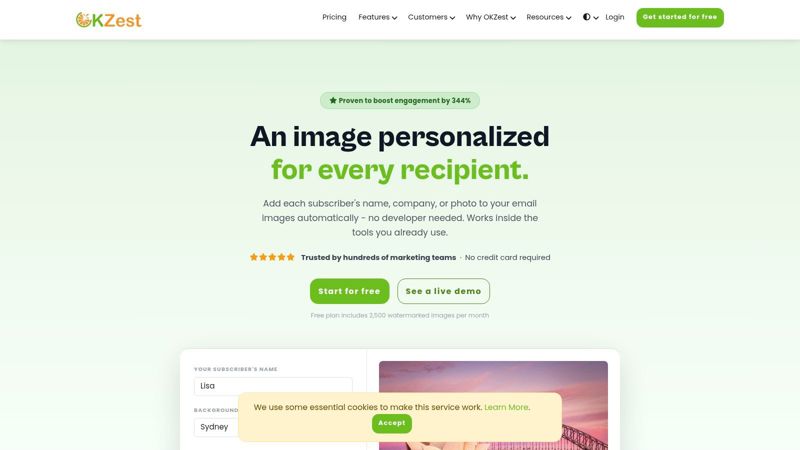
The pattern is straightforward. You create an image template in a no-code tool, generate a dynamic image URL, and place that URL inside an image block in your ESP. Wherever the URL expects a value, you insert the merge tag from your email platform.
Here’s what that feels like in practice:
- Your template has a text area for first name
- The image URL includes a parameter for that field
- In Mailchimp or Klaviyo, you paste the merge tag into the URL
- Each recipient gets a version of the image with their own data
That’s why marketers often describe this as “merge tags for images.” The workflow is close enough to what they already do that adoption doesn’t require a deep technical handoff.
A simple email workflow
If you’re building your first campaign, keep it small and visible. A personalized hero image in a welcome email or event reminder is usually easier to manage than a complicated multi-image newsletter.
A practical workflow looks like this:
- Design a template with fixed branding elements.
- Decide which fields should change, such as name, city, product, or date.
- Generate the image URL from your template tool.
- Replace static sample values with ESP merge tags.
- Send test emails to records with and without complete data.
One option for this is OKZest, which provides no-code and API ways to generate personalized image URLs and supports fallback values when personalization data isn’t available. That makes it usable in common ESP workflows where marketers want to copy, paste, test, and launch without building custom infrastructure.
Dynamic images on a website
Web implementation is even more direct. Instead of placing the URL in an email image block, you place it inside an HTML image tag.
The concept is the same. The browser requests the image URL, the service generates the image in real time, and the page displays the result.
A very simple pattern looks like this in principle:
- the page contains an image element
- the
srcpoints to your dynamic image URL - the URL includes the parameters needed to build the image
This is useful for landing pages, account dashboards, referral pages, personalized thank-you pages, and shareable graphics that update based on user context.
If you can place a normal image on a page, you can usually place a dynamic one too.
Why no-code matters here
Strategy meets execution. Marketers don’t avoid personalization because they dislike relevance. They avoid it when the production burden gets too high.
No-code tools remove much of that burden. Instead of exporting endless variations or asking developers to generate assets in batches, the team manages a single template and lets the URL do the work. The process becomes operationally realistic.
A few examples where this clicks fast:
- Event marketing: Add attendee names and event dates to confirmation graphics
- Sales outreach: Show the prospect’s company or rep name in a custom header image
- Ecommerce: Display category-specific banners based on cart behavior
- Customer success: Personalize onboarding visuals by plan, milestone, or team name
Start with one campaign, not ten
The easiest mistake is overbuilding. Teams see the flexibility and immediately want live pricing, localized imagery, multi-product logic, and several fallback layers all at once.
A better move is to choose one campaign where the visual relevance is obvious. Welcome emails, webinar reminders, donor thank-you messages, and post-purchase follow-ups are good starting points because the customer context is already clear.
Once one campaign works, you can carry the same system into other channels without rethinking the whole approach.
Powerful Use Cases Across Industries
Dynamic image URLs become more interesting when you stop thinking only about “first name in a banner.” The stronger use cases connect the image directly to a business moment.
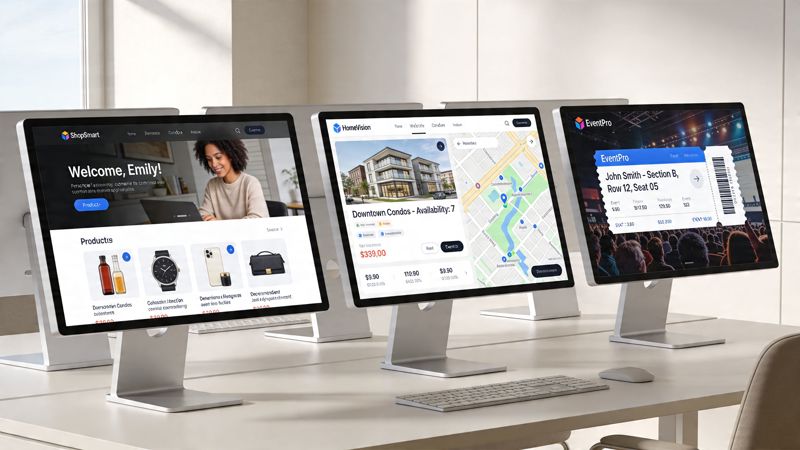
The technology has been used in personalized campaigns across Twitter, Facebook, Instagram, email, and web environments, where image content changes based on recipient data. The no-code approach has widened access by letting marketers generate personalized media in real time through URL parameters without needing programming expertise, as discussed in this UX Design article on dynamic image generation.
Coaches and educators
A coach finishes a cohort program and wants to send completion certificates. The old workflow means opening a design file, changing names one by one, exporting each version, and sending them manually.
With dynamic image URLs, the certificate template stays fixed while the participant name, course title, and completion date change automatically. The business benefit isn’t only saved time. It’s that the coach can deliver a polished, personal moment without creating an admin burden.
Nonprofits and fundraising teams
A donor gives to a campaign. The thank-you email arrives with a visual that reflects the donor’s name and the specific initiative they supported.
That makes the follow-up feel less transactional. It signals that the organization noticed the action and tied the response to it. For nonprofits, that kind of relevance helps support relationship building, especially when the next step is continued engagement.
Real estate and property marketing
A real estate agent sends outreach to a lead interested in a specific listing type. Instead of a generic property image, the visual can reference the neighborhood, property style, or next open house.
This works because real estate is highly contextual. People care about particular homes, areas, and budgets. When the image mirrors those details, the message becomes easier to understand at a glance.
Events, sales, and outreach teams
Event marketers can personalize invitation graphics with attendee names, event titles, or session information. Sales teams can tailor outbound visuals for accounts, industries, or regions. Recruitment teams can personalize candidate outreach with role or company-specific imagery.
These aren’t niche experiments. They’re practical ways to move visual communication closer to the context already available in your data.
The most useful dynamic images aren’t flashy. They remove friction by making the message easier to recognize as relevant.
The pattern across industries is consistent. Teams use one template, connect it to live or stored data, and turn a generic visual into a moment that feels more specific to the recipient.
Performance Security and Optimization
Marketers usually ask two sensible questions about dynamic image URLs. Will they load quickly, and are they safe to use at scale?
Both questions matter because personalization loses its value if the asset loads slowly or behaves unpredictably. The good news is that modern image delivery systems are built to handle these concerns through caching, optimization, and controlled inputs.
Why speed doesn’t have to suffer
A dynamic image is generated in real time, but that doesn’t mean every request starts from scratch in a slow, fragile way.
Dynamic URLs can combine URL parameters with Client Hints so CDNs serve more appropriate image variants across devices. According to Cloudinary’s explanation of dynamic URLs, benchmarks indicate this can lead to up to 34% faster page speeds and cut bandwidth by 50 to 70% on repetitive requests through edge caching.
That matters because the decision between personalization and performance isn't always required. When the delivery layer is configured well, both can work together.
What optimization looks like in practice
Image optimization usually involves a few familiar ideas:
- Right-sizing images: Don’t send a large desktop asset to a small mobile screen
- Compression: Reduce file weight while preserving acceptable visual quality
- Caching: Reuse generated versions when the same image is requested repeatedly
- Responsive delivery: Serve different variants based on the device context
If you want a broader primer on the fundamentals behind this, OneNine has a useful guide on optimizing website images that complements the dynamic image discussion nicely.
Security is mostly about input control
The security side is less visible, but it matters. Dynamic image URLs often accept inputs like names, titles, product labels, or image references. A professional platform has to sanitize those inputs so users can’t inject harmful or broken values into the rendering process.
Marketers don’t need to become security specialists here. What they do need to know is that a reliable setup should validate inputs, constrain what parameters can do, and avoid exposing unnecessary internal logic in public-facing assets.
Personalization works best when the marketer controls the template and the platform controls the guardrails.
What to watch during setup
You don’t need a performance audit before trying dynamic images, but you should check a few basics:
- Test on multiple devices: Make sure text remains readable on small screens
- Review cache behavior: Confirm design updates appear when expected
- Use sensible image dimensions: Keep output aligned to where it will be shown
- Check fallback states: A missing value shouldn’t create a broken visual
Handled well, dynamic image URLs don’t create a new burden for the marketing team. They move complexity into systems that are designed to manage it.
Best Practices for Success with Dynamic Images
The teams that get the most from dynamic image URLs usually keep the strategy simple. They don’t start with the most advanced use case. They start with the clearest one.
That’s the right instinct because this is a discipline, not just a feature. You’re combining design, data quality, channel behavior, and audience context. A few habits make the difference between a smooth rollout and a frustrating one.
Start with high-context campaigns
Some campaigns naturally give you better personalization material than others. A webinar registration, a cart reminder, a course completion email, or a donor thank-you message all come with obvious data and obvious visual relevance.
Those are better starting points than broad newsletters or top-of-funnel campaigns where the personalization logic is less direct.
Treat data quality as part of design
A beautiful template won’t save messy data. If your first-name field is unreliable, or your product data isn’t normalized, the final image can feel awkward fast.
Use this checklist before launch:
- Check field formatting: Make sure names, dates, and labels appear the way you want
- Trim unnecessary variation: “NYC” and “New York City” might need a standard rule
- Preview edge cases: Test empty fields, long values, and unusual characters
- Define defaults early: Don’t wait until QA to decide your fallback text
Design for flexibility, not perfection
Dynamic images are living assets. That means rigid layouts often break first.
A practical design usually has enough breathing room for longer names, product titles, or translated text. It also avoids placing the most important information in areas that are easily crowded.
Build templates that can bend a little. Real campaign data is rarely as neat as sample data.
Test the visual idea, not only the copy
Marketers are used to testing subject lines and body copy. Dynamic images give you another lever.
You can test whether a name-based visual works better than a product-based one. You can compare a countdown image with a simple event reminder graphic. You can also test whether highly personalized imagery feels helpful or distracting for a particular audience.
The point isn’t to personalize everything. The point is to learn when visual personalization sharpens the message.
Keep a troubleshooting habit
Most dynamic image problems come from a short list of issues:
- Wrong parameter names: The template expects one field, the URL sends another
- Missing data: The system receives a blank value and no fallback was set
- Layout overflow: Long text pushes beyond the intended area
- Channel quirks: Email clients and web environments can render differently
These are manageable problems. They become much easier when your first campaign has a tight scope and a clear QA process.
Dynamic image URLs are one of the most practical ways to make personalization feel real, not just decorative. They let marketers connect copy, context, and visuals in a single asset. Once you understand the logic, you don’t need to be a developer to use them well.
If you want to try this approach yourself, OKZest lets you create personalized images with no-code and API workflows, then use those images in email campaigns or web pages through dynamic URLs. It’s a practical way to start with one template, one campaign, and one clear personalization idea.