You’ve probably hit this point already. The campaign copy is solid, the segmentation is clean, the subject line includes a first name, and the results still feel ordinary.
That usually happens because basic personalization stops at text. The inbox, the landing page, the DM, or the certificate image still looks like it was made for everyone. Once that happens, people scan past it.
Learning how to add dynamic text to images changes that. Instead of showing one static visual to every recipient, you generate an image that changes per person, per account, per event, or per message. A webinar reminder can include the attendee’s name. A sales follow-up can show the prospect’s company. A nonprofit can send supporter-specific thank-you graphics. An event organizer can generate certificates without manually editing files one by one.
The practical challenge is that there isn’t just one way to do it. Some teams only need merge-tag style personalization. Others need browser-based rendering, website embeds, or API-driven image generation tied to a CRM or database. The method matters, because the wrong setup creates broken layouts, unreadable text, and hard-to-debug campaigns.
The good setup does the opposite. It gives you flexible templates, sensible defaults, and an image that still works when a name is long, data is missing, or the background changes.
Beyond Generic Hello World Personalization
Adding a first name to a subject line still has value. It just isn’t enough on its own anymore.
Marketers often reach a ceiling with lightweight personalization because the rest of the experience stays generic. The email body is templated. The hero image is the same for everyone. The social graphic says “special offer” but doesn’t reflect who the message is for. That gap is where attention drops.
Dynamic image personalization closes it by moving the variable content into the visual itself. The text inside the image can change based on recipient data, a spreadsheet row, a CRM field, a form submission, or an API response. Instead of sending one certificate image, you generate one per attendee. Instead of a generic sales graphic, you create a version that includes the prospect’s company or role.
What dynamic text actually means
At a practical level, dynamic text is text that changes automatically inside an image template. You define the layout once, then feed in values such as:
- Names: First name, full name, preferred name
- Organizations: Company, school, nonprofit, team name
- Contextual fields: Event title, appointment date, offer code, destination
- Fallback values: Default words when personalization data is missing
That last item matters more than people think. Real-world data is messy. Some contacts don’t have a company field. Some names are too long. Some systems return blanks. A professional setup plans for that from the start.
Practical rule: If a dynamic image can break because one field is empty, it will break in production.
Where teams usually get stuck
The hard part usually isn’t inserting text. It’s making that text behave well under real campaign conditions. Long names wrap badly. Dark backgrounds make text unreadable. Email clients cache aggressively. Designers create a beautiful mockup that only works with one sample name.
A better workflow treats image personalization as a system, not a novelty. You choose the rendering method based on scale, build templates with text-safe zones, define fallback logic, and test the image where it will be seen.
That’s the difference between a clever demo and a repeatable channel you can trust.
Why Dynamic Images Are a Marketing Game Changer
Generic visuals disappear into the background. Personalized visuals ask for attention in a more direct way because the content feels intended for one person, not for a list.

That shift matters across channels. In email, a personalized image can reinforce the message before a subscriber reads a line of body copy. In a sales workflow, it can make a cold outreach screenshot feel more relevant. In social DMs or WhatsApp, it can make a message feel crafted rather than mass produced.
Adobe’s 2025 introduction of Dynamic Text in Photoshop brought this idea into mainstream design workflows by automating resizing and reflow of text inside a bounding box, reducing the time needed for variable content overlays by up to 70% according to the referenced tutorial and benchmarks in the source material from Adobe evangelist Julieanne Kost’s demonstration.
Why visuals outperform simple text personalization
A personalized image does two things at once. It carries the emotional impact of design and the relevance of variable data. That combination is stronger than “Hello Sarah” at the top of an otherwise standard email.
It also changes how teams think about campaign production. One template can support newsletters, certificates, webinar graphics, event reminders, social assets, and prospecting images. Once the layout is built correctly, the image becomes a reusable component inside your marketing stack.
Here’s where that becomes strategically useful:
| Use case | What changes dynamically | Why it works |
|---|---|---|
| Email campaigns | Name, company, offer text | The image mirrors the recipient context |
| Event certificates | Attendee name, event title | Eliminates manual editing |
| Social outreach | Prospect name, brand, CTA | Feels specific, not mass sent |
| Website banners | Location, product, customer type | Matches page or visitor context |
It changes the production model
The bigger win isn’t only engagement. It’s that visual personalization becomes operationally realistic.
Without automated text handling, teams either avoid image personalization or accept a lot of manual adjustment. With modern tooling, marketers can design one structure and let the text fit itself inside the available space. That makes larger campaigns possible, especially when a design needs to accommodate many name lengths and message variants.
Teams thinking about broader visual customization may also find inspiration in this guide for bedding brands on 3D configurators, because it shows the same strategic pattern: better customer experiences come from making visuals respond to the individual, not from showing everyone the same static asset.
Personalized images don’t just decorate a campaign. They turn a broadcast into a one-to-one visual message.
Four Core Methods for Adding Dynamic Text to Images
There isn’t one universal setup. The right approach depends on who builds the image, where the data lives, and how often the output changes.
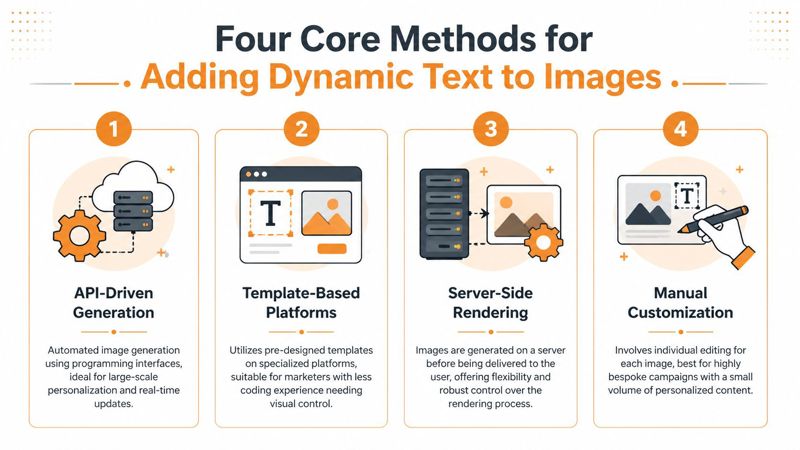
Manual editing for low volume work
This is the oldest method and still useful in narrow cases. A designer opens Photoshop, Figma, Canva, or another editor and changes the text manually for each image.
It works when the volume is tiny and quality is paramount. Think executive gifts, a handful of VIP invites, or a one-off keynote slide where each graphic needs close art direction.
The trade-off is obvious:
- Good for: Small runs, highly bespoke assets
- Bad for: Email campaigns, certificates, sales outreach at scale
- Failure point: Humans eventually miss a name, duplicate a file, or export the wrong version
If you’re generating more than a small batch at a time, manual work stops being a creative choice and becomes production drag.
Merge-tag style template platforms
An effective starting point is to design a base image, place text layers where dynamic content should appear, and insert merge tags such as a first name or company field. The platform then generates a personalized image for each contact.
This approach is practical because it keeps control in the hands of marketers instead of developers. It also fits the way email teams already work. If you understand merge tags in an ESP, the logic feels familiar.
One example is OKZest’s article on image URL parameters for marketing automation, which shows how dynamic values can be passed into an image through parameters rather than hard-coded artwork. That model is especially useful when a campaign already pulls contact data from an ESP or CRM.
A good template platform should handle:
- Multiple dynamic fields: Not just one name token
- Fallback values: Defaults when data is missing
- Text sizing behavior: So long values don’t wreck the layout
- Easy deployment: Email, web pages, chat, and social use slightly different implementations
This is usually the best balance of speed and control for agencies, consultants, event organizers, and email marketers.
Website embedding with front-end rendering
Sometimes the image needs to change in real time on a webpage rather than being generated in advance for email. In that case, teams often render dynamic overlays in the browser using HTML Canvas or similar front-end methods.
The core idea is straightforward. A script loads an image, inspects pixel data, and adjusts the text presentation based on the background. The source material notes that developers can use ctx.getImageData(0,0,canvas.width,canvas.height) to read RGBA values and adapt text color for readability, and that this technique is foundational to over 95% of modern dynamic image tools according to the referenced explanation on dynamic text overlays with Canvas.
That’s useful when a background isn’t predictable. If one image area is dark and another is light, the script can switch text color or class names to preserve contrast.
Browser rendering is flexible, but it also pushes responsibility onto the front end. You need to think about performance, caching, and how the output behaves across devices.
A helpful adjacent read is this piece on designing unique product images, because it shows how visual variation becomes part of the user experience rather than an afterthought.
API-driven generation for automation and scale
When images must be created from databases, web apps, CRMs, or transactional systems, API-driven generation is the cleanest option. Your application sends the dynamic values, the image service renders the template, and the result is delivered wherever needed.
This method fits teams that need:
- Real-time personalization: Pull fresh data at render time
- System integration: Connect to apps, forms, CRMs, or internal tools
- Consistent output: One template, many use cases
- High volume workflows: Generate large batches without manual export
The source material also mentions an artistic variant where libraries of images are used as characters for text, with a 98.7% success rate in production environments in the cited Customily method for dynamic images as text. That’s useful for stylized campaigns where standard fonts don’t match the brand look.
API generation gives you control, but it adds planning requirements. You need field validation, fallback logic, naming conventions, and a clear rendering contract between the data source and the template.
Choosing the right method
Not every team needs code. Not every campaign should rely on browser rendering.
Use this quick comparison:
| Method | Best for | Main trade-off |
|---|---|---|
| Manual editing | Small custom batches | Slow and error-prone at scale |
| Template platform | Email, certificates, social campaigns | Needs careful template design |
| Front-end rendering | Dynamic website visuals | More technical complexity |
| API generation | Integrated systems and automation | Requires structured data and implementation work |
The best method is the one your team can maintain. Fancy architecture doesn’t help if the marketer can’t update a template or if the developer has to intervene for every text change.
Designing Effective Dynamic Image Templates
A dynamic image succeeds or fails at the template stage. If the layout only works with one short sample name, the campaign will fall apart as soon as real data hits it.
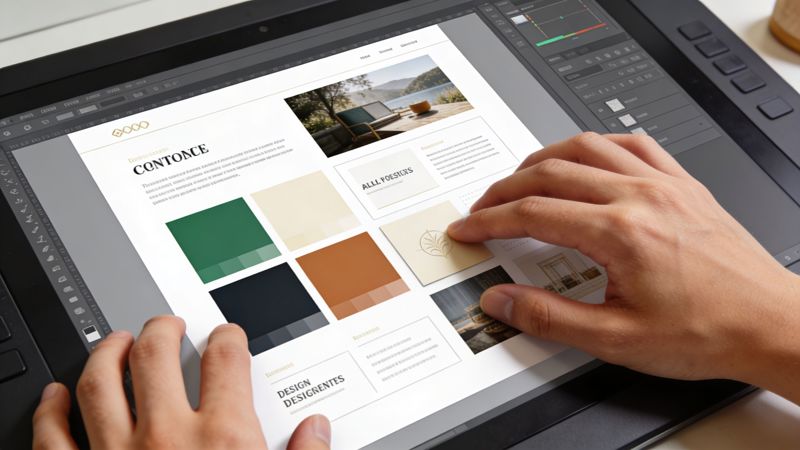
Good templates have restraint. They don’t try to use every inch of the canvas. They leave room for long values, line wrapping, and visual hierarchy.
Build around text-safe zones
Start with the background, not the text. Pick or create a visual that has an obvious area where words can sit without fighting the image.
That usually means avoiding busy textures directly behind variable text. If the background is important to the design, add a soft overlay or reserve a panel for the personalized copy.
For a deeper walkthrough of the layout side, this guide on overlaying text on an image is a useful companion because it focuses on the design mechanics that keep text readable and balanced.
Design for the longest realistic input
The shortest name in your list is not the design target. The awkward, long, multi-word value is.
A simple way to pressure-test a template is to try:
- Long names: Full names instead of first names
- Verbose companies: Especially B2B account names
- Missing fields: Blank company or event title values
- Mixed case inputs: Names pulled from forms often arrive inconsistently
Photoshop’s Dynamic Text feature, introduced in 2025, was built for exactly this layout problem. By converting a text layer into Dynamic Text, designers can make the content resize and reflow within a fixed box, reaching 92% first-try perfection and saving up to 80% of layout iteration time in the referenced benchmarks from PhotoshopCafe’s tutorial coverage.
Design note: If your box is too narrow, the text may scale down too aggressively. The layout might still “fit” technically while becoming hard to read.
Keep static and dynamic elements in separate roles
The easiest templates to maintain separate the brand layer from the variable layer. The logo, background treatment, fixed headline, and brand colors should do one job. The personalized text should do another.
That separation helps with consistency. It also keeps you from over-personalizing the asset. Usually one or two dynamic elements are enough. If every part of the image changes, the design starts to feel unstable.
A practical template checklist:
| Template element | What to watch |
|---|---|
| Background | Leave a calm area for text |
| Font choice | Prioritize legibility over novelty |
| Color | Maintain strong contrast with the background |
| Dynamic box | Test short, medium, and long values |
| Brand assets | Keep fixed elements visually stable |
The best templates look intentional even before the personalization is applied. The dynamic text should feel integrated, not pasted on top.
Beyond the Basics Fallbacks Testing and Accessibility
A personalized image can look perfect in the editor and still fail in production. That’s why professional campaigns treat fallback logic, testing, and accessibility as core setup work, not cleanup.

Fallbacks are not optional
Real data is incomplete. Someone won’t have a first name. A CRM field will be blank. An event title will arrive late. If your image depends on every field being present, some of your audience will receive a broken or awkward result.
Use default values for every dynamic field that matters. If {{company}} is blank, show a general phrase instead. If a badge title is missing, fall back to a broader label. This prevents render failures and avoids embarrassing output.
Good fallback logic also protects deliverability workflows. If a campaign depends on a generated image and that image fails to render cleanly, the message quality drops fast.
Test where the image will actually be viewed
A dynamic image is part design asset, part generated output, part delivery object. Test all three.
Run through a checklist like this:
- Template testing: Try short inputs, long inputs, blanks, and unusual characters
- Channel testing: Check email, landing pages, social previews, and chat surfaces separately
- Device testing: Mobile cropping and scaling often expose layout weaknesses first
- Visual contrast testing: Make sure text remains readable on all backgrounds
For teams building images on the server before delivery, this overview of server-side image rendering is useful because it frames the production concerns that show up once image generation becomes part of a larger workflow.
Accessibility needs a seat at the start
This is the most overlooked part of dynamic image generation.
The referenced WCAG-focused guidance points out that tutorials usually focus on aesthetics while ignoring accessibility. It specifically highlights the need for adequate contrast ratios, meaningful alt-text, and semi-transparent overlays when text sits on images, as discussed in WCAG guidance on content over images.
That matters because personalized images often carry important information, not just decoration. If a reminder graphic includes a date, or a certificate image includes a recipient name, the content should remain understandable for people who don’t perceive the image in the same way.
A practical accessibility baseline:
- Contrast first: Don’t rely on style alone. If the background varies, add an overlay behind the text.
- Write alt text with intent: Describe the message, not just the picture.
- Avoid image-only communication: If key information appears in the image, reinforce it in surrounding copy when possible.
- Review inclusive design practices: This summary of VIP TECH CONSULTING's approach to accessibility is a useful reminder that accessibility should be built into the workflow, not patched in later.
If a personalized image carries important meaning, treat it like content, not decoration.
Conclusion Start Building Your Personalized Experiences
Dynamic image personalization works because it respects context. Instead of sending one visual to everyone, you create an asset that reflects who the recipient is, what they signed up for, or what relationship they have with your brand.
That doesn’t require one specific stack. You can start with simple merge-tag style templates, move into website rendering, or connect image generation to an API when the workflow grows more complex. What matters is choosing a method that fits your team and building it with enough discipline to handle real data.
The teams that get the most from this approach don’t stop at adding a name. They think about layout behavior, fallback values, accessibility, and where the image will be delivered. That’s what turns personalization from a neat effect into an operational advantage.
If you’ve been relying on basic subject-line personalization, this is the next step. Not because it looks clever, but because it lets your campaigns feel more individual, more useful, and more memorable.
Frequently Asked Questions
Do I need coding skills to add dynamic text to images
No. If your use case is email campaigns, newsletters, certificates, or social graphics, a template-based workflow is often enough. You design the image once, define the dynamic fields, and connect those fields to your contact data.
You’ll usually only need code when the image must be generated from a live application, database, or custom workflow in real time.
What happens when a name or company is too long
That depends on the template and rendering method. The strongest setups use bounding boxes, text reflow, or autosizing so the layout adapts instead of breaking.
Even then, you still need to design for edge cases. Test long names, multi-word organizations, and blank values before launch. If the output must stay visually tight, shorten the field or provide a fallback phrase.
Are dynamic images safe for email marketing
Yes, if you handle them carefully. The image should load reliably, the personalized text should still be readable on mobile, and the message shouldn’t depend on the image alone.
For professional campaigns, check three things before sending:
- Rendering reliability: Make sure the image URL resolves properly for each recipient
- Accessibility: Add meaningful alt text and keep important message content in the email copy too
- Template resilience: Verify that missing data doesn’t produce awkward or broken output
If you want a practical way to turn merge-tag style personalization into images, OKZest lets teams create image templates with dynamic text, fallback values, and delivery options for email, websites, chat, and API-driven workflows.