You’ve probably built this campaign already.
The copy is solid. The segment is clean. Your automation in Mailchimp, Klaviyo, or Instantly is firing on time. Then you preview the email and realize the creative still looks like a batch send. Every recipient gets the same hero image, the same certificate, the same webinar banner, the same product card.
That’s where image url parameters for marketing automation stop being a nice technical trick and start becoming operationally useful. Instead of exporting hundreds of image variants, you generate one image template and control the output through the URL itself. The email platform inserts merge-tag data, the image service renders a unique visual, and your campaign feels like it was built for one person instead of a list.
Beyond Generic Emails The Power of Dynamic Images
A campaign can be well segmented, well timed, and still feel generic the moment the hero image loads.
That gap shows up all the time in email programs. The copy says “made for you,” but the visual says “sent to everyone.” Dynamic images fix that by turning the image itself into personalized output, not just the text around it. Instead of producing dozens of static files, the image is generated from URL parameters at send time, using the same subscriber or account data already sitting inside your ESP.

That distinction matters. A lot of personalization guides stop at UTMs or merge tags in subject lines. The more useful setup is one where URL parameters generate the visual asset itself. A reward email can render the customer’s points balance inside the image. A webinar campaign can place the registrant’s name and session time on the banner. A sales sequence can show the prospect’s company name on a mockup without asking design to export a fresh version for every lead. If you want a closer look at that model, this guide to dynamic image URLs for email personalization covers the core approach.
The practical value shows up fast in repeatable programs:
- E-commerce teams can render product names, discount text, loyalty balances, and regional offers without maintaining a folder full of near-duplicate creatives.
- Agencies can run one approved template across multiple clients, then swap branding or audience-specific text through parameters.
- Event teams can create certificates, badges, and countdown graphics from registration data.
- Sales and customer success teams can personalize outbound visuals at scale while keeping the underlying template controlled.
If you already rely on other e-commerce automation tools to reduce repetitive campaign work, dynamic image generation fits the same operating model.
There is a trade-off. Personalized images add one more moving part to the campaign. You need clean merge-tag data, sensible fallbacks, and image rendering that your ESP can fetch reliably. But compared with manually exporting every variation, the setup effort is usually lower, the output stays more consistent, and updates are easier once the template is live.
A simple rule helps here. If your team keeps editing the same banner for different names, products, dates, or tiers, the image should probably be generated from parameters instead of stored as a fixed file.
The Anatomy of a Dynamic Image URL
A dynamic image URL looks technical at first, but it’s just a structured instruction. The first part tells the image service which template to use. The second part tells it what to change.
Here’s a simple example:
https://img.okzest.com/v1/users/XYZ/templates/ABC/render.png?name=John&product=Widget
Consider it a recipe. The base URL is the dish. The parameters are the ingredients and instructions that change each serving.
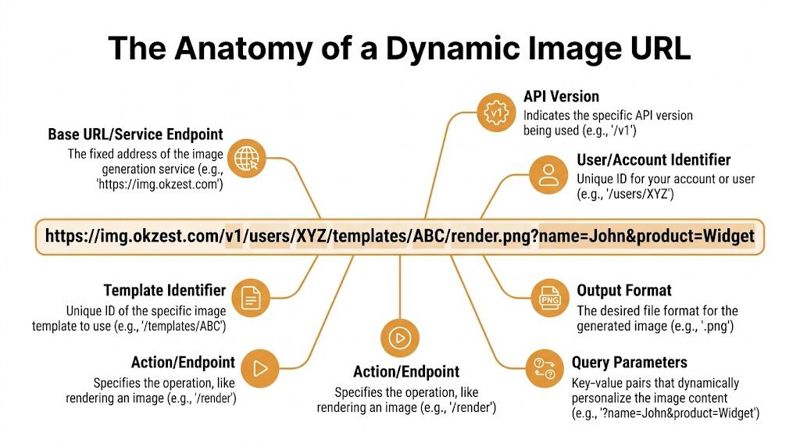
The fixed part of the URL
Everything before the question mark is usually stable for a given template.
- Service endpoint identifies the platform handling image generation.
- Version path helps the provider manage API changes cleanly.
- Account or user identifier maps the request to your workspace.
- Template identifier points to the image layout you designed.
- Render endpoint and file type tell the service to produce an image, often PNG or JPG.
Marketers don’t usually edit those parts often. They matter because they anchor the request to the right asset.
The variable part of the URL
The action starts after ?.
This is the query string, where you pass instructions such as:
name=Johnproduct=Widgetscore=92fallback=Guest
Each instruction is a key=value pair. If you have more than one, you join them with &.
That syntax isn’t optional. URL parameters follow a strict syntax of equal signs (=) for key-value pairs and ampersands (&) for separating multiples, as explained in MarTech’s guide to url parameters for martech and SEO. If the structure breaks, the service may ignore values, misread fields, or fail to render the image you expected.
A marketer-friendly way to read one
When I audit a broken dynamic image setup, I read the URL in this order:
- Does the template path look correct
- Is there a
?before the first parameter - Does every field use
key=value - Are multiple parameters separated by
& - Do the parameter names match the fields defined in the image template
A dynamic image URL usually breaks for boring reasons, not mysterious ones. A missing
&, a field name mismatch, or an unencoded character causes most failures.
If you want a deeper walkthrough of how these links are structured in practice, this guide to dynamic image URLs is a useful companion.
Essential Parameters for Image Personalization
Most first campaigns don’t need dozens of controls. They need a small set of parameters that reliably turn one template into many personalized outputs.
The core use case is still the most valuable one: put the right text on the image for the right person at the right time. That might be a first name, account manager name, renewal date, score, coupon code, event title, or location.
Start with the fields that change most often
For a first rollout, keep the image design stable and make only a few elements dynamic. That lowers QA time and makes troubleshooting easier if the rendered image doesn’t match the record in your ESP.
A good beginner setup often includes:
- recipient name
- one context field, such as company, product, or event
- one backup value if the field is missing
- one presentation control, such as color or font size
Common parameters for text personalization
| Parameter | Purpose | Example Value |
|---|---|---|
name |
Inserts the recipient’s name into the image | John |
text |
Sets a general text string for a headline or label | Welcome back |
product |
Personalizes the image with a product or offer name | Widget Pro |
company |
Adds company-specific context for B2B outreach | Northwind |
score |
Displays a numeric or text score from a CRM or app | 92 |
font |
Selects the font used for the dynamic text layer | Helvetica |
font_size |
Controls the size of the text | 48 |
color |
Sets the text color, commonly with a hex value | FFFFFF |
align |
Controls text alignment in the image area | center |
fallback |
Supplies default text or asset behavior if data is missing | Guest |
The exact parameter names vary by provider. One platform may use font_size, another may expect size, and another may map dynamic values to named layers inside the template editor. What matters is consistency between the URL and the template’s field definitions.
What actually works in production
Marketers usually get better results when they personalize for context, not just novelty.
For example, adding name=Sarah to a banner can work. But these usually work better:
- Lifecycle message:
name=Sarah&text=Your renewal is ready - Sales outreach:
company=Acme&text=Ideas for your Q3 pipeline - Event workflow:
name=Sarah&event=Growth Summit - Customer success:
name=Sarah&score=92
Those combinations give the image a reason to exist. The visual reflects the campaign’s purpose, not just a first-name token.
Don’t add five dynamic fields because you can. Add the two or three that help the recipient understand the message faster.
Template design matters as much as parameters
A common mistake is trying to fix weak design with more URL logic. That rarely works.
Keep these design constraints in mind:
- Leave enough safe space for long names and variable copy.
- Avoid tiny text boxes that only fit ideal data.
- Plan for missing values before you connect the ESP.
- Use contrast carefully so dynamic text remains legible across outputs.
Another operational lesson is naming. If the designer labels a field headline_name and the marketer sends name, the render won’t behave as expected. Shared naming conventions between design and marketing save time.
One strong first use case
If you’re new to image url parameters for marketing automation, start with a welcome email or webinar reminder. Those campaigns usually have clear merge fields, straightforward branding, and a direct value exchange. You’re not trying to personalize everything. You’re trying to prove that one template can adapt cleanly to many recipients.
Once that works, you can expand into certificates, sales images, product cards, or web embeds.
Optional Parameters for Optimization and Control
A personalized image still has to behave like a production asset.
The first version of a dynamic image campaign often proves the concept. The second version is where teams deal with file weight, odd crops, blank fields, and mobile rendering. These optional parameters are the controls that make one image URL usable across email, landing pages, paid social, and web embeds.

Parameters that shape delivery, not just appearance
After the personalized text is rendering correctly, I usually add a second layer of controls:
wandhset output dimensions for the placement. That matters if the same template appears in a 600px email body and a larger landing page module.formatchooses the file type, usually PNG, JPG, or WebP if the channel supports it.qcontrols compression quality so you can reduce file size without making text or logos look soft.fitor crop parameters protect the focal area when one base design has to fill different aspect ratios.fallbackgives the renderer something safe to display when a field is empty or invalid.- Cache controls decide whether the image should be reused or regenerated, which matters for countdowns, live scores, expiring offers, or other time-sensitive creative.
Those settings affect performance, consistency, and failure handling. In practice, they also decide whether a dynamic image system scales beyond a pilot.
Why marketers should care about these parameters
Image optimization affects campaign results. It is not only a design or engineering concern.
Google found in its research on mobile page speed that slower pages lose visitors quickly. If your campaign drives traffic to a landing page with dynamically generated hero images, oversized assets can waste the attention you worked to get in the email or ad click.
Email has its own version of the same problem. Heavy images render slowly on mobile connections, create awkward jumps in the layout while content loads, and make the message feel less polished than the copy and targeting deserve.
A dynamic image URL should do two jobs at once. Personalize the creative, then deliver an asset that loads fast and fails cleanly.
Fallback logic saves real campaigns
First-time setups usually break at this stage.
Subscriber records are messy in every ESP. A Mailchimp audience might have blank first names from older imports. A Klaviyo event property might change from webinar_name to event_name after someone updates the flow. A Salesforce sync can send a null value right before a scheduled launch. If the image URL assumes every field will always be present, the failure shows up in the creative.
A fallback parameter gives you control over that outcome. Instead of an empty text layer or a broken render, the image service can swap in a generic greeting, a default product line, or a preapproved backup variant.
A few rules keep fallbacks practical:
- Use copy that sounds natural in every segment. “Hi there” survives bad data better than a forced personal token.
- Keep fallback values short. The backup still has to fit the template.
- Test fallback renders before approval. Teams usually preview the ideal record first and discover the broken one after launch.
- Set defaults for visual treatments too. Missing avatar, badge, or overlay values should still produce a usable image.
If your campaigns use overlays, stamps, or other controlled brand treatments, this guide to watermarked image generation with url parameters is a useful reference point.
A practical filter for adding more controls
Add an optional parameter only if it solves a delivery problem, a rendering problem, or an operational problem.
That usually means better mobile fit, smaller files, safer fallbacks, cleaner crops, or predictable caching. If a parameter makes the URL longer but does not improve output quality or team reliability, leave it out.
Real-World Implementation with Merge Tags and Snippets
A dynamic image setup becomes useful when you plug it into the systems you already use. The pattern is simple. Build one image URL, replace the plain values with merge tags, and let the ESP fill them in at send time.
Mailchimp example
A Mailchimp-style URL might look like this:
https://img.example.com/render.png?name=*|FNAME|*&event=*|MERGE3|*&fallback=Friend
If Mailchimp sends that message to Priya and MERGE3 contains “Spring Workshop,” the final request behaves like:
https://img.example.com/render.png?name=Priya&event=Spring%20Workshop&fallback=Friend
That’s the entire trick. The image service receives a normal URL with actual values. Mailchimp just supplies them at send time.
Klaviyo and Instantly patterns
Klaviyo commonly uses handlebars-style variables:
https://img.example.com/render.png?name={{ first_name }}&offer={{ event.offer_name }}&fallback=Customer
Instantly setups often follow the same idea with their own variable syntax. The exact tag format changes by platform, but the operating model doesn’t. Your image URL remains a template until send time.
Here’s what I recommend in any ESP:
- Preview with real profile data before sending to a segment.
- Check blank-field behavior with a contact that has missing values.
- Keep parameter names human-readable so marketing and design can debug together.
HTML snippet for websites and landing pages
The same approach works outside email. If you have known values on a page, you can embed the generated image directly:
<img src="https://img.example.com/render.png?name=Sarah&score=92&fallback=Guest" alt="Personalized performance summary">
If values come from a form, CRM, or app state, your page can populate the URL before rendering the image.
One URL can support email, landing pages, certificates, and simple web personalization. The workflow changes less than most teams expect.
Practical implementation notes
A no-code image tool or API-based platform can save a lot of setup effort. For example, OKZest generates image URLs that can be populated by merge tags in common ESPs and embedded with standard HTML, which makes it relevant for teams that want “merge tags for images” rather than a custom build.
If you want concrete examples of how merge tags map into image URLs, this guide on merge tag images is useful.
A clean rollout sequence
Don’t launch your first dynamic image campaign inside your most complex automation. Use a controlled sequence instead:
- Step one: one template, one audience, two dynamic fields.
- Step two: one fallback for missing data.
- Step three: preview in your ESP with multiple test records.
- Step four: send to an internal list before the live audience.
That sequence catches most formatting and data issues before they become campaign issues.
Testing Debugging and Security Best Practices
A dynamic image campaign can look fine in the builder and still fail at send time. The failure usually comes from one of two places: the URL is malformed, or the URL exposes data your team should never have placed there.
Start by isolating the image request from the campaign. Paste a real sample URL into a browser first. If the image fails there, the issue sits in the parameter string, the template mapping, or the image service itself, not in Mailchimp, Klaviyo, HubSpot, or your automation logic.
That saves time fast.
Debug the URL before you debug the campaign
Check the request in a simple order and you will catch most problems before they hit inboxes:
- Parameter spelling.
firstnameandfirst_nameare different inputs. - Separators. One missing
&can merge two parameters into a single broken value. - Encoding. Spaces, ampersands, apostrophes, and accented characters often break otherwise valid URLs.
- Fallback behavior. Remove values on purpose and confirm the image still renders cleanly.
- Template field names. The variables in the URL must match what the image template expects.
I usually test three records, not one. A clean record, a record with missing fields, and a record with messy real-world data. That approach surfaces problems much earlier than previewing with a perfect demo contact.
Encode before you trust user data
Dynamic image URLs often pull from CRM fields that were never cleaned for URL use. Names, job titles, event labels, and product names can include commas, slashes, quotes, non-Latin characters, or symbols like &.
Those edge cases matter. Anne & Co, João, or VP, Sales can all produce different parsing issues depending on how the ESP inserts merge tags and how the image endpoint reads query strings.
Test the ugly data, not just the clean demo data. Real lists contain blanks, symbols, long names, and inconsistent capitalization.
If your platform supports previewing with multiple contact records, use it. If it does not, build sample URLs manually and verify each one in the browser before you put the image into an automated flow.
Treat PII in image URLs as a compliance issue
This is the mistake I see most often on first implementations. Teams use email={{user_email}} or another direct identifier because it is easy to map, then forget that query strings can be logged by browsers, proxies, analytics tools, CDNs, and server infrastructure, as discussed in SugarCRM’s article on UTM parameter visibility and marketing engagement.
The practical rule is simple. If the image does not need a piece of personal data to render, do not send it in the URL.
Safer patterns include:
- Use internal IDs or hashed IDs instead of plain email addresses.
- Pass only the fields required to render the image.
- Keep sensitive attributes out of query strings whenever possible.
- Document ownership of the template and field mapping so someone can fix issues quickly when a CRM field changes.
Personalization should happen in the image output, not through exposing more customer data than necessary in the request.
If you want a practical way to build personalized images without manually creating endless asset variations, OKZest is designed for that workflow. It lets teams use merge-tag-style data in image URLs for email, web pages, certificates, and other marketing automations, with both no-code and API-based options.