If you've ever spent hours perfecting an email campaign only to see it break in half your subscribers' inboxes, you know the frustration. This is where server-side image rendering comes in, and it’s a game-changer.
So, what is it? Simply put, it's a way of creating a personalized image on a server before it gets sent out. All the dynamic bits—like a customer's name or a unique discount code—are baked into a simple, flat image file. This little trick neatly sidesteps the wild west of email client rendering engines and security quirks, ensuring your visuals land exactly as you intended.
Why Server-Side Rendering Matters for Modern Email
Let's be real: brand consistency in email is a constant battle. An image that looks perfect in Gmail can become a distorted mess in Outlook, especially when you throw dark mode and privacy settings into the mix. This is how you end up with broken layouts, unreadable text, and a user experience that tanks your campaign performance.
Server-side rendering is the fix. Instead of crossing your fingers and hoping every email client correctly handles your fancy HTML and CSS overlays, you take control. You generate the final, pixel-perfect visual on your own server, creating a static JPEG or PNG that every email client on the planet can display without a problem.
The Problem with Client-Side Rendering
The default approach, client-side rendering, is a gamble. It leaves way too much up to chance. Many of us have seen our hard work fall apart because of:
- Blocked Images: Features like Apple’s Mail Privacy Protection can stop images from loading, leaving ugly blank spaces where your beautiful creative should be.
- Font Fails: That on-brand custom font you used for a text overlay? If it's not on the user's device, it defaults to something generic and ruins the entire design.
- Dark Mode Disasters: Light-colored text or images with transparent backgrounds can become nearly invisible when a client like Gmail inverts the colors.
By taking control of the rendering process, you guarantee that what you design is exactly what your subscriber sees—regardless of their email client, device, or personal settings.
This isn't just about looking good; it's about driving results. The email world is dominated by a few major players—Gmail (62.2% of professionals), Outlook (28.9%), and Apple Mail (17.9%)—each with its own rendering quirks. When you consider that emails with properly displayed graphics get a 1.12% higher click-through rate, getting rendering right is non-negotiable.
To help illustrate the difference, here’s a quick breakdown of the common headaches and how each rendering approach stacks up.
Client-Side vs Server-Side Rendering Impact on Email
| Challenge | Client-Side Rendering (Default) | Server-Side Rendering (Solution) |
|---|---|---|
| Email Client Inconsistencies | Renders differently across clients, causing broken layouts and unreadable text. | Generates a single static image that displays consistently everywhere. |
| Custom Font Support | Fails if the user doesn't have the font installed, defaulting to a generic font. | Bakes the text into the image using your brand font, so it always looks right. |
| Dark Mode Compatibility | Images with light text or transparent backgrounds can become illegible. | You can pre-render a dark-mode-specific version or design one that works in both. |
| Privacy Blockers (e.g., Apple MPP) | Images can be blocked or proxied, sometimes breaking dynamic elements. | The image is a simple, static file that is less likely to be blocked or broken by privacy tools. |
| Complex Personalization | Layering multiple dynamic elements (name, location, offer) is prone to failure. | All personalization is handled on the server, resulting in a clean, single image file. |
Ultimately, server-side rendering removes the guesswork and puts you back in control of the customer experience.
If you’re looking to scale this approach without managing your own infrastructure, it’s worth understanding the benefits of serverless architecture. And for more ideas on putting this technique into practice, check out our guide on creating https://okzest.com/blog/dynamic-images.
Designing a Scalable Image Rendering Architecture
Jumping straight into code without a solid plan is a recipe for headaches. Before you write a single line, you need to think about the architecture. A well-designed system is the foundation for server-side image rendering that's fast, reliable, and secure—not just something that works on your machine.
At its heart, your setup will need a few key pieces: a way to handle incoming requests from email clients, a library to actually build the images, and a strategy for getting the right personalization data into each image. The decisions you make here will define how well your system scales, what it costs to run, and how much time you'll spend maintaining it.
This flow chart perfectly illustrates why we're doing this on the server in the first place.
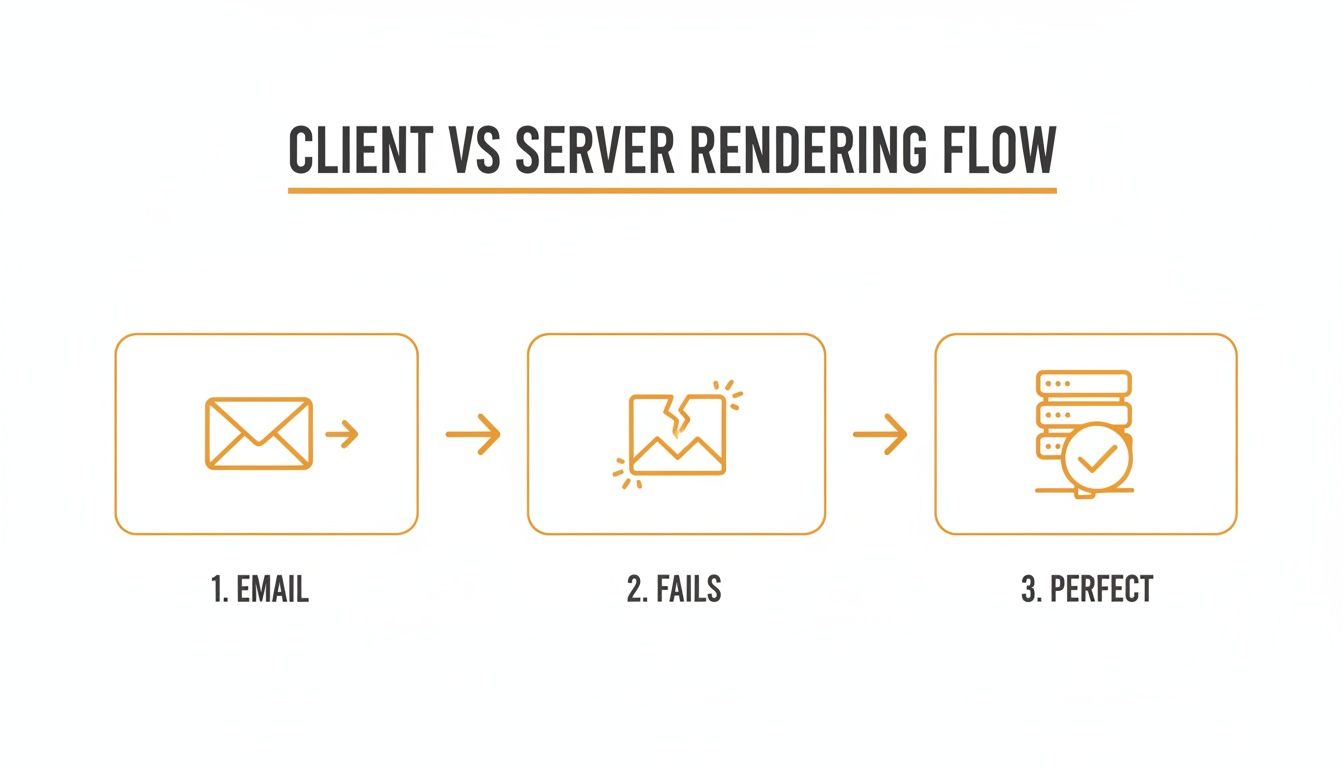
As you can see, trying to render anything complex on the client-side inside an email is a gamble that rarely pays off. A server-side approach, on the other hand, delivers the correct visual every time.
Choosing Your Core Technology Stack
The first big question is: where will the rendering logic live? You have two main paths you can go down.
Dedicated Server (or VPS): This is the traditional route. You get total control over the environment, meaning you can install whatever software you want and fine-tune performance. It's a solid choice if you have a team to manage it and expect a very high, consistent volume of image requests. The downside? You're on the hook for everything—maintenance, security, and scaling up for traffic spikes.
Serverless Functions (e.g., AWS Lambda, Google Cloud Functions): This is the more modern, agile, and usually more cost-effective choice. You pay only for the compute time you actually use, and the platform handles all the messy server management and scaling for you. This is perfect for email campaigns where traffic is spiky—think millions of requests hitting in a very short window after you send a blast. For most use cases, serverless is the way to go.
Next up is the engine that will actually build your images. In the Node.js world, a couple of libraries stand out:
- Sharp: This thing is incredibly fast and efficient for tasks like resizing, compositing, and changing image formats. It's the perfect tool for overlaying a subscriber's name on a template or adding a profile picture.
- Puppeteer: This is a headless browser library. It lets you render a full HTML and CSS page in the background and then take a screenshot. This is your heavy hitter for more complex visuals, like rendering a personalized chart, a dynamic coupon with intricate styling, or anything that's just easier to build with web tech.
My advice? Start with Sharp because of its raw speed. Only bring in a headless browser like Puppeteer when your designs are too complex for simple image overlays and you need the full power of a CSS rendering engine to get the job done.
Mapping the Data and Request Flow
You need to have a crystal-clear picture of what happens from the moment a subscriber opens your email. This journey is a rapid chain reaction.
Here’s how it typically unfolds:
- Email Open: The subscriber's email client (like Gmail or Outlook) sees the
<img>tag in your email's HTML. - Image Request: The client then sends a GET request to the URL in the
srcattribute, which points directly to your rendering service. - Parameter Parsing: Your service gets the request and pulls out the personalization data from the URL query parameters. Think
?name=Jane&points=500. - Data Fetching (Optional): Sometimes, you might need more info. Your service could make a quick call to a CRM or database to fetch additional data linked to a user ID from the request.
- Image Generation: Using a library like Sharp, your service grabs a base template image and dynamically adds the text, other images, or graphic elements based on the data it just parsed.
- Image Delivery: Finally, the service sends back the finished image (like a PNG or JPEG) with the right
Content-Typeheader. The email client catches it and displays it to the subscriber.
This entire sequence has to happen in milliseconds. A slow-loading image is almost as bad as a broken one.
For this reason, a stateless design is almost always the right call. Each request should contain all the information needed to generate the image, without relying on any stored session data. This simplifies your architecture, makes it more reliable, and allows it to scale effortlessly—which is especially critical in a serverless world where you can't guarantee two requests from the same user will even be handled by the same machine.
Building Your Dynamic Image Generation Service
Alright, let's dive into the core engine for our server-side image rendering for email. This is where we’ll turn simple URL parameters into rich, personalized images that look great in any inbox. I’ll walk you through building a practical, secure, and efficient Node.js endpoint.

The goal here is simple: create a service that takes data—like a user's name, their loyalty points, or a profile picture URL—and dynamically builds a beautiful image from a base template. We'll cover everything from layering text to the essential error handling that keeps things running smoothly.
Setting Up Your Node.js Environment
First things first, you'll need a basic Node.js project. We’re going to rely on two main workhorses: Express.js for the web server logic and Sharp for the heavy lifting of image processing. I prefer Sharp because it's incredibly fast for common tasks like resizing, compositing, and adding text overlays.
To get started, spin up a new Node.js project and install these packages:
express: For creating and managing our server and API endpoints.sharp: The key to high-performance image manipulation.axios(ornode-fetch): Perfect for fetching external images, like a user's profile photo from another URL.
This simple stack gives us everything we need to build a robust rendering service without overcomplicating things.
Crafting the Image Generation Endpoint
The heart of our service will be an API endpoint that listens for GET requests. The beauty of this approach is that we can pass all the personalization data right through the URL's query parameters. This makes it incredibly easy to construct the image URL inside your Email Service Provider (ESP) using its merge tags.
For example, a URL might look like this:
https://your-service.com/image/welcome?name=Jane+Doe&points=1500
Our Express server will then parse the name and points from the request and use them to generate a custom welcome image on the fly.
Here’s a high-level look at the server-side logic:
- Define the Route: Set up an Express route, maybe
/image/welcome. - Extract Parameters: Grab the values for
name,points, or whatever else you need fromreq.query. - Validate and Sanitize: This is crucial. Never trust user input. Check that the parameters exist and are in the format you expect. Always have default values ready if they’re missing.
- Compose the Image: Use Sharp to load a base template image. From there, you can use its compositing features to overlay text and other graphics.
- Send the Response: Set the
Content-Typeheader toimage/pngorimage/jpegand send the generated image buffer back to the browser or email client.
This method keeps the logic clean and ensures each request is handled independently. If you'd rather not build and maintain this yourself, you can always use a ready-made solution like a dynamic image API for email marketing.
Adding Dynamic Text and Overlays
The most common use case is adding personalized text to a template. A slick way to do this with Sharp is to create an SVG containing your styled text and then composite it directly onto your base image. This gives you complete control over the font, size, color, and positioning.
For instance, to add a user's name:
// A simplified example of adding text with Sharp
const textSvg = Buffer.from(
<svg width="500" height="100"> <text x="50%" y="50%" text-anchor="middle" class="title">${name}</text> </svg>
);
await sharp('template.png') .composite([{ input: textSvg, top: 150, left: 0 }]) .toBuffer();
This technique is super flexible. You aren't just limited to text; you can overlay other images, like a customer's profile picture fetched from a URL or a badge showing their loyalty tier.
A quick pro-tip: remember to handle your fallbacks gracefully. If a user's name is missing, your code should default to something generic like "Valued Customer." A broken image is far worse than one that’s slightly less personalized.
This server-side approach has become even more critical with the rise of privacy features and dark mode. In the past, I've seen client-side rendering failures affect up to 80% of emails in dark mode, making brand assets completely disappear. Server-side processing guarantees a flawless display. By 2024, 47% of businesses had already adopted rendering tests to stay ahead of these issues.
When you're building your service, it's also worth looking into modern tools. For example, AI image generation tools are opening up wild new possibilities for creating truly unique visuals on the fly, moving way beyond simple text overlays into generative content.
Follow these steps, and you'll have a solid prototype of a dynamic image service ready to integrate and test within your email campaigns.
Getting Your Dynamic Images into Emails and Testing Them
You've got your image generation service up and running. Now for the fun part: plugging these personalized visuals right into your email campaigns. This is where we move from code to customer, making sure every single person gets a flawless, personalized image the moment they open your message.
The whole thing works by connecting your Email Service Provider (ESP) to your image endpoint. You'll build the image URL directly in your email's HTML, but instead of static text, you'll use your ESP's merge tags to fill in the details. These are just little placeholders your ESP swaps out with real subscriber data right before it hits send.
Building the Dynamic Image URL
Let's say you want a welcome banner that greets new users by their first name. Your ESP probably uses a merge tag like *|FNAME|* (as you'd see in Mailchimp) or {{ first_name }} (common in platforms like Klaviyo).
Your image tag in the HTML template will look something like this:
<img src="https://your-service.com/image/welcome?name={{ first_name }}" alt="Welcome to our community!" />
When an email goes out to someone named Alex, the ESP automatically replaces {{ first_name }}. The final HTML that lands in Alex's inbox has a unique URL. His email client then requests that URL, and your server instantly generates and sends back an image with "Alex" rendered right on it.
It's a simple but incredibly powerful technique. You can use it with any data point you have stored in your ESP, from loyalty points and membership tiers to the last thing they bought.
Planning for Failure with Solid Fallbacks
Even the best services have a bad day. What happens if your rendering endpoint is down for a minute, or a particular email client is just being difficult? Without a backup, your subscribers see that dreaded broken image icon—and your email instantly looks cheap.
This is why fallbacks aren't just a "nice-to-have"; they're a non-negotiable part of any professional server-side image rendering for email strategy.
Here are a few ways to handle this:
- ESP-Level Fallbacks: Most modern ESPs let you set a default value for merge tags. If
{{ first_name }}is blank, you can tell it to use a generic word like "Friend." Your URL then generates a "Welcome, Friend!" image instead of an error. - Server-Side Logic: Build some intelligence into your image service. If a request comes in and the
nameparameter is missing, your code should be smart enough to serve up a generic, non-personalized version of the image by default. - HTML Fallbacks (The Ultimate Safety Net): For total peace of mind, you can build a fallback right into the HTML. This is a clever little trick where you set your dynamic image as a
background-imageon a table cell and then place a standard, static image inside it. If the background fails to load, the static image is still there.
An effective fallback strategy ensures that even in a worst-case scenario, the user experience remains professional and intact. A generic but clean image is always better than a broken one.
How to Test Everything (and We Mean Everything)
You absolutely cannot skip testing. The world of email clients is a fragmented mess. There are dozens of them across desktop, web, and mobile—and that's before you even consider the chaos of dark mode. An image that looks perfect in Apple Mail might be a disaster in Outlook.
Your testing checklist needs to be thorough.
- Check Your Merge Tags: Send test emails to yourself through your ESP. Make sure the merge tags are being replaced correctly with both real data and your fallback values.
- Test Across Every Major Client: Don't guess. Use a real testing platform like Litmus or Email on Acid. They'll show you screenshots of how your email actually renders on dozens of devices, catching issues in problem clients like older Outlook versions.
- Check Dark Mode Rendering: This one is huge. Some email clients will invert colors, which can make text on your images completely disappear. You have to make sure your design has enough contrast to stay legible in both light and dark modes.
- Simulate a Failure: Deliberately break your image URL in a test email—just add a typo or something. This is the only way to confirm that your HTML fallback image actually shows up when it's supposed to.
By being rigorous with your testing, you can hit "send" with confidence, knowing your server-rendered images will deliver that personalized, high-impact experience you worked so hard to create.
Optimizing Performance Caching and Security
A successful email campaign does more than just drive clicks—it can unleash a flood of image requests that hammer your server. If you send to a list of a million subscribers, you could see millions of requests hit your rendering service in just a few minutes. Without a smart strategy for performance and security, your service can easily crumble under the load, leading to high costs, slow load times, and even potential abuse.
This is where caching and security become absolutely critical. They are the twin pillars supporting a production-ready server-side image rendering for email system, making sure it's both lightning-fast and resilient. Let's dive into the practical steps you need to take to protect your infrastructure and deliver a flawless experience at scale.

Supercharge Performance with Caching
The core idea behind caching is simple: don't do the same work twice. Generating a personalized image is a CPU-intensive job. If your server has to render a unique image for every single request, your costs will skyrocket and performance will tank.
This is where a Content Delivery Network (CDN) becomes your best friend. Services like Cloudflare, AWS CloudFront, or Fastly can sit in front of your rendering service and cache the generated images.
Here’s how that flow works in the real world:
- The first time an image is requested (say, for
?name=Alex), your server generates it and sends it back to the user. - Crucially, your server also includes a
Cache-Controlheader in the response, which tells the CDN to store a copy of that specific image. - When another subscriber also named Alex opens their email, the CDN intercepts the request. It serves the cached image directly from its own servers, which are geographically much closer to the user.
This process is incredibly fast and means your rendering server isn't even touched. The vast majority of requests are handled entirely by the CDN, which dramatically slashes your server load and bandwidth costs. This approach also simplifies how you get an image from a URL via API by offloading the heavy lifting of delivery.
A well-configured CDN can serve over 95% of your image requests from its cache, effectively turning a dynamic, resource-heavy service into a static, low-cost delivery system for most users.
Setting the right cache headers is the key to making this work. A header like Cache-Control: public, max-age=2592000 tells the CDN to cache the image for 30 days. You'll want to choose a duration that makes sense for your campaigns; a short-term offer might need a much shorter cache time.
Locking Down Your Service from Abuse
An open image rendering endpoint is an open invitation for trouble. Malicious actors could use your service to generate inappropriate content, hammer you with a denial-of-service (DoS) attack, or just run up your server bills for fun. Securing your endpoint isn't just a good idea—it's essential.
URL Signing with HMAC
The most effective way to prevent unauthorized use is with URL signing. This involves creating a cryptographic signature for each image URL before you embed it in an email. Your server will only render an image if that signature is valid.
Here’s the breakdown:
- First, you create a string containing all the URL parameters (e.g.,
name=Alex&points=500). - Then, using a secret key that only your system and your rendering server know, you generate an HMAC (Hash-based Message Authentication Code) signature from that string.
- Finally, you append this signature to the URL:
...&sig=a1b2c3d4...
When your server receives a request, it performs the exact same calculation using the secret key and compares its signature to the one in the URL. If they don't match, it means the URL was tampered with, and the server immediately rejects the request with a 403 Forbidden error. This completely stops anyone from manually creating their own image URLs.
Input Sanitization and Rate Limiting
Beyond signing, there are two other security layers you can't afford to skip.
- Input Sanitization: Never trust the data you receive in the URL. Always clean and validate the parameters to prevent injection attacks. For example, if you're expecting a name, strip out any HTML or script tags before processing it.
- Rate Limiting: This is your primary defense against DoS attacks. By limiting how many requests a single IP address can make in a given time period, you prevent any single bad actor from overwhelming your system.
These optimizations aren't just for security; they directly impact campaign success. Emails with properly optimized graphics can see 1.12% higher CTRs. With 64% of traffic now on mobile, fast-loading images are non-negotiable. Research also shows that businesses using rendering checks—which rely on performant server-side systems—achieve 20-30% better deliverability in tricky email clients like Outlook. You can dig into more email marketing statistics to see how performance drives real results.
Common Questions About Server-Side Image Rendering
As you start planning your own server-side image rendering setup, a few questions always seem to come up. It's totally normal. Getting your head around the impact on performance, costs, and deliverability is key to building something that's both powerful and reliable from the get-go.
Let's walk through some of the most common questions I hear to clear up any confusion.
How Does This Affect Email Open Tracking?
This is a big one, but the short answer is: it generally doesn't interfere with open tracking. Your standard open tracking pixel is a tiny 1x1 image that gets requested from your ESP's servers. Your personalized image, on the other hand, is requested from your server.
When someone opens your email and allows images, their email client fires off requests for all the images at once—both yours and the tracking pixel. This means your open rate data should remain just as accurate as it's always been.
The bigger thing to watch out for is privacy features like Apple's Mail Privacy Protection. It pre-fetches all images, which can inflate open rates across the board for everyone. This affects your tracking pixel and your dynamic image equally, so it's a wider analytics challenge to keep in mind, not something specific to this technique.
What Are the Primary Costs to Run This Service?
The costs really boil down to two main things: compute resources and bandwidth. How much you spend is almost entirely dependent on the architecture you go with.
- Serverless (e.g., AWS Lambda): You pay per request and for the milliseconds it takes to generate the image. This is a dream for email campaigns because you only pay for the short, intense bursts of traffic when an email goes out. It's incredibly cost-effective.
- Dedicated Server: You're looking at a fixed monthly cost, no matter how much you use it. This offers predictability but can be more expensive unless you're constantly pumping out a high volume of images.
- Bandwidth: This is the cost of actually sending the generated images to your subscribers. The single best way to slash this cost is to use a CDN. It will cache the images and serve them from its edge network, taking a massive load off your server and your wallet.
Don't forget, the image processing libraries themselves, like Sharp, are typically open-source and completely free. Your real investment is in the infrastructure to run them at scale.
Can I Create Animated GIFs with This Method?
Yes, you absolutely can, but it’s a whole different ballgame. A library like Sharp is a rockstar for static images like PNGs and JPEGs, but creating personalized GIFs on the fly requires more specialized tools.
You'd be looking at using something like FFmpeg or other dedicated animation libraries. The process is much more involved: you have to generate multiple image frames based on each user's data and then stitch them together into a GIF, all in real-time.
This is a significantly more resource-intensive task. You'll need to think hard about your server's horsepower, execution time limits (especially in a serverless environment), and your caching strategy. The engagement payoff can be huge, but make sure your infrastructure is beefy enough to handle the workload before you promise animated GIFs to your entire list.
Ready to create stunning, personalized visuals without writing a single line of code? OKZest helps you automate dynamic image creation for email, social media, and more. Think of it as merge tags for your images. Start for free on okzest.com.