If you've ever wished you could automatically send a personalized welcome image to every new customer or lead, you're in the right place. We're talking about connecting the apps you already use to generate and deliver unique visuals on autopilot, all without touching a single line of code.
It works through a simple trigger-and-action setup. A new email subscriber, a form submission, or a new row in a spreadsheet can trigger an action—creating a custom image with that person's data. That image can then be sent in an email, shared on social media, or used anywhere else you need it. This isn't just a gimmick; it's a way to make powerful, one-to-one marketing accessible to everyone.
Why No-Code Image Automation Is Your New Secret Weapon
The workflow you see above—a new lead instantly triggering a personalized image—is exactly where the magic lies for marketing and sales teams. Forget about sending the same old generic visuals to everyone. We've moved past that.
Now, you can create highly personalized assets at scale just by linking your everyday tools together. Imagine a new lead filling out a form and immediately getting a welcome email with a sharp-looking graphic featuring their name and company logo. This used to be a heavy lift requiring developers. Today, it’s a new superpower for creating experiences that people actually remember.
This entire shift is thanks to the incredible growth of the no-code automation platform ecosystem, which has streamlined complex workflows across all kinds of business functions.
No-Code Image Automation At a Glance
Here’s a quick look at how no-code image automation delivers value and where you can apply it.
| Benefit | Description | Example Use Case |
|---|---|---|
| Hyper-Personalization | Creates unique visuals for each individual, making them feel seen. | A welcome email with an image featuring the new subscriber's name. |
| Increased Engagement | Personalized images grab attention far more effectively than generic stock photos. | Automatically generating a social media shout-out graphic for a new customer. |
| Time Savings | Automates a manual and time-consuming design process. | Generating hundreds of personalized event tickets from a registration list. |
| Brand Consistency | Ensures all automated visuals adhere to your brand's templates and style. | Sales reps sending outreach images that are always on-brand. |
This table just scratches the surface, but it highlights the core idea: turning standard interactions into memorable, personalized moments.
Driving Real Business Results
The real power comes from connecting a trigger app (like your CRM, a Google Sheet, or Typeform) with an image generation tool like OKZest. The logic is beautifully simple: when an event happens in one app, it tells another app to perform an action. This basic "if this, then that" concept has massive implications for engagement and efficiency.
The no-code movement is already huge. Consider that over 2.2 million businesses use Zapier, which has automated an incredible 81 billion tasks since it started. With more than 25 million "Zaps" built across 195 countries, it's obvious that teams are hungry for smarter workflows. Image automation is one of the most exciting frontiers in this trend.
The real win here is moving from talking about personalization to actually doing it, automatically. Your system doesn't just plan to send a custom graphic; it does it for you, 24/7.
Practical Scenarios Across Teams
And this isn't just for email marketers. The value pops up in all sorts of roles:
- Sales Teams: Automatically create personalized images for LinkedIn outreach featuring a prospect's name and company. Watch your connection acceptance rates climb.
- Event Coordinators: Instantly generate and email custom event tickets or completion certificates with each attendee's name as soon as they register.
- Coaches and Consultants: Send clients personalized progress charts or motivational graphics triggered by milestones they log in a shared spreadsheet.
By automating these small but meaningful visual touchpoints, you build stronger connections and create a far more engaging customer journey from start to finish. If you want to dive deeper into the tools that make this possible, check out our guide on the best no-code automation tools on the market.
Alright, let's get into the fun part—actually building the engine that will create your personalized images. We're moving past the theory and into the practical steps of setting this all up. At the core, we’re connecting a smart template in OKZest with the automation power of Zapier.
The whole idea is to create one master image that can be endlessly adapted. Think of it less like a finished graphic and more like a flexible blueprint. You’ll set up the parts that don’t change—like your logo and brand colors—and then define the dynamic spots that will be filled in automatically.
Setting Up Your First Image Template
First things first, you'll need to be in your OKZest account. Before any automation can happen, you need a template. A common mistake I see people make is trying to build a super-complex, all-in-one template right away. My advice? Start simple. Focus on one specific use case, like a welcome image for new email subscribers.
Once you’re in the OKZest editor, you'll feel right at home if you've ever used basic design software. It all works with layers. You can add:
- Static Image Layers: This is for anything that stays the same, like your company logo or a specific background pattern.
- Static Text Layers: Use this for text that never changes, such as "Welcome!" or your company tagline.
- Dynamic Layers: This is where the magic of your Zapier image automation no code setup happens. You can create dynamic text for things like names or locations, and even add dynamic images for profile pictures or custom QR codes.
For a welcome image, you might have a static background, your logo, the static text "Welcome to the community," and a dynamic text layer for the new subscriber's first name. That’s a perfect starting point.
Defining Dynamic Content and Fallbacks
This is where your template gets its intelligence. For every dynamic layer you add in OKZest, you give it a clear, unique name, like first_name or company_logo. These names are the hooks that Zapier will grab onto later to push the right data into your image.
A critical pro-tip is to always set up fallback text. What happens if a new lead signs up but skips the first name field? Without a fallback, you’ll get an image with an ugly blank spot. By setting a fallback value like "Friend" for the
first_namelayer, you guarantee that every single image looks polished, even when the data isn't perfect.
This small step is what separates a brittle automation from a resilient one. It anticipates real-world data issues and keeps your brand looking professional no matter what. After all, the point of automation is to save you from tedious manual fixes.
From my experience, consistent naming conventions for your dynamic fields are non-negotiable. If you use FirstName in one template and first_name in another, you're just creating future headaches for yourself. Keep it simple and predictable. For a deeper dive into the mechanics, you can learn more about how an image generation API handles these dynamic elements behind the scenes.
Connecting Your Engine to Zapier
With your template saved and ready, it's time to make the connection. Head over to your Zapier account and add OKZest as a new app. The process is quick—it just requires an API key you can grab from your OKZest profile.
Think of this as handing Zapier the "keys" to your image generation engine. Once connected, Zapier can see all of your OKZest projects and templates, including the dynamic fields you just defined.
This connection is the bridge that makes the entire workflow possible. A trigger (like a new subscriber) provides the data, Zapier carries it across the bridge to OKZest, and OKZest uses your template to build the final, personalized image. You now have all the foundational pieces in place to build your first live automation.
Creating Your First Automated Image Workflow
You’ve built your foundational template in OKZest, and now it's time for the fun part: putting it all to work. This is where we connect the pieces and bring your no-code visual marketing to life.
We're going to build a classic, high-impact workflow that automatically generates a personalized welcome image for every new email subscriber. It's a fantastic first project.
The logic is simple. A "New Subscriber" event in an email platform like Mailchimp will be our trigger. The corresponding action will be "Create Image" in OKZest. Let's get it set up.
Setting Up the Trigger in Zapier
First things first, head over to your Zapier account and create a new Zap. The trigger is always step one. Go ahead and search for your email service provider (ESP)—we'll use Mailchimp for this walkthrough, but the process is almost identical for any other app Zapier supports.
After connecting your Mailchimp account, you'll need to choose the trigger event. The one you want for this scenario is "New Subscriber". This tells Zapier to keep an eye on your audience list and kick off the workflow whenever someone new signs up.
Next, Zapier will ask you to test the trigger. Don't skip this. It's a crucial step that pulls in sample data from your most recent subscriber, giving you real information—like a name and email—to use when you set up the action.
The whole process of building an image engine like this follows a simple, three-stage path.
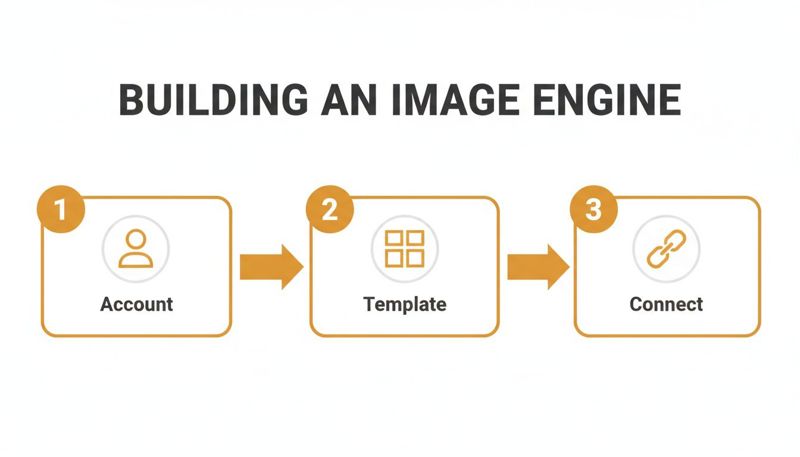
This just shows that any good automation needs a solid foundation—your account and templates—before you start connecting your apps.
Configuring the Action in OKZest
Now for the action. Add a new step to your Zap and search for OKZest. Once you connect your account, you’ll pick the action event: "Create Image". This instructs Zapier to ping your OKZest account and use one of your templates.
This next part is the most important piece of the entire Zapier image automation no code puzzle: mapping the data. This is where people sometimes get tangled up, but it’s really just a matching game. Zapier will display the dynamic fields you set up in your OKZest template (like first_name). Your job is to tell Zapier what information goes into those fields.
For example, to populate the first_name field in your image:
- Click into the
first_nameinput box within the Zapier editor. - A dropdown will appear, showing all the data from your "New Subscriber" trigger.
- Select the "Merges Fname" or "First Name" field from your Mailchimp data.
And that's it! You've just told Zapier, "For every new subscriber, grab their first name and place it into the first_name slot on my OKZest image." You’ve created a live link between your email list and your image template. We cover this in more detail in our guide on using an image personalization tool for Zapier workflows.
The real "a-ha!" moment comes when you realize you're just connecting data points. Your trigger app provides the info, and your action app uses it. Zapier is simply the translator.
This kind of automation is exploding in popularity. AI-powered image automation is now the second-most common enterprise AI use case at 36%, trailing only text generation. For marketers, who are the top users of AI on Zapier, this is a game-changer—3 in 4 are already using AI for personalized visuals. It’s no surprise AI tasks on Zapier grew over 760% in just two years.
Testing and Finalizing Your Workflow
After you've mapped all your dynamic fields, it's time to test the action. Zapier will take the sample data from your trigger test, send it over to OKZest, and generate a brand-new image.
The test result from OKZest will contain one vital piece of information: the Image URL. This is a unique link to the personalized graphic that was just created. That URL is the key to everything that comes next. You could pass it into a welcome email, post it to social media, or add it to a CRM record.
For now, though, your first Zapier image automation no code workflow is officially built.
To really get the most out of this and build more complex, self-running systems, it helps to understand the principles behind them. To go further, you can explore designing more advanced automations with resources like the Agentic Workflows: The Ultimate AI Automation Guide.
All that's left is to turn on your Zap. Now you're live! Every new person who joins your email list will have a personalized welcome image created for them, all running silently in the background.
Delivering Personalized Images Across Your Channels

So, you’ve built your Zap and it’s generating incredible, personalized images. That's a huge win, but an image sitting on a server doesn't do much good. The magic happens when you get that unique graphic in front of your audience.
Now it's time to put that image to work. We’re going to expand our Zap to take the image URL from OKZest and deliver it right where it will have the most impact—starting with a welcome email.
Embedding Images into Your Welcome Email
Let's head back into Zapier. Your Zap currently has a trigger (like a new subscriber) and an action that creates an image in OKZest. The next step is to add the delivery.
Click the “+” button to add a third step. Search for your email tool, whether it’s Klaviyo, Mailchimp, or another provider, and select an action like "Send Email."
This is where you'll build the email itself. You’ll map the subscriber's email from the trigger step, write a compelling subject line, and craft your email body. The key is getting the image to show up.
In the email body editor, you'll need to use a tiny bit of HTML. It's really simple—just an <img> tag. You'll point the image source (src) to the data from the previous OKZest step.
It looks like this: <img src="[Image URL from OKZest Step]">
When you go to insert the URL, Zapier will let you pick dynamic data from your previous steps. Just find and select the "Image URL" field from your OKZest action. That’s it! Zapier now knows to pull the specific, unique image for each new subscriber.
A Quick Guide to Merge Tags
Sending the email directly from a Zapier action is fast, but you might prefer using your email provider's own templates. In that case, the process is slightly different but just as easy.
Instead of "Send Email," your Zapier action would be something like "Update Contact" or "Add/Update Subscriber." You'd use this to save the OKZest image URL into a custom field for that contact in your email platform.
Once the URL is stored in a custom field (let's call it PersonalizedImageURL), you can insert it into any email template using your platform's merge tags. Here’s what that typically looks like:
| Platform | Merge Tag Example |
|---|---|
| Mailchimp | <img src="*|PersonalizedImageURL|*"> |
| Klaviyo | <img src="{{ person.PersonalizedImageURL }}"> |
| ConvertKit | <img src="{{ subscriber.personalized_image_url }}"> |
| Instantly | <img src="{{personalizedImageURL}}"> |
This approach is often better for deliverability and lets you keep all your branding and analytics inside your main email tool. The concept is identical—you're just telling the email where to find the right image.
The key takeaway is that the OKZest image URL is just another piece of data. You can pass it into any app that accepts dynamic information, just like you would with a first name or company.
Expanding Beyond Email Automation
Email is a powerful starting point, but why stop there? Your zapier image automation no code workflow can be pointed at almost any channel. The beauty of this setup is its flexibility.
Think about these real-world scenarios:
- LinkedIn Outreach: A new lead hits your CRM. A Zap fires, creating a custom "Great to connect!" image with their name and company logo. The next action in the Zap sends a connection request on LinkedIn with that image included.
- Customer Support: A support ticket is marked as "resolved." A Zap generates an image saying, "Thanks for your feedback, [Customer Name]!" and posts it in a team Slack channel to celebrate a win.
- Event Management: Someone registers for your webinar. A Zap creates a personalized digital ticket with their name and a unique QR code, then sends it straight to their phone via WhatsApp or SMS.
In every case, the pattern is the same: a trigger provides data, OKZest creates the image, and a final action delivers it. Once you've got this flow down, you can start applying it to countless touchpoints in your business to make every interaction feel more personal.
Advanced Automation Strategies and Pro Tips
Okay, so you've got the basic trigger-action workflow down. Creating a simple welcome image is a great start, but that's just scratching the surface. Now it's time to build truly smart automations that can handle complex, multi-step processes and save you a massive amount of time.
This is where you move beyond simple tasks and start building intelligent systems with your zapier image automation no code skills. Let's look at how to inject more logic into your Zaps using some of Zapier's powerful built-in tools.
Building Sophisticated Multi-Step Zaps
A single trigger doesn't have to lead to a single action. It can set off an entire chain reaction of automated tasks. Imagine you're an event organizer. When someone buys a ticket on a platform like Eventbrite, you don't just want to create a single image—you want a complete fulfillment process to run on its own.
A multi-step Zap for this could look something like this:
- Trigger: New Attendee in Eventbrite.
- Action 1: Create Image in OKZest. Use the attendee's name to generate a personalized certificate of completion.
- Action 2: Add a Row in Google Sheets. Log the attendee's details and the unique image URL from the OKZest step for your records.
- Action 3: Send Email via Gmail. Email the attendee their personalized certificate by embedding the image URL right into the email.
This one Zap handles image generation, record-keeping, and delivery in a single, automated flow. What used to be a manual, time-consuming job now happens instantly in the background, without you lifting a finger.
Cleaning Your Data with Formatter by Zapier
What happens when your incoming data is a bit… messy? Maybe a new lead typed their name in all lowercase, or a date is in a format you can't use. Pushing messy data into your OKZest template leads to sloppy, unprofessional-looking images.
This is where Formatter by Zapier becomes your secret weapon. It’s a built-in tool that lets you clean up and reformat data before it's passed on to the next step in your Zap.
You can use Formatter for all sorts of data hygiene:
- Text Formatting: Automatically capitalize names (turning "john smith" into "John Smith"), trim extra spaces, or truncate long text.
- Number Formatting: Format currencies properly, calculate values, or perform simple math.
- Date/Time Formatting: Change dates into a friendlier format, like from
2024-12-25to "December 25, 2024".
Just add a Formatter step right after your trigger. This ensures the data hitting your OKZest template is always clean and consistent, giving you a pixel-perfect result every time.
Using Conditional Logic with Filters
Not every trigger event needs to result in an action. Sometimes, you only want the automation to run if specific conditions are met. That's exactly what Filters are for. A Filter is another built-in Zapier tool that acts as a gatekeeper for your workflow.
Think of a Filter as a bouncer for your automation. It checks the data and only lets it pass to the next step if it meets your rules. This prevents unnecessary tasks from running and saves you money.
For instance, let's say you want to send a personalized "thank you" image to customers, but only for purchases over $100.
Your Zap would look like this:
- Trigger: New Sale in Shopify.
- Filter: Only continue if... the "Order Total" is greater than 100.
- Action: Create Image in OKZest.
If a sale is $50, the Zap stops dead at the filter. If it's $150, the Zap continues and generates your custom image. This simple logic lets you create highly targeted campaigns that react to customer behavior, membership tier, or purchase history.
Zapier Image Automation Use Cases by Role
This kind of no-code automation isn't just for one type of user. Professionals across different departments can find practical ways to integrate personalized images into their daily workflows, saving time and improving results.
Here’s a look at how different roles can put these ideas into practice:
| Professional Role | Primary Use Case | Example Zap Trigger |
|---|---|---|
| Marketer | Sending hyper-personalized welcome images to new subscribers. | New Subscriber in Mailchimp |
| Sales Rep | Generating custom outreach visuals for LinkedIn prospects. | New Lead in a CRM (e.g., HubSpot) |
| HR Manager | Automating "work anniversary" posts for social media. | Date/Time Trigger + Google Sheet |
| Event Organizer | Creating personalized event tickets for new attendees. | New Attendee in Eventbrite |
| Course Creator | Issuing personalized certificates upon course completion. | Student Completes Course in Teachable |
From marketing and sales to internal communications, the applications are incredibly diverse. The key is to identify a repetitive communication task and ask, "Could a personalized image make this better and faster?"
Streamlining Team Collaboration
When you're part of a larger team or agency, keeping image automations organized can get tricky. You might have different templates, brand assets, and permissions for various clients or campaigns. A tool built for teams, like OKZest, is essential here.
With features like dedicated projects and user role management, you can create separate, secure workspaces for each client or internal department. This keeps everything tidy and prevents crossed wires.
- Marketing Agencies can give each client their own project space, ensuring brand assets and templates never get mixed up.
- Sales Teams can work from a shared library of outreach templates, maintaining brand consistency while letting reps personalize their messages.
- Event Staff can be granted temporary access to manage certificates for a single event without seeing anything else.
This collaborative structure makes sure that as your use of zapier image automation no code expands, your workflows stay organized, scalable, and manageable across the whole company.
Frequently Asked Questions
Jumping into a new automation can bring up a few questions. It's totally normal. We've gathered some of the most common ones we hear from people setting up their first Zapier image automation no code workflow to help you get started with confidence.
What Happens if Personalization Data Is Missing?
This is a great question, and something that trips up a lot of people when they first start. What if a new subscriber signs up but skips the "first name" field? You definitely don't want your beautiful image showing a weird blank space like, "Welcome, !"
Luckily, OKZest has a simple, built-in solution for this. When you're building your image template, you can set fallback text for any field. So, if the first_name data doesn't come through from your form or CRM, the image can automatically use a default you've chosen—something friendly like "Friend" or "There."
Your Zap will automatically use this fallback without any extra steps. It’s a simple feature that ensures every single image you generate looks polished and professional, no matter what.
Is OKZest Compatible with My Email Platform?
Absolutely. OKZest was designed to be universal, so it plays nicely with pretty much any modern Email Service Provider (ESP) you can think of.
The automation works by generating a unique image URL for each individual person. You then pop that URL into your email using a standard merge tag or custom field.
Whether you're using Mailchimp, Klaviyo, Instantly, or ConvertKit, the process is the same. As long as your email tool allows you to insert a custom field into the email's HTML (and they all do), you're good to go.
How Much Does This Automation Cost to Start?
You can actually build and test this entire workflow for free.
Both Zapier and OKZest offer generous free plans that are more than enough to get everything set up, run tests, and even handle smaller campaigns.
You can build, test, and run your first Zapier image automation no code workflow without spending a dime. This is the perfect way to prove the concept and see the impact for yourself before deciding to scale.
Zapier’s free plan includes a certain number of tasks each month, which is often plenty for low-volume automations. OKZest’s free tier also lets you create templates and generate a good number of images every month. You only need to think about paid plans once your needs start to grow.
Ready to turn your audience data into eye-catching visuals? With OKZest, you can automate personalized image creation in just a few minutes, no code needed. Start for free today and see just how easy it is to make your communications unforgettable.