Think of an image personalization tool like OKZest as the missing link for your marketing apps. It’s the piece that lets you automatically generate one-of-a-kind visuals for every single customer, right within your existing workflows.
It essentially works like merge tags for images. Instead of just pulling text like a customer's name into an email, it pulls that data from your CRM or e-commerce store and places it directly onto an image template. This simple shift turns a generic, automated message into something that feels like a genuine, one-to-one visual experience.
Why Visual Automation Is a Marketing Game Changer
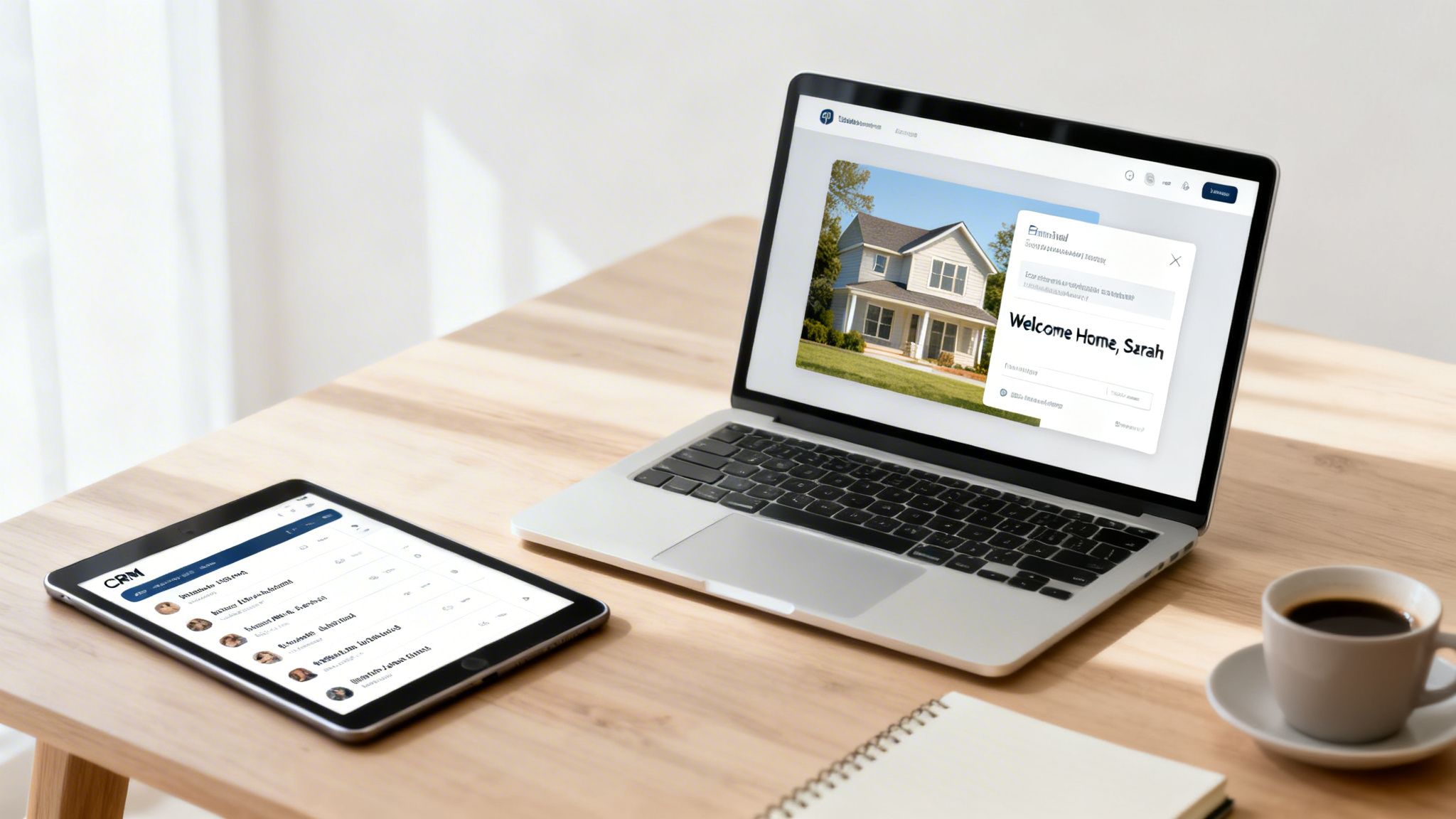
Imagine if every automated email or welcome message you sent had a completely unique, eye-catching image. That's what happens when you plug a tool like OKZest into your Zapier workflows. We're not just talking about adding a name to a stock photo; this is about turning your marketing stack into a dynamic content machine.
By pulling live data directly from your CRM, e-commerce platform, or even a simple Google Sheet, you can create visuals that speak directly to an individual. It’s all about scaling those personal conversations visually—a task that used to demand massive design teams and a ton of development time.
The real goal here is to make every automated touchpoint feel intentional and personal. When a customer sees their name, their company's logo, or a product they were just looking at rendered beautifully on an image, it grabs their attention in a way that plain text just can't match.
This approach delivers serious value for a lot of different people:
- Agencies can start offering high-impact personalization services to their clients.
- Sales teams can automate their outreach to finally stand out in a crowded inbox.
- Marketers can see a dramatic lift in engagement and conversion rates across their campaigns.
The Power of Connected Apps
The real magic is in the ecosystem. With over 7,000 apps on Zapier, it’s the perfect hub for connecting tools like Mailchimp, Klaviyo, and Instantly—all of which work seamlessly with OKZest. In fact, businesses running automations through Zapier see an 87% reduction in lead sync errors, which is a huge efficiency boost when you’re piping that clean data into your custom images.
Let's say you're a real estate agent. Instead of sending another generic "thanks for your interest" email, you could build a Zap that triggers the moment a new lead hits your CRM. OKZest could instantly generate an image of a beautiful home with a "Welcome Home, [Prospect Name]" sign out front. That image gets automatically dropped into an email. Just like that, you've created an immediate, emotional connection.
Once you get the hang of it, you start to see other opportunities. For instance, learning how to animate your logo uses the same core principle: using visuals to make your brand more memorable. If you want to dive deeper into more advanced techniques, our guide on creating dynamic images is a great next step. For now, this guide will give you the practical steps to get it all working.
Creating Your Dynamic Image Template in OKZest
Before you can fire off any automated workflows, you need to build your master template. This is the bedrock of your whole image personalization strategy, so getting it right is everything. Think of it as the blueprint for every single unique image your Zaps will create down the line.
Inside OKZest, the whole process is visual—no coding needed. You’ll kick things off by either uploading a background image you already have or designing one from scratch right in the editor. This could be a branded graphic for a webinar invite, a slick product shot, or a welcome banner for a new customer. This part is your static canvas; it's the foundation that stays the same for everyone.
Defining Your Dynamic Layers
Once your base image is locked in, the fun really starts. It's time to add dynamic layers. These are the placeholders for the personalized bits that will change for each and every person. For every piece of data you want to pull in, you'll add a new layer, like a text box for a name or an image placeholder for a company logo.
Each of these dynamic layers gets its own merge tag. This is just a simple label that tells Zapier where to slot in the right data. You’ll quickly get used to seeing tags like:
{{first_name}}: The classic way to add a personal greeting.{{company_name}}: Perfect for showing you've done your homework in B2B outreach.{{profile_picture}}: A great touch for making a welcome message feel more human.
You can drag, drop, resize, and style these layers just like you would in any design tool. This clear separation between the static background and the dynamic elements is what makes a great image personalization tool for Zapier workflows. It keeps your branding consistent while making the message feel incredibly personal.
When building your template, it’s helpful to think about what should change and what should stay the same.
Dynamic vs Static Elements in Your Image Template
| Element Type | Description | Example Use Case |
|---|---|---|
| Static Background | The core design that remains consistent. It carries your brand identity. | Your company logo, brand colors, and the main graphic for a sales offer. |
| Static Text | Any text that doesn't change, like a headline or a call to action. | The headline "You're Invited!" or the CTA "Claim Your Offer." |
| Dynamic Text | Personalized text that changes for each recipient, pulled from your data. | The recipient's {{first_name}}, {{company_name}}, or a custom {{discount_code}}. |
| Dynamic Images | Images that are unique to the recipient, like a profile picture or company logo. | A new user's {{profile_picture}} on a welcome image or a prospect's {{company_logo}}. |
Having a clear strategy for these elements ensures your images are both on-brand and deeply personalized, every time.
Setting Up Smart Fallbacks
So, what happens if the data you're expecting is missing? A Zap might fire for a new subscriber who skipped the 'First Name' field in your form. Without a backup plan, you could send an image with an awkward "Hi, !" right in the middle.
This is where fallbacks save the day.
For every dynamic layer in OKZest, you can set a default value. If {{first_name}} comes up empty, your fallback can pop in a friendly alternative like "there" or "friend" instead.
Setting fallbacks is non-negotiable for professional campaigns. It's a simple safety net that ensures every single image that gets sent is complete, polished, and on-brand, preventing broken-looking visuals from ever reaching your audience.
As you get deeper into image generation, you might be curious about the tech that makes it all happen. Understanding how different tools convert HTML to JPG can offer some cool insight into how your visual designs are turned into final, shareable images.
With your template fully designed, your dynamic layers defined, and your fallbacks locked in, you now have a production-ready asset. This template is primed and ready to be called on by any Zap, waiting to generate a perfectly personalized image the moment a trigger fires.
Building Your First Personalized Image Workflow in Zapier
Alright, you've designed your dynamic image template. Now for the fun part: connecting it to the apps you use every day. This is where you'll really see the magic of using an image personalization tool for Zapier workflows, as we'll build a complete Zap from the ground up to pipe live data right into your OKZest template.
Let's walk through a classic scenario. Say a new subscriber signs up for your newsletter through Mailchimp. In Zapier, you'd set your trigger as "New Subscriber in Mailchimp." Simple enough. After that, you just add an action step, search for OKZest, and pick the "Create Image" action. From there, you'll connect your account and select the exact image template you just made.
This whole process really comes down to three core steps: designing your base image, adding the dynamic layers that will change for each person, and setting up reliable fallbacks just in case.
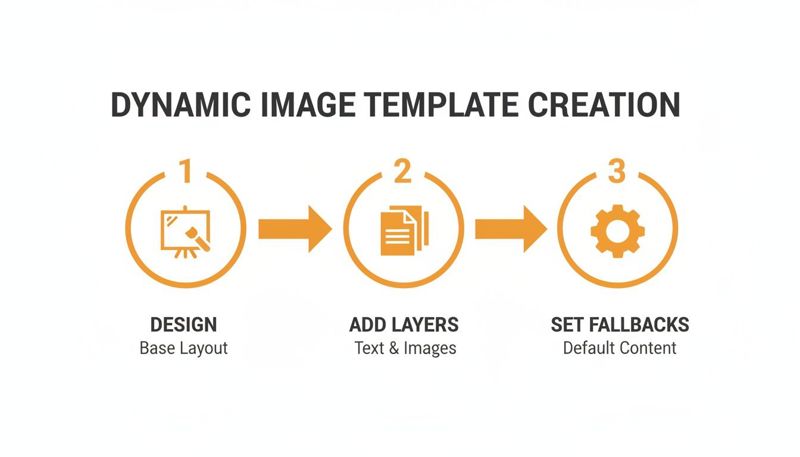
Getting this template foundation right is what makes the rest of the automation flow smoothly.
Mapping Data for Perfect Personalization
The most important part of this setup is the data mapping. This is where you tell Zapier what information to grab and where to put it. Inside your OKZest action step, you'll see fields that directly correspond to the merge tags you created in your template, like {{first_name}}.
All you have to do is click into that field and select the matching data point from your Mailchimp trigger. It’s a completely visual, point-and-click process. You're basically just telling Zapier, "Hey, see that 'First Name' from the new subscriber? Put it right here." No code, no fuss.
Real-World Example: Eventbrite Tickets
Let's make this more concrete. Imagine you're an event organizer using Eventbrite. Your workflow could be a lifesaver:
- Trigger: A new attendee registers for your event in Eventbrite.
- Action: OKZest instantly generates a personalized ticket image. It pulls the attendee's
{{full_name}}and uses their unique{{order_id}}to create a custom QR code right on the image. - Action: The newly created ticket image is then automatically sent to the attendee in a Gmail confirmation email.
The OKZest step gives you one, incredibly powerful output: a dynamic image URL. This single URL is the key to unlocking personalization in any other step in your Zap. You can drop it into an email, post it to social media, or even use it to update a record in your CRM.
Building these Zaps doesn't have to be a major project. We've seen how simple merge tags can dramatically speed up the process. For those who want to get more technical, you can always read our guide on API integration for a deeper dive. https://okzest.com/blog/api-integration-tutorial
This no-code approach is a game-changer. We know that 74% of workers have run into issues with poor outputs from other AI tools. OKZest avoids this frustration by delivering reliable, predictable images every time. And with 29% of employees feeling like they don't have enough support to build automations, having a straightforward tool makes all the difference. This simplified process gives teams the confidence to build effective visual automations on their own.
How to Use Your Dynamic Images in Marketing Campaigns
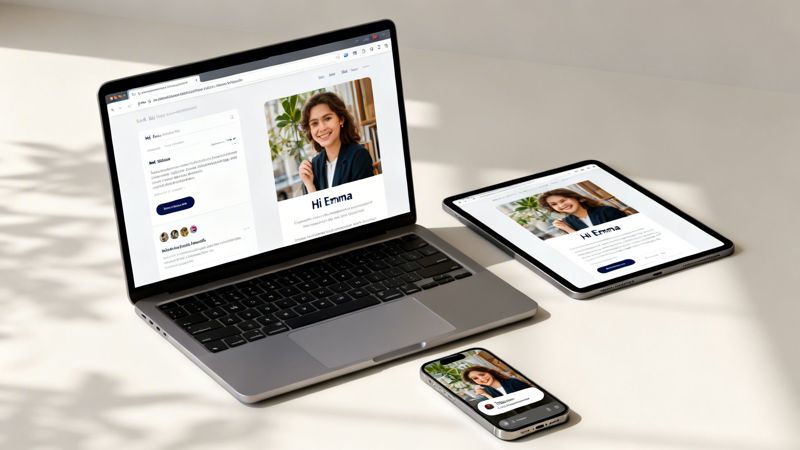
So, your Zap is now firing off unique image URLs. That’s the technical victory, but the real win comes from putting those visuals in front of your audience. The dynamic URL created by OKZest in your Zap is the key to unlocking true personalization across all your marketing channels.
Let's dive into the practical ways you can deploy these images to create memorable customer experiences, moving beyond the setup and into real-world application.
Embedding Dynamic Images in Emails
Email marketing is easily the most common—and powerful—place to use personalized images. Whether you're on Klaviyo, Mailchimp, or another platform, the concept is the same. You just need to insert an HTML image tag where the src (source) is populated by the dynamic URL from Zapier.
Most email service providers (ESPs) use merge tags or custom fields to handle this kind of dynamic data. Your Zap would pass the OKZest image URL into a custom contact field—let's call it personalized_image_url for this example.
Inside your email template's HTML, your image tag would look something like this:
<img src="{{ contact.personalized_image_url }}" alt="A special welcome for you!">
When the email goes out, the ESP swaps the merge tag with the unique image URL for that specific contact. The result? Every subscriber sees an image tailored just for them. For a deeper look into this strategy, check out our guide on personalized marketing visuals.
Creating Personalized Landing Pages
Imagine a new user signs up and lands on a welcome page that already features their name and profile picture on a banner. It creates an instant "wow" moment and confirms they're in the right place.
You can get this done with a simple Zapier workflow. After a user signs up, your Zap generates the image with OKZest and then uses a webhook or an integration with your landing page builder to pass that URL.
The HTML on your landing page would be similar to the email example, using a variable to display the image. This small touch dramatically boosts the perceived value of your onboarding flow.
The goal is to make automation feel human. By using an image personalization tool for Zapier workflows, you can bridge the gap between automated systems and genuine, one-to-one communication, making each interaction more impactful.
Automating Social Media DMs
Direct messaging on platforms like X (formerly Twitter) is a fantastic channel for personalized engagement. You could set up a Zap that triggers whenever you get a new follower.
- Trigger: New Follower on X.
- Action: OKZest creates a welcome image with their Twitter handle and profile picture.
- Action: Your Zap sends a DM to the new follower that includes the personalized image.
This approach transforms a generic "thanks for the follow" into a memorable interaction that really stands out. It shows you're paying attention and helps start a real conversation. The same principle applies to LinkedIn connection requests or other social automation, making your outreach feel far less robotic and much more engaging.
Once you've nailed the basics of triggering a personalized image and sending it on its way, you can start building some truly sophisticated automations. This is where you move beyond just dropping a name onto a picture and start creating hyper-relevant experiences based on actual customer data and behavior.
This is where the magic really happens. You’re about to graduate from simple Zaps to creating smart, logic-driven campaigns that do the heavy lifting for you.
Creating Conditional Workflows with Paths
One of the most powerful features in Zapier for this is Paths. Think of Paths as a "fork in the road" for your automation. They let you build conditional logic right into your Zaps, sending users down different routes based on the information you have.
For example, imagine you want to send different welcome images based on a new customer's subscription tier. It’s simple with Paths.
- Path A (VIP Customers): If a new subscriber's plan is "Premium," your Zap can use an OKZest template with a slick, gold-themed design and text that says, "Welcome to the Club, {{first_name}}!"
- Path B (Standard Customers): If their plan is "Basic," they’re sent down another path. This one uses a standard branded template with a simple "Great to have you, {{first_name}}!" message.
This setup automatically segments your visual messaging, making your most valuable customers feel seen and appreciated—all without any extra work on your part.
Troubleshooting Your Workflows Like a Pro
Even with a perfect setup, you’ll hit a snag now and then. A broken image link in an email is a classic—but it's almost always an easy fix. Before you ever let a Zap run live, using Zapier's built-in testing features is non-negotiable. Seriously, don't skip this.
When you test your Zap, look closely at the data that comes out of the OKZest step. Is the image URL being generated correctly? If you spot an error, the problem is usually one of two things:
- Data Mapping Errors: This is the most common culprit. Go back and double-check that you've mapped the correct data fields from your trigger step (e.g., Mailchimp) to the OKZest action. A classic mistake is mapping a full name field to a
{{first_name}}parameter, or vice-versa. - Missing Fallbacks: Did the image URL work, but the image itself has a weird blank space? That means some data was missing from the record, and you didn't have a fallback set in your OKZest template. Just pop back into OKZest and add those default values.
Always test your Zap with a few different scenarios. Run a test with a complete record, and then run another with a record that's intentionally missing info (like a first name) to make sure your fallbacks kick in just right.
Optimizing for Different Channels
The perfect image for an email probably won't be the perfect image for a social media DM. Optimizing your images for each channel is crucial for looking professional and getting the best engagement.
Keep these general guidelines in mind:
- Email: Stick to a width of around 600-800 pixels. This ensures your image looks fantastic in most email clients without being so huge that it gets flagged by spam filters or takes forever to load.
- Social Media DMs: A square (1:1 aspect ratio) or vertical (4:5 aspect ratio) image usually performs best on platforms like Instagram or X. It simply fills up more of the screen on a phone.
- Web Banners: Dimensions here can be all over the place, but a common aspect ratio is 16:9. Just make sure the file size is optimized for the web to keep your page load speed snappy.
By creating a few different templates in OKZest for your main channels, you can maintain brand consistency and deliver a polished final product, no matter where your audience sees it.
Common Questions About Image Personalization with Zapier
As you start hooking up your apps and building your first visual automations with Zapier, a few practical questions are bound to pop up. It happens to everyone.
Let's walk through the most common ones we hear. Getting these cleared up will help you launch your first workflow with total confidence.
What Happens if Data Sent from Zapier Is Missing?
This is a fantastic question, and it gets right to the heart of building professional, reliable automations. You don't want to send out an image that says "Hi, !"—it looks broken and unprofessional.
This is precisely why setting fallbacks inside your OKZest template is so crucial. For every dynamic layer in your image, like {{first_name}}, you can define a default value.
So, if your Zap trigger fires for a new contact who doesn't have a "first name" in their profile, the system won't generate an awkward, empty image. Instead, your pre-set fallback—something like "Friend" or even just a friendly "You"—will automatically slide into place. It’s a simple safety net that ensures every image looks complete and polished.
A robust fallback strategy is the difference between an amateur automation and a professional one. It guarantees brand consistency and prevents embarrassing, broken-looking visuals from ever reaching your audience.
Can I Use This for More Than Just Email Marketing?
Absolutely. While email is definitely a popular and powerful use case, the dynamic image URL generated by the OKZest step in your Zap is incredibly versatile. Just think of it as a portable, personalized piece of content.
You can plug it into almost any tool your Zapier workflow can send a URL to. For instance:
- Chatbots: Pass the URL to a tool like ManyChat to show a personalized welcome image right in the chat window.
- Social Media: Use it in a social automation tool to send a custom welcome image in a DM to a new follower on X.
- Websites: Embed the image on a personalized landing page to greet new users the moment they sign up.
- Certificates: Automatically generate and send custom certificates for webinar attendees or course graduates.
Essentially, any action step in your Zap that can accept an image URL can use the output from your image personalization tool for Zapier workflows. If you can send a link there, you can send a personalized image there.
Is This Process Difficult for a Non-Developer?
Not at all. The entire process was designed from the ground up to be no-code.
OKZest gives you a visual, drag-and-drop editor for designing your image templates. On the other side, Zapier uses its famous point-and-click interface where you're just selecting options from dropdown menus, not writing lines of code.
The core task is simply mapping fields—connecting the "First Name" data from your trigger app to the {{first_name}} field in your OKZest action. If you've ever set up a basic two-step Zap before, you already have all the skills you need to make this work. And if you do get stuck, real-time text or video chat support is always on hand to help you out.
Ready to turn your automated messages into visual experiences that capture attention? OKZest makes it easy to create and automate personalized images at scale. Start for free and build your first dynamic image workflow today.