You’ve already done the hard part. The audience is segmented, the copy is written, and the campaign logic is in place. Then the email goes out with the same generic hero image for everyone.
That’s where a lot of personalization programs stall. Teams add a first name in the subject line and call it personalized, but the visual experience stays one-size-fits-all. In crowded inboxes, landing pages, and outreach sequences, that gap matters.
To generate images programmatically is to move personalization from text-only to visual. Instead of one banner for everyone, you create an image template once and fill it with live data such as a person’s name, company, event date, product, score, certificate details, or location. The result is a unique image for each recipient, generated automatically.
Beyond First Names The New Era of Personalization
A common campaign problem looks like this. A webinar team sends thousands of invitations with solid copy and a clean layout, but the main image is the same generic banner for every recipient. The email says “Hi Sarah,” yet the visual says nothing specific at all.
That mismatch is becoming more obvious. Visuals carry a lot of the attention load, especially in email and social placements where people scan before they read.

Programmatic image generation fixes that by turning images into templates with data fields. Instead of one static asset, you produce a different version for each person. That could mean a webinar invite with the attendee’s name and company, a sales image with the prospect’s logo, or a certificate with a course title and completion date.
Why this matters now
The volume alone tells you this is no longer niche. By 2024, over 34 million AI-generated images were being produced daily, and personalized emails achieve 29% higher open rates and 41% higher click-through rates than generic campaigns, according to this programmatic image generation discussion.
For marketers, the takeaway isn’t that every image needs AI. It’s that visuals are now configurable. You can treat them like any other dynamic content asset. If you’re already personalizing web experiences, this guide to dynamic content for websites is a useful companion because the same principle applies. One experience framework, many outputs.
Two practical ways to do it
Teams generally choose one of two paths:
- No-code tools: Best when marketing owns execution and needs to move quickly without engineering help.
- API workflows: Better when images need to be generated inside apps, automations, chatbots, or custom campaign systems.
Practical rule: If your team already works comfortably with CSV files, ESP merge tags, and templates, start with no-code. If you need generation inside an existing product or workflow, use the API path.
The important shift is this. Stop thinking of an image as a finished file. Start treating it as a renderable asset that combines design, rules, and data at the moment you need it.
Designing Your Dynamic Image Template
A weak template creates weak personalization. If the layout breaks when a name is long, if the logo area doesn’t handle different proportions, or if the call-to-action disappears on mobile, the automation only scales bad output.
The template has to do two jobs at once. It must protect your brand and tolerate messy real-world data.

What a strong template includes
In a no-code editor, you’ll usually place a static background first. That might be a branded banner, a product frame, a certificate base, or a social post layout. Then you add dynamic layers on top.
Those layers often include:
- Text fields: Name, company, date, title, score, offer, location.
- Image fields: Profile photo, company logo, product shot, speaker avatar.
- Conditional elements: A badge, status marker, or alternate CTA when data matches a rule.
Leave more room than you think you need. “Amy” and “Alexandria-Margaret” can’t share the same text box settings. The same goes for company names and event titles.
No-code thinking versus API thinking
No-code tools let you work visually. You drag fields into place, style them, and map them to incoming data later. That’s faster for campaign teams because the design intent is visible immediately.
API workflows need the same design discipline, but the mental model is different. Instead of dragging elements around, you define them as layers with positions, sizes, and styling rules. You’re effectively telling a rendering engine where each dynamic element belongs.
A simple planning table helps before you build anything:
| Layer | Static or dynamic | Design concern |
|---|---|---|
| Background banner | Static | Keep brand-safe and legible |
| First name | Dynamic | Allow for long names |
| Company logo | Dynamic | Handle square and wide logos |
| CTA text | Dynamic or static | Preserve contrast and spacing |
| Date or offer | Dynamic | Don’t crowd the headline |
The design constraints that save time later
Most failures happen before generation starts. Not in code. In design.
- Use safe zones: Keep dynamic text away from edges and busy backgrounds.
- Choose readable fonts: Thin display fonts often look good in mockups and fail in production.
- Plan for missing assets: A logo space without a default treatment becomes a broken composition.
- Test ugly inputs: Long names, lowercase names, all-caps company names, transparent PNGs, and empty values.
If you want a deeper look at how image templates are structured in an API workflow, this piece on an image templating API is worth reviewing before you build.
Good templates don’t assume clean data. They expect variance and still look finished.
How to Generate Images with No-Code and API Flows
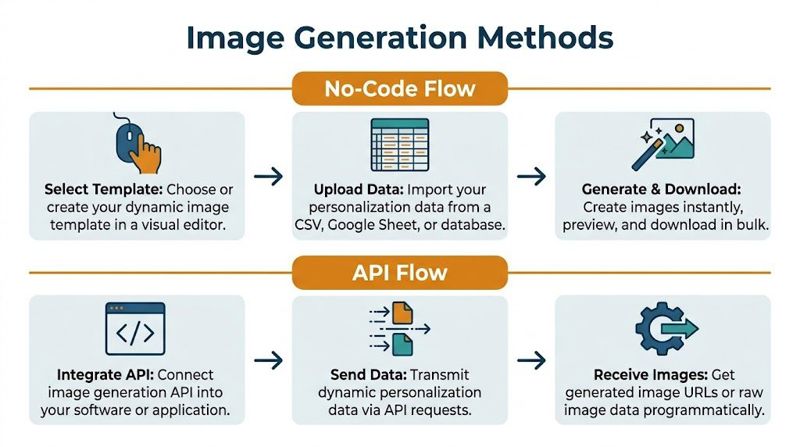
Once the template is ready, generation becomes an operational question. Who will run it, where the data lives, and how often the image needs to be created determine the right setup more than anything else.
Some teams need a one-off batch for an event campaign. Others need image generation wired into lifecycle emails, outbound sales systems, or product-triggered notifications.
The no-code route
The no-code path is straightforward. You create or select a template, upload a CSV or connect a sheet, map each column to the matching placeholder, preview a few records, then generate the output.
That’s well suited to marketers running newsletters, conference invites, certificates, or personalized social assets.
A typical no-code workflow looks like this:
- Prepare the data file with columns such as first_name, company, event_date, logo_url.
- Map fields to placeholders so each column feeds the right text or image area.
- Preview edge cases before bulk generation.
- Export image URLs or files for use in your ESP, CRM, or campaign builder.
One practical option in this category is personalized content automation, which covers how dynamic image generation fits into broader campaign workflows.
The API route
The API path gives you more control. You can trigger image generation from a signup, a CRM update, a chatbot flow, or an outbound sequence.
Here’s a simple HTTP example:
POST /v1/generate
Authorization: Bearer YOUR_API_KEY
Content-Type: application/json

{
  "design_id": "webinar-invite-01",
  "layers": {
    "first_name": "Sarah",
    "company": "Northwind",
    "cta": "Save your seat",
    "logo_url": "https://example.com/logo.png"
  }
}
A basic Node.js example:
const response = await fetch('https://api.example.com/v1/generate', {
  method: 'POST',
  headers: {
    'Authorization': 'Bearer ' + process.env.API_KEY,
    'Content-Type': 'application/json'
  },
  body: JSON.stringify({
    design_id: 'webinar-invite-01',
    layers: {
      first_name: 'Sarah',
      company: 'Northwind',
      cta: 'Save your seat',
      logo_url: 'https://example.com/logo.png'
    }
  })
});

const data = await response.json();
console.log(data.image_url);
And the same idea in Python:
import os
import requests

payload = {
    "design_id": "webinar-invite-01",
    "layers": {
        "first_name": "Sarah",
        "company": "Northwind",
        "cta": "Save your seat",
        "logo_url": "https://example.com/logo.png"
    }
}

headers = {
    "Authorization": f"Bearer {os.environ['API_KEY']}",
    "Content-Type": "application/json"
}

response = requests.post("https://api.example.com/v1/generate", json=payload, headers=headers)
print(response.json()["image_url"])
What works and what breaks
Batch generation is useful, especially because some advanced APIs can generate 4 variants per API call, but character consistency is a real issue. In closed APIs, generating the same face consistently across a batch can fail around 70% of the time without fine-tuning, as described in this analysis of Imagen 3 and related workflows.
That matters if you’re trying to personalize with human portraits or repeated character-based visuals. It matters less for text overlays, certificates, logos, and product-led compositions.
If your use case includes product visuals rather than recipient-specific overlays, it also helps to explore the power of 3D product visualization. Many teams pair rendered product assets with dynamic overlays instead of generating everything from scratch.
Unlocking Advanced Personalization with Data and Fallbacks
Basic personalization changes a label. Advanced personalization changes the meaning of the image.
A real estate team can show the current property price. An event organizer can issue certificates with the attendee’s role and session track. A sales team can generate outreach graphics with the prospect’s company name and rep details. The image feels built for the person because the content reflects live context.

Dynamic data is only half the job
Teams usually focus on data inputs first. They connect a CRM field, spreadsheet, or API and celebrate when the image renders correctly for a sample record.
That’s not enough. Production systems fail at the edges.
One contact has no first name. Another has a broken logo URL. One event registration is missing a company. A certificate title arrives with odd capitalization. Those aren’t rare exceptions. They’re the normal state of marketing data.
Fallbacks are what make personalization reliable
A 2025 HubSpot report found that 78% of marketers using personalization see double the engagement, while 40% report failures from data inconsistencies, and without programmatic fallbacks campaigns can fail unnoticed with broken images that hurt user experience and brand perception, as summarized in this personalization and fallback discussion.
The right response isn’t to avoid dynamic images. It’s to build fallback logic into the image lifecycle.
Use simple rules like these:
- Missing first name: Show “Valued Customer” or remove the salutation line entirely.
- Missing logo: Insert a neutral brand placeholder or a text-based company label.
- Invalid photo URL: Use a default avatar.
- Empty event field: Swap in a generic banner version rather than exposing a blank area.
A personalized image should degrade gracefully. The worst outcome isn’t less personalization. It’s a broken visual sent at scale.
One practical example
Take an event certificate. The image may include attendee name, event title, completion date, organizer signature, and badge level.
If the badge level is missing, you don’t want the design to collapse. You either hide that layer or insert a default badge style. If the attendee name is blank, you route the record for review or render a generic completion certificate only if your use case allows it.
That’s the line between a clever demo and a dependable production workflow. Live data makes the image relevant. Fallbacks make it shippable.
Embedding and Scaling Your Personalized Images
Generating the image is only part of the job. Delivery is where campaigns either work cleanly or get messy.
In email, the most common pattern is to place a dynamic image URL inside your template and let your ESP populate the merge tags at send time. In practice, that means your image URL contains variables for the recipient, and the email platform fills them in when each message is assembled.
Where these images usually get embedded
The same pattern works across channels:
- Email campaigns: Newsletters, event invites, nurture emails, outbound sales.
- Landing pages: Personalized hero sections after ad clicks or SDR outreach.
- Direct messaging: Social DMs, WhatsApp workflows, and follow-up sequences.
- Internal tools: Dashboards, certificates, and customer-facing notifications.
If you’re sending from Mailchimp, Klaviyo, or a similar platform, keep the image insertion method simple. Use one image block and one tested URL pattern. Don’t build multiple competing personalization methods into the same message unless there’s a hard requirement.
Scaling without creating operational drag
At low volume, you can generate on demand. At higher volume, caching and pre-generation start to matter a lot more.
OpenAI’s ChatGPT Images system handled 700 million images in one week, and the scaling techniques behind that kind of volume included multi-pass generation, auto-scaling inference clusters, and aggressive caching. For marketing teams, the practical translation is simpler: pre-generate templates, inject dynamic data efficiently, and use caching where possible. That approach can yield 2-5x cost savings, bringing image costs to under $0.01 at scale, according to this engineering breakdown of ChatGPT Images infrastructure.
A few patterns consistently help:
| Situation | Better approach | Why it works |
|---|---|---|
| Scheduled campaign | Pre-generate in batches | Reduces last-minute load |
| Reused base design | Cache static layers | Cuts rendering work |
| Large recipient list | Segment generation jobs | Easier retries and QA |
| Multi-channel reuse | Store canonical image URLs | Prevents duplicate generation |
For teams planning larger sends, this guide to high-volume image generation is useful because the operational issues change once you move from testing to production.
Scaling note: Don’t wait until send day to discover that your generation workflow can’t keep up with your audience size.
The best setups separate image design, data mapping, generation timing, and delivery. That gives marketing teams room to update creative without rebuilding the pipeline every time.
Troubleshooting Common Image Generation Issues
Image generation problems are normal. They don’t mean the approach is flawed. They usually mean one piece of the chain needs a tighter rule.
The fastest way to debug is to trace the full path. Template, data, generation, URL output, then delivery. Most issues show up in one of those five points.
The failures that show up most often
- Broken image or blank output: Check whether the data field exists and whether a fallback value is defined.
- Text overflow: The template was designed for ideal data, not real data. Reduce font size range, widen the text area, or shorten the source field before rendering.
- 401 Unauthorized: The API key is missing, expired, or attached to the wrong environment.
- Slow image loading in email: Use lighter assets, simpler compositions, and stable hosted image URLs.
- Wrong image for the wrong person: Review caching logic and make sure recipient-specific values are part of the image request, not hard-coded or reused accidentally.
A quick checklist before launch
Run a small but ugly test set. Don’t just test your best records.
Include:
- A long name
- A missing logo
- An empty optional field
- A malformed image URL
- A record with unusual capitalization
That single QA pass catches most production issues earlier than any polished sample preview.
When a campaign breaks, the cause is usually ordinary. Missing data, bad mapping, stale credentials, or a template that assumed perfect inputs.
Treat troubleshooting as part of the workflow, not cleanup after failure. Teams that do this launch faster because they know exactly where to look when something goes wrong.
Frequently Asked Questions
Can marketers generate images programmatically without developers
Yes. If your use case is campaign-driven and your data already lives in a spreadsheet, ESP, or CRM export, a no-code workflow is often enough. Developers become more important when generation needs to happen inside a product, in real time, or across multiple systems.
What kinds of campaigns benefit most
Email newsletters, outbound sales, event invites, certificates, webinar promotions, direct messages, and landing pages are all strong fits. The common thread is simple. The image becomes more useful when it reflects the individual recipient.
Should every personalized image use AI generation
No. A lot of production use cases are better served by templated rendering than by text-to-image generation. If you need brand consistency, predictable layout, and clean text placement, templates often outperform fully generative approaches.
What data should I personalize first
Start with fields that are stable and meaningful. Name, company, event title, date, product, location, or account owner usually work well. Leave fragile or inconsistent fields out until you’ve built proper fallback handling.
How do I keep the process manageable
Standardize templates, keep naming conventions clean, test ugly data before launch, and document fallback rules. Complexity usually comes from inconsistency, not from the image generation itself.
If you want a practical way to turn templates plus merge-tag data into personalized images for email, websites, certificates, and messaging workflows, take a look at OKZest. It offers both no-code and API options, supports fallback values for missing personalization data, and fits teams that need anything from small batch sends to large-scale image generation.