So you want to create a URL for an image? The basic process is straightforward: upload your image somewhere online—like your website's media library or a cloud service—and grab its direct link. That link, the Uniform Resource Locator, is simply the address a browser uses to find and display your picture.
Simple enough, right? But let's dig a little deeper.
Why Your Image URL Strategy Is a Hidden Marketing Asset

Before we get into the "how-to," it’s crucial to understand that the URL behind your image is much more than just a functional link. A basic, static URL does its job—it shows a picture. But a dynamic, intelligent URL? That can transform your marketing from a generic broadcast into a one-on-one conversation with every single viewer.
The real magic is in personalization. A dynamic URL can change the image it displays based on who's looking, turning a flat campaign into a genuinely memorable experience.
From Static Links to Dynamic Conversations
Imagine you’re running a coaching business and need to send custom certificates to all your clients. You want each certificate to have their name on it, delivered right inside an email. Creating each one by hand and generating a unique URL for every single person would be a logistical nightmare.
This is exactly where tools like OKZest come in, automating the whole process with simple merge tags. The impact is huge. Industry benchmarks show that since personalized marketing became more accessible, email open rates have jumped by 26% when campaigns feel personal. You can learn more about this from UserGuiding's latest website personalization trends.
This approach shifts your goal from just showing an image to creating an interactive moment. It's a powerful way to:
- Boost Engagement: Let's be honest, personalized content grabs our attention far more effectively than generic visuals.
- Drive Conversions: A custom call-to-action or an offer with someone's name on it just feels more relevant and persuasive.
- Build Relationships: Showing a customer you see them as an individual, not just a number, is a fantastic way to build loyalty.
A well-crafted image URL isn't just a technical detail; it's a strategic tool. It lets you connect with your audience on a personal level, making your marketing more effective and your brand far more memorable.
Static vs. Dynamic Image URLs At a Glance
To really get a feel for this, let's break down the core differences. A static URL points to one single, unchanging image file. Think of your company logo. A dynamic URL, on the other hand, can generate a unique image for every viewer based on data you provide.
Here’s a quick comparison to help you decide which strategy fits your goals.
| Feature | Static Image URL | Dynamic Image URL |
|---|---|---|
| Content | Fixed and unchanging. | Varies based on user data. |
| Personalization | Not possible. | Highly personalized. |
| Use Case | Website logos, blog post images. | Personalized email campaigns, event tickets. |
| Scalability | Manual updates required for changes. | Scales automatically for millions of users. |
Ultimately, understanding when to use each type is key. For standard, unchanging content, static URLs are perfectly fine. But when you want to create a truly personal connection that scales, dynamic URLs are the way to go.
Mastering the Basics of Static Image URLs
Every great personalization strategy starts with the fundamentals. Before you can get fancy with dynamic, personalized visuals, you first need a solid grasp of the standard static image URL. This is just a simple, unchanging link that points directly to an image file living somewhere on the internet. It’s the bedrock of almost every image you see online.
At its heart, the process is straightforward: you upload your image to a place the internet can see it, and that place gives you a direct link to it. Let's walk through the most common ways to get this done.
Using Your Website Media Library
For most of us, the easiest place to start is right inside our website's own Content Management System (CMS), whether that's WordPress, HubSpot, or Webflow. When you upload an image to your media library, the system automatically hosts the file for you and spits out a permanent URL. Simple as that.
- Pros: This is incredibly convenient. All your website assets stay neatly organized in one spot, and you don't need any extra accounts or technical skills beyond what you're already using.
- Cons: Relying on your website's hosting can sometimes mean slower image load times, especially if your server isn't top-notch or if you suddenly get a huge spike in traffic. It also might not be the best approach if you're managing thousands upon thousands of images.
Here’s a peek at the classic WordPress media library. See how each image gets its own unique URL?
Every file listed here has a "File URL" you can copy and paste anywhere. It’s a no-fuss way to get a working image link up and running.
Dedicated Image and Cloud Hosting
When you need more power and speed, dedicated hosting services are the way to go. These platforms are built from the ground up to store and deliver media files as quickly as possible.
Cloud Storage Solutions (AWS S3, Google Cloud Storage): These are the heavy hitters, the industry standard for any application dealing with a high volume of images. They offer incredible reliability and speed, usually paired with a Content Delivery Network (CDN) to make sure your images load fast for users anywhere in the world. The trade-off? They can have a steep learning curve and take some effort to configure properly.
Specialized Image Hosting (Cloudinary, Imgix): These services take things a step further. They don't just store your images; they also provide on-the-fly optimization, transformation, and manipulation. They’re perfect for websites that need to serve many different versions and sizes of an image all from a single master file. For a deeper look at how this all works in your site's code, check out our guide on how to link an image in HTML.
Pro Tip: No matter where you host your images, optimizing them before you upload is a must. Compressing images, choosing the right file format (JPEG, PNG, or WebP), and using descriptive file names are all critical for SEO and page speed. An unoptimized 3MB image will drag your site down, no matter how fancy your hosting is.
Building Dynamic URLs for Personalized Images
Static images are fine, but let's be honest—dynamic content is where you really start connecting with people. We're talking about moving beyond one-size-fits-all visuals into a world where images adapt to every single viewer, all powered by a cleverly built URL. This simple trick turns a basic link into a command center for personalization, making your outreach feel less like a mass broadcast and more like a one-to-one conversation.
At its heart, a dynamic image URL is just a standard web address with extra instructions tacked on at the end. These bits of data, called query parameters, tell a server exactly how to customize a base image template before it shows up on someone's screen. It's the secret sauce that lets one template spawn countless unique variations in real-time.
The old-school static process is pretty straightforward: upload an image, maybe optimize it, and publish it with a fixed URL.
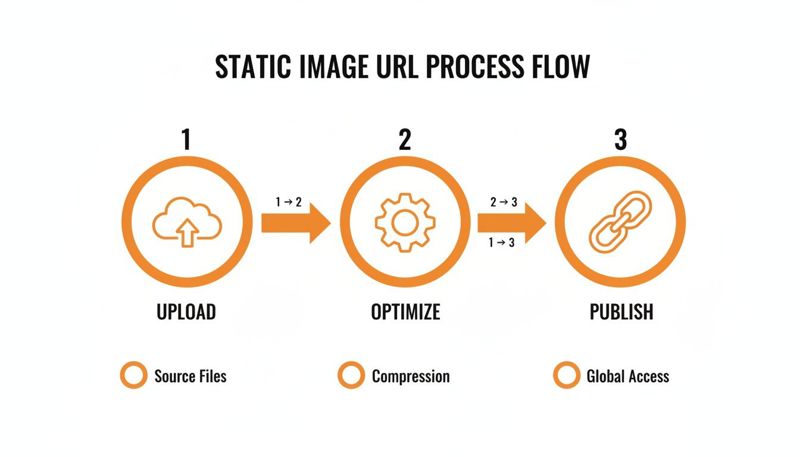
Dynamic URLs completely flip this script. They slide a personalization step in right before the image gets delivered, making the final visual adaptable instead of locked in.
How Query Parameters Work
Let's say you have a base URL for a welcome image template. It might look something like this: https://your-image-service.com/welcome-card.
To make it personal, you just add query parameters. These are simple "key=value" pairs that start with a question mark (?) and are separated by ampersands (&). Each one tells the image service what specific data to plug into your template.
Want to add a person's name? The URL becomes:
https://your-image-service.com/welcome-card?name=John
Need to include their company, too? Just tack on another parameter:
https://your-image-service.com/welcome-card?name=John&company=Acme%20Inc
Did you notice how the space in "Acme Inc" was replaced with %20? That's called URL encoding, and it's a crucial step to make sure special characters don't break the link. It might seem a bit technical, but modern no-code platforms handle all of this for you behind the scenes.
The real magic is that by simply tweaking the values in the URL, you can change text, swap out logos, update background images, or even populate data in a chart. This is how you create super-relevant visuals for every single person in your audience without having to design thousands of individual images.
The Modern No-Code Approach
Thankfully, you don't need to be a developer to create a URL for a personalized image anymore. Platforms like OKZest take care of all the complex parts. Instead of manually piecing together URLs with query parameters, you get to work with the simple merge tags or personalization tokens you already use in your email service provider.
You’re probably familiar with tags like {{first_name}} or *|FNAME|*. Here’s the process:
- Design a Template: First, you create your base image and mark the spots where you want the dynamic content to go.
- Generate a Base URL: The platform gives you a single, clean URL for that template.
- Insert Merge Tags: You then build the final URL by adding the merge tags from your marketing tool as query parameters. For example:
.../image-template?name={{first_name}}&company={{company_name}}.
When you send your email or message, your marketing platform automatically swaps {{first_name}} with the recipient's actual name, instantly generating a perfectly personalized image URL for each person. To take this even further, consider how strategies like Dynamic Creative Optimization (DCO) apply these same principles to paid ads for an even bigger impact.
Real-World Scenarios in Action
The applications here are practically endless. An event organizer could send attendees personalized tickets with their name and a unique QR code. A sales team can create custom outreach images that call out a prospect's company and a specific pain point. A nonprofit could send donors thank-you images showing their name and the tangible impact of their contribution.
Each of these examples uses the exact same technology: a base template URL that’s modified by data unique to the person receiving it. This method of using an image API URL is what makes personalization at scale not just possible, but surprisingly easy to pull off.
Putting Your Personalized Image URLs into Action
Alright, you've got the theory down. But let's be honest, the real magic happens when you see those personalized images pop up in your actual marketing campaigns. It's time to take those dynamic URLs from the drawing board and put them to work where it counts—in your emails and on your website.
The good news? It’s way easier than you might think. The process leans on the same merge tags you probably already use every day.

This guide will walk you through integrating these powerful links so every customer gets a visual experience made just for them. We'll also cover the crucial safety net—fallbacks—to make sure you always look professional, even when your data isn’t perfect.
Embedding into Your Email Campaigns
Your email list is a goldmine for personalization. Platforms like Mailchimp, Klaviyo, or Instantly are built to use subscriber data, and we can easily tap into that to generate a unique image for every single person on your list.
The whole trick is building an image URL that includes the merge tags from your email service provider (ESP).
Here’s what that looks like in the real world. Say your dynamic image template URL from a tool like OKZest is:
https://okzest.com/your-image-template
You want to add the subscriber's first name. In Klaviyo, the merge tag for that is {{ first_name }}. You just tack this onto your URL as a query parameter:
https://okzest.com/your-image-template?name={{ first_name }}
When you drop this URL into an image block in your email editor, Klaviyo handles the rest. As the campaign sends, it swaps {{ first_name }} with each subscriber's actual name, instantly creating a unique URL—and a unique image—for everyone.
This simple move transforms a generic email blast into a personal conversation. Suddenly, you're not just sending another email; you're delivering a custom graphic that speaks directly to the individual. That’s how you get noticed in a crowded inbox.
Displaying on Your Website
The same idea works for your website, but instead of email merge tags, you’ll use a little snippet of HTML. This is perfect for greeting logged-in users by name, showing custom banners to visitors from specific ad campaigns, or personalizing content based on what they've done on your site before.
You just need a standard <img> tag where you want the personalized image to show up. The magic is all in the src attribute, where you’ll build your dynamic URL.
For example, if a user named "Sarah" is logged in, your website's code could generate this HTML on the fly:
<img src="https://okzest.com/your-welcome-banner?name=Sarah" alt="A warm welcome to Sarah">
This lets you tailor your website experience in real-time, making returning customers feel seen and valued the second they arrive. For more ideas, our guide on image URL personalization in email covers related strategies you can easily adapt for the web.
Why You Absolutely Need Fallback Options
Okay, so what happens if you don't have a first name for some of your contacts? Without a backup plan, they might see a broken image or a graphic with an awkward blank space. Not a good look.
This is where fallbacks are non-negotiable. A good personalization tool will let you define a default value to use when data is missing.
For instance, you can set the fallback for the name parameter to be "Valued Customer."
- If the name exists: The URL becomes
.../?name=John, and the image says "John." - If the name is missing: The URL automatically uses
.../?name=Valued%20Customer, and the image says "Valued Customer."
This simple step ensures everyone has a seamless, professional experience, protecting your brand's reputation and the integrity of your campaign. It's a must-have for any serious personalization effort.
Getting the Most Out of Your Image URLs: Essential Best Practices
Creating a dynamic or static image URL is a great first step, but making sure it actually works flawlessly in the wild is what separates a gimmick from a results-driver. Proper management is the key to avoiding broken links, sluggish load times, and poor search engine visibility.
Let's turn those image links into reliable assets, not technical headaches.
Prioritize Blazing-Fast Performance
First things first: performance. You absolutely want to use a Content Delivery Network (CDN). A CDN works by caching your images on servers all around the globe. This means they load almost instantly for your users, no matter where they are.
This is especially crucial for dynamic images. The on-the-fly generation needs to be paired with lightning-fast delivery, otherwise, you're just creating a frustrating delay for your audience.
Don't Forget SEO and Accessibility
Even when an image is generated on the fly, its foundation still matters for search engines and accessibility.
- Name Your Files Wisely: Use clear, keyword-rich file names. Something like
personalized-welcome-card.pnggives search engines far more context thanimg_7821.png. - Secure Every Link: Always use HTTPS for your image URLs. It's a non-negotiable standard for security these days, and search engines heavily favor secure sites and assets.
- Make Alt Text Dynamic, Too: When you embed your image, make sure the
<img>tag includes descriptive alt text. You can even personalize this. For example,alt="A welcome message for John Doe"makes the experience better for everyone.
The All-Important Final Checks
Before you hit "send" on that big campaign, you have to test everything. A broken image can completely sink a personalization effort, making your brand look sloppy and unprofessional.
Test your visuals across different devices, email clients, and browsers to make sure they render perfectly everywhere.
Remember, a personalized image that fails to load is far worse than a generic one that does. Always double-check your links, confirm your fallback settings for any missing data, and preview everything on both mobile and desktop.
Finally, always think about where the image will ultimately be seen. To make sure your images display correctly and load efficiently, follow the specific recommendations for the platform you're using. A good Instagram image size guide, for instance, can save you a lot of headaches.
Stick to these practices, and every URL you create will deliver the seamless, high-quality experience you're aiming for.
Of course. Here is the rewritten section, crafted to sound like it was written by an experienced human expert, following all the specified requirements.
Common Questions About Creating Image URLs
Even with the best tools in hand, a few questions always seem to pop up when you're getting the hang of creating URLs for images—especially dynamic ones. Let's tackle some of the most common hurdles I see people run into.
Think of this as a quick-reference guide to solve those practical challenges and keep you moving forward.
Can I Really Create Dynamic Image URLs Without Any Coding?
You absolutely can. It wasn't that long ago that this kind of thing required a developer, but modern no-code platforms have completely changed the game. They're built specifically to handle this for you.
You start by designing your image template in a visual editor, and the tool gives you a base URL. From there, you just tack on the merge tags from your email or marketing platform (like {{first_name}}), and the system does the heavy lifting. It generates a totally unique, personalized image for every single person on your list. No coding needed.
Will All These Personalized Images Slow Down My Emails or Website?
That's a valid concern, but the short answer is no—as long as you’re using a service built for speed. High-quality personalization platforms don't just create these images on the fly; they deliver them through a Content Delivery Network (CDN).
A CDN is basically a worldwide network of servers that stores a copy of your images close to wherever your users are. This setup means your personalized visuals load just as fast as any standard static image, and sometimes even faster. It keeps the user experience smooth and seamless for everyone.
My two cents: Using a CDN is non-negotiable for this stuff. It’s what makes dynamic image delivery practical by cutting out lag. Your personalized content should enhance the experience, not hurt it.
What Happens If My Personalization Data Is Missing for Someone?
This is probably one of the most common "what if" scenarios, and it's handled by a simple but crucial feature called fallbacks. Any decent personalization tool will let you set a default value for when data is missing from a contact's profile.
For example, if the {{first_name}} field is empty for a particular contact, you can set the image to automatically display something generic but professional, like "Valued Customer" or "A Special Offer for You." This way, you avoid broken images and make sure everyone gets a polished-looking visual, even if your data isn't perfect.
Ready to stop building manual images and start creating personalized visuals that scale? OKZest automates the entire process with simple merge tags for images, compatible with 99% of email platforms. Create your first personalized image for free today at OKZest.