You’re probably already personalizing subject lines, greeting people by name, and segmenting by behavior. That gets you to a competent baseline. Then performance flattens. Opens might hold steady, but clicks stop moving because the email itself still looks like it was built for a list, not for one person.
That’s where personalized email images without photoshop become useful. Not as a gimmick, and not as a replacement for copy, but as a practical way to make the visual part of the email carry the same level of relevance as the text. The mistake many organizations make is treating this like a design trick. It’s really an operational system. If the image logic is fragile, if the data is messy, or if the rendering breaks when a field is missing, the campaign quickly looks amateur.
The good setups are boring in the best possible way. They render the right image, pull the right data, fall back gracefully when data is incomplete, and slot into your ESP without manual production work. That’s the standard worth aiming for.
Beyond First Names The New Frontier of Email Personalization
You’ve tested {{FirstName}} in the subject line. It works. You’ve cleaned up your segments. You’ve probably also learned that text personalization alone has a ceiling. Once every brand uses the same tricks, the inbox gets numb to them.
Dynamic visual personalization is the next logical step because it changes what the reader sees before they decide to click. A banner with their name, a product image specific to their context, an event ticket with their details, or a renewal reminder that reflects their account state feels more specific than a line of copy dropped into a standard template.

The business case is already there. Personalized emails deliver six times more transactions than generic, non-personalized ones, and cart abandonment emails that include both images and personalized names recover 24% of lost sales according to personalised email marketing statistics compiled by Electro IQ. That matters because it shows the lift doesn’t come from visuals alone or personalization alone. The gain comes from combining them.
Why images change the feel of the email
Text personalization says, “we know who you are.” A personalized image says, “we built this for you.”
That difference is small in theory and obvious in practice. Readers scan email quickly. A dynamic image can communicate relevance in a fraction of a second. For sales outreach, that might mean a company logo in the hero image. For coaches, it might mean a branded certificate preview. For ecommerce, it might mean a category-specific visual based on known interest.
Practical rule: If the image doesn’t become more useful when personalized, don’t personalize it.
What this changes for marketers
The shift is operational. Instead of exporting batches of custom graphics or asking a designer to make endless variants, you build one template and let data populate it. The result is more scale with less repetitive production.
This only works when the system is reliable. If names are missing, logos fail to load, or text overflows, the same tactic that should improve engagement will reduce trust. That’s why the technical side matters just as much as the creative side.
Choosing Your Image Personalization Engine
Most tools in this category fall into two camps. One is made for marketers who want to launch fast with minimal setup. The other is made for teams that want deeper control through code, APIs, and custom workflows. The right choice depends less on feature lists and more on who will own the process day to day.
No-code tools for campaign teams
No-code platforms are usually the fastest route to production. You create a template visually, define placeholders, generate a dynamic image URL, and drop that into your ESP. For a marketing team that lives in Mailchimp, Klaviyo, or similar platforms, this is often enough.
These tools are well suited to:
- Recurring campaigns: newsletters, promotions, event reminders, and lifecycle emails
- Small creative teams: where marketers need to ship without waiting on a developer
- Fast testing: when you want to try personalized visuals without rebuilding your stack
The practical advantage is speed. The right platform enables scale too. Reply.io reported absurdly high cold outreach responses using 10,000+ images generated in under 5 minutes via Salesforge.ai, while OKZest’s no-code API is built to scale to millions of images per month for enterprise needs, as noted in Navattic’s overview of email personalization.
API-first tools for custom workflows
API-first solutions fit teams that need deeper integration. If you want to pull real-time account data, trigger image generation from product events, or connect image rendering to internal systems, an API gives you more freedom.
That freedom comes with trade-offs:
- More control: better for custom data models and event-driven campaigns
- More technical dependency: someone has to manage implementation and QA
- More flexibility in logic: useful when personalization goes beyond simple text swaps
The useful middle ground
A hybrid setup is often the smartest choice. You want a visual template builder for marketers and an API for when the use case gets more demanding. That’s where tools that bridge both approaches stand out. OKZest is one example because it supports both a no-code workflow and API-based image generation, which makes it practical for solo marketers, agencies, and teams with more complex delivery requirements.
If you’re comparing vendors, this roundup of image personalization platforms for 2026 is a useful starting point.
No-Code vs. API-First Personalization Tools
| Feature | No-Code Platforms (e.g., OKZest Interface) | API-First Solutions (e.g., OKZest API) |
|---|---|---|
| Setup speed | Fast for marketers | Slower, usually needs technical help |
| Template creation | Visual editor | Programmatic or config-driven |
| ESP integration | Simple image URL insertion | Often custom implementation |
| Flexibility | Strong for common use cases | Better for advanced logic |
| Team fit | Marketers, consultants, agencies | Developers, technical ops teams |
| Scale handling | Good for standard campaigns | Better for deeply integrated high-volume workflows |
Choose the tool based on who has to maintain it, not who approves the budget.
Designing and Building Your Dynamic Image Templates
The best dynamic images are structurally simple. Teams often overcomplicate them because they assume more personalization means more layers, more text, and more visual effects. Usually the opposite is true. The more variables you introduce, the more ways the image can break.
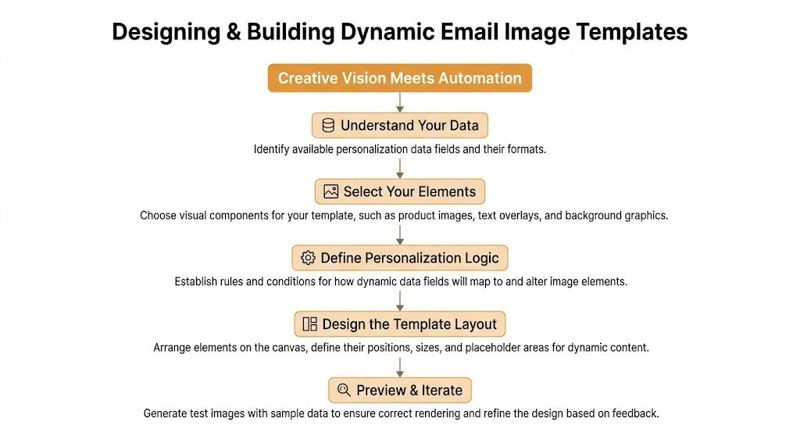
Start with the fixed layers
Build the template the same way you’d build a reliable landing page asset. Begin with the elements that never change:
- Background: solid color, gradient, photo, or branded canvas
- Branding: logo, typography, frame, product shot, or badge
- Callout zone: the area reserved for the message that matters most
Many marketers benefit by borrowing ideas from dynamic creative optimization. The useful principle is that variable content should sit inside a stable visual system. You don’t redesign the ad or image every time. You define what changes and protect everything else.
Add variable layers with restraint
Once the fixed structure is in place, choose the dynamic elements. Typical variables include name, company, location, product category, headshot, logo, or event details. Don’t add all of them just because you can.
A good template usually has one primary personalized element and one supporting one. For example:
- The headline includes the recipient’s first name.
- A smaller area swaps in the company logo or plan name.
- The CTA area stays visually consistent.
That structure keeps the image readable. It also gives you fewer failure points.
Design for ugly data, not perfect data
Most tutorials show happy-path examples. Short names. Clean logos. Perfect capitalization. Real campaigns don’t work like that. You’ll get long company names, lowercase imports, transparent PNGs that look bad on dark backgrounds, and unexpected character lengths.
Build the template for those realities:
- Leave space: text boxes need breathing room for longer values
- Use contrast carefully: text overlays should remain legible on every background
- Avoid clutter: each extra dynamic field increases rendering risk
- Keep the message obvious: the image should still make sense at a glance
A visual editor helps here because you can preview different data combinations before sending. If you want a practical walkthrough of that setup, this guide to no-code image design automation covers the workflow.
A strong template still looks intentional when the personalization is minimal.
Mapping Data and Handling Incomplete Information
Most personalized image projects succeed or fail at this stage. The image itself is rarely the hard part. The hard part is mapping the right data into it consistently, then protecting the output when the data is incomplete.
Email lists often have 20-30% incomplete data, which is why fallback handling can’t be treated as an afterthought, according to NiftyImages’ discussion of personalized images. If your template assumes every contact has a first name, company, logo, or account attribute, you’re going to send broken visuals to a meaningful part of your audience.
Map every field deliberately
At a basic level, mapping means connecting a template layer to the field your ESP or CRM provides. For example:
- headline text layer ←
{{first_name}} - logo image layer ←
{{company_logo_url}} - subtitle text layer ←
{{industry}} - QR code image layer ←
{{ticket_qr}}
That sounds simple, but the quality of the output depends on consistency. If one system uses first_name and another uses fname, or if a field returns blank values instead of null, the image engine won’t guess what you meant.
A clean mapping checklist helps:
- Confirm field names exactly as your ESP outputs them.
- Check data format before design starts.
- Preview with live-like records instead of ideal sample data.
- Document field ownership so someone knows where to fix bad values.
Build fallback logic before launch
Fallbacks are the part most tutorials skip, and they’re the difference between a scalable system and a fragile stunt. Every dynamic field should answer one question: what shows if this value is missing or unusable?
A few practical examples:
- If
{{first_name}}is blank, show “Hi there” - If
{{company_logo_url}}is missing, show a default icon or remove the logo slot entirely - If
{{event_name}}is too long, swap to a shorter approved label - If
{{profile_photo}}fails, use a branded placeholder
This isn’t just about appearance. It affects trust. A broken image with an empty text area or a missing asset makes the email feel automated in the worst way.
Missing data is normal. Broken output is a system design choice.
Use if-this-then-that rules
The cleanest setups use explicit logic. Not “try to render whatever comes in,” but rules such as:
- If name exists, render personalized headline
- If name is missing, use generic greeting
- If logo URL exists, show logo
- If logo URL is invalid, hide layer and center text
- If account field is present, display account-specific message
- If account field is absent, swap to segment-level message
That last point matters. Segment-level fallback is often stronger than generic fallback. If you know someone is a customer but don’t know their first name, “Your next renewal steps” is better than trying to fake one-to-one personalization.
Think beyond names
Some of the most reliable personalized image campaigns don’t depend heavily on personal identity fields at all. Event teams personalize with seat details, ticket IDs, or QR codes. Sales teams personalize with company names and homepage screenshots. Community organizers sometimes need attendee image collection before generating assets. In that context, tools that help collect wedding guest images illustrate a useful operational lesson: gather the right asset upstream, or the downstream automation becomes messy.
The safest personalization systems don’t assume perfect records. They plan for incomplete ones.
Embedding, Testing, and Ensuring Quality
Once the template and data logic are ready, deployment is straightforward. The image platform generates a dynamic URL, your ESP inserts merge tag values at send time, and the email displays a unique image for each recipient. The implementation is simple. The QA work isn’t.
Embed the image the simple way
In most cases, the workflow looks like this:
- Create the template in your image personalization platform.
- Generate the image URL with merge tags in the query string.
- Place that URL in the
<img>tag inside your email HTML. - Send tests using different records from your list.
If you need a detailed example of how URL-based rendering works in email, this guide to image URL personalization in email is worth reading.
The implementation itself usually takes less time than the preparation. Problems show up in rendering, accessibility, or bad data combinations.
Test edge cases, not just standard cases
A lot of teams only test with their own record and one clean sample contact. That’s not QA. That’s a quick preview.
Use a broader matrix:
- Long first names: to see if text wraps or overflows
- Short names: to check visual balance
- Missing fields: to verify fallbacks
- Broken image URLs: to see how logo or avatar layers behave
- Different devices and clients: especially Gmail and Outlook
- Dark mode: to catch low-contrast overlays
Accessibility and inbox rendering are not optional
Inbox rendering consistency is a major challenge. With 2025-2026 updates from providers like Gmail tightening image rendering rules, ensuring accessibility standards like a 4.5:1 contrast ratio is no longer optional, especially as nonprofits and agencies report 15-20% engagement drops from poor mobile contrast in personalized visuals, according to Zeta Global’s guidance on email design shortcuts to avoid.
That should change how you design and test personalized visuals.
Use this checklist before every send:
- Write ALT text: describe the function of the image, not every decorative detail
- Check contrast: especially where dynamic text sits over photos or gradients
- Review mobile rendering: personalized layers often look fine on desktop and fail on phones
- Watch image weight: large files slow the experience and can hurt rendering consistency
- Keep the email functional without images: the message should still be understandable
If the image is carrying critical meaning, ALT text and surrounding copy have to carry it too.
Don’t ignore spam and client behavior
Image-heavy emails can trigger quality issues even when the image itself renders correctly. Maintain sensible text support in the email body, use clear hierarchy, and don’t treat the image as the entire message.
Also watch caching behavior. If your image depends on data that can change near send or open time, test whether your platform serves the current state or a stale render. That matters for points balances, inventory-driven creatives, countdowns, and event status changes.
Good dynamic image execution looks easy to the recipient because the team did the hard testing before launch.
Real-World Examples and Best Practices for Engagement
The easiest way to judge whether a personalized image is worth building is to ask whether it improves the recipient’s experience, not just the marketer’s reporting dashboard.
A few use cases consistently make sense.
Event organizers
A registration confirmation can include the attendee’s name, event branding, session title, and QR code inside the hero image. That creates something closer to a digital ticket than a generic confirmation email.
This works especially well when the image is useful after the open. People save it, forward it, and refer back to it.
Coaches and course creators
Completion emails are ideal for dynamic imagery because the asset itself has perceived value. A branded certificate, progress badge, or milestone graphic gives the recipient something tangible.
That’s one reason these campaigns tend to outperform generic congratulations emails. In tests, Beefree+Nifty personalized birthday cake images with the recipient’s first name achieved a 32% lift in open rates, while Studio CRM-fed images have been shown to boost CTR by 15-25%, as referenced in this video discussion of dynamic imaging for email.
Sales teams
Cold outreach is one of the strongest use cases because relevance has to be immediate. A visual that includes the prospect’s company name, logo, website screenshot, or industry-specific framing can make the email feel researched without requiring manual image production.
The key is restraint. One strong personalized visual beats a busy collage of “look how customized this is.”
Best practices that hold up
- Test against a control: compare dynamic images against a plain but strong version of the same campaign
- Personalize for relevance: use data that helps the reader, not data that only proves you have it
- Keep files lean: heavy images create friction fast
- Protect the brand: use templates that still look polished when fallback content appears
- Match the channel: what works for a warm lifecycle email may feel intrusive in prospecting
The strongest campaigns don’t feel like technology demos. They feel like clearer, more helpful communication.
Frequently Asked Questions About Dynamic Images
Do I need Photoshop to create personalized email images?
No. That’s the point of modern template-based image personalization tools. You design one reusable template, connect it to merge tags or API data, and let the platform render each variation automatically.
Will dynamic images work in most email platforms?
Yes, if the platform supports standard image tags and merge tags. The practical question isn’t usually compatibility. It’s whether your data fields are clean and your image URLs are set up correctly.
What if I don’t have complete subscriber data?
Use fallback rules for every field that can be missing. Generic greetings, default icons, hidden layers, and segment-based alternatives keep the image usable and professional.
Are personalized images only for promotional emails?
No. They work well in confirmations, reminders, onboarding, event communications, outreach, certificates, and status-based lifecycle emails.
What matters most before sending?
Run a real QA pass. Test missing data, long values, different devices, dark mode, image blocking behavior, ALT text, and client rendering. The image concept matters less than execution quality.
If you want to build personalized email images without photoshop in a way that scales, OKZest is built for that workflow. It lets you create dynamic image templates, connect merge-tag data, add fallback values for missing information, and deploy through no-code or API-based setups depending on how your team works.