A countdown timer for email is exactly what it sounds like: a live, ticking clock embedded right into your message. Its whole purpose is to create a sense of urgency, nudging your subscribers to act on an offer before time runs out. It's one of the most direct ways to tap into the psychology of scarcity and get people clicking.
Why a Countdown Timer for Email Drives Action
Have you ever opened an email and felt an instant jolt of "I need to check this out now"? That's the magic of urgency. A countdown timer isn't just a fun little graphic; it’s a powerful psychological trigger that plays on our deep-seated fear of missing out (FOMO).
When subscribers see the seconds literally ticking away, it cuts through their natural tendency to put things off. That visual cue flips a switch in our brains, turning a passive "I'll deal with this later" into an active "I need to do this now." Suddenly, a deadline isn't just a date on a calendar—it's a real, tangible thing that's slipping away.
The Psychology of Urgency and Scarcity
The real power behind a countdown timer comes down to two simple but potent behavioral principles: urgency and scarcity.
- Urgency makes people feel like they need to act immediately. The timer makes the deadline feel concrete and unavoidable, which can short-circuit that long, drawn-out decision-making process and get a much faster response.
- Scarcity implies that the opportunity is limited. It might be a limited-time discount, a product about to go out of stock, or a webinar with only a handful of seats left. The timer is the visual proof that this offer won't be around forever, which instantly makes it seem more valuable.
When you put these two together, you get a seriously effective combination. An e-commerce brand can see a massive lift in sales during a 24-hour flash sale just by popping a timer in their email. Likewise, a SaaS company can pack a webinar by showing that the registration window is closing in real time.
A well-placed countdown timer can be a very impactful email marketing tactic. Studies show that adding urgency can increase conversion rates by creating a sense of FOMO that nudges subscribers to move more quickly through the marketing funnel.
Grabbing Attention in a Crowded Inbox
Of course, none of this matters if your email never gets opened in the first place. To really get the most out of a countdown timer, you have to nail the subject line first. Take a look at these email subject line best practices to learn how to craft one that demands a click. A killer subject line paired with a ticking timer inside is a winning formula.
Thankfully, modern tools like OKZest have made adding a live, personalized countdown timer to an email incredibly simple. You don't need to be a coding wizard anymore to use this powerful marketing tool and get people to take action.
Choosing the Right Countdown Timer for Your Campaign
Picking the right countdown timer isn't just a technical decision—it’s a choice that directly impacts your customer's experience and, ultimately, your conversion rates. Not all timers are created equal. The wrong one can easily lead to a broken, confusing email for a huge chunk of your audience.
The real challenge is finding the sweet spot between compatibility, accuracy, and design. You've got three main options on the table: animated GIFs, pure HTML/CSS timers, and the more modern live image APIs. Each has its own quirks, making it better for certain campaigns and audiences.
Understanding the Trade-Offs
Let's start with animated GIFs. These are your safest bet for compatibility. They'll play in almost any email client you can think of, from the latest version of Outlook to obscure mobile apps. Simple and reliable.
But there's a major catch: they aren't actually live. The countdown is pre-rendered when you create the GIF, not when your subscriber opens the email. So, if someone opens your "24-Hour Flash Sale" email a day late, the timer will look completely wrong, creating confusion instead of urgency.
On the other end of the spectrum, you have HTML/CSS timers. These give you incredible freedom to design a timer that perfectly matches your brand's look and feel. The problem? Support for them is notoriously spotty. Key players like Gmail and most versions of Outlook simply won't run the necessary code, leaving many of your subscribers staring at a broken element.
This quick decision tree can help you map your campaign goals to the right timer technology.
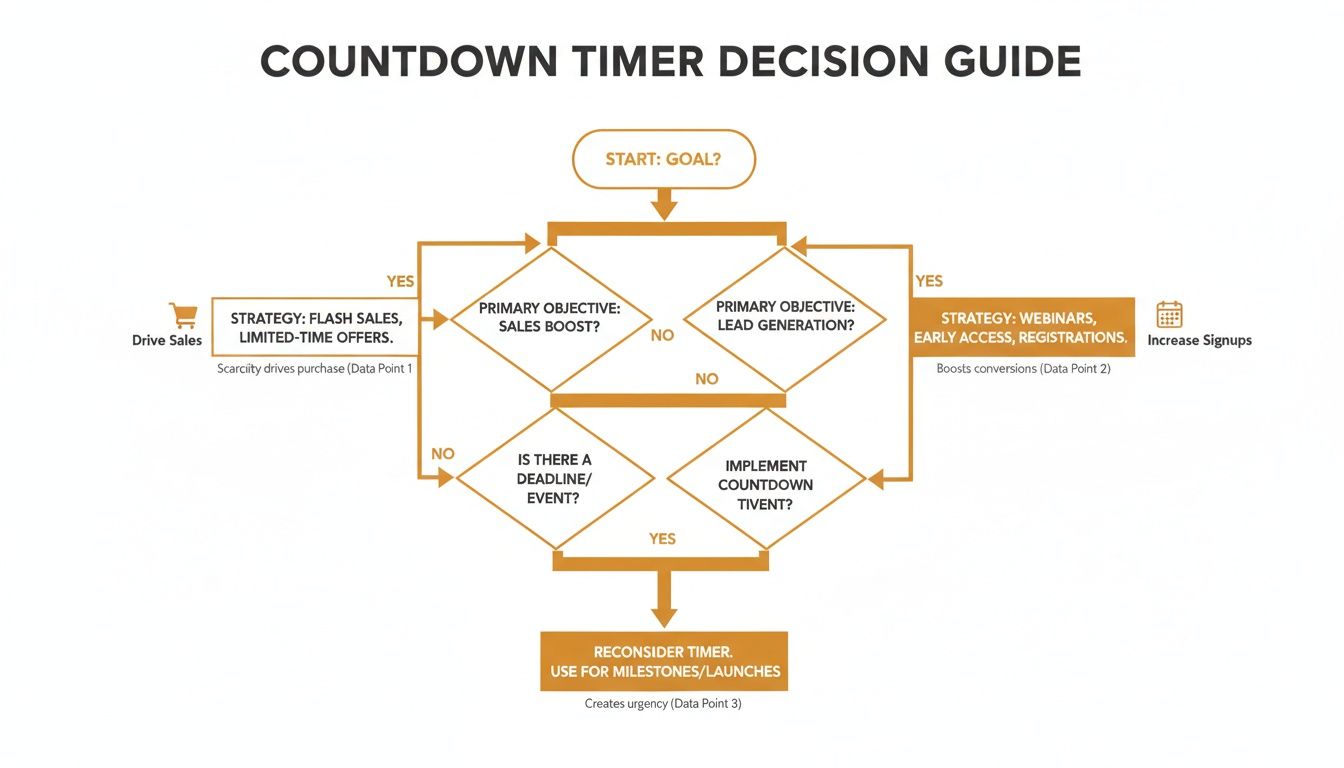
As you can see, what you're trying to achieve—whether it's driving last-minute sales or boosting event sign-ups—should really guide your technical choice.
Comparing Email Countdown Timer Methods
To make it even clearer, here’s a side-by-side look at how these three methods stack up against each other based on what matters most to marketers.
| Feature | Animated GIF | HTML/CSS Timer | Live Image API (e.g., OKZest) |
|---|---|---|---|
| Real-Time Accuracy | ❌ No (Pre-rendered) | ✅ Yes (Client-dependent) | ✅ Yes (Server-rendered) |
| Email Client Compatibility | ✅ Excellent | ❌ Poor (Blocked by major clients) | ✅ Very Good |
| Design Customization | ❌ Limited (Fixed frames) | ✅ Excellent (Full CSS control) | ✅ Good (Customizable templates) |
| Ease of Implementation | ✅ Easy (Just insert image) | ❌ Difficult (Requires coding) | ✅ Easy (Copy-paste URL) |
| Best For | Simple, non-critical promotions | Niche audiences with known clients | High-stakes, time-sensitive campaigns |
This table highlights the fundamental trade-offs you face. While GIFs are simple and HTML offers control, live image APIs have emerged as the balanced, reliable solution for most professional use cases.
The Rise of Live Image APIs
This brings us to the modern, go-to solution: live image APIs. Services like OKZest have completely changed the game by generating a fresh, dynamic image every single time a subscriber opens your email. This approach neatly combines the best of both worlds. You get the universal compatibility of an image file with the live accuracy of a real timer.
By generating the timer image at the moment of open, live image APIs solve the accuracy problem of GIFs and the compatibility issues of HTML timers, making them the most reliable choice for time-sensitive promotions.
With a live image, you're delivering a real-time, personalized countdown timer for email that just works. It creates a seamless experience for your audience and gives you the confidence that your urgent message is landing correctly, every single time. This is why it's the standard for high-stakes campaigns where accuracy is everything, like flash sales, webinar registrations, and holiday offers. For most professional email marketers today, this is the only way to go.
Creating Your First Dynamic Timer with OKZest
Long gone are the days when you needed a developer on standby to add a countdown timer for email. What used to be a complex coding task is now something any marketer can handle in minutes, thanks to no-code tools like OKZest. You get all the impact of a live timer without ever touching a line of code.
The magic is surprisingly simple. You generate a unique image URL that you can just paste into your email service provider (ESP), whether you're using Klaviyo, Mailchimp, or something else. This isn't a static image—it's a live link. Every time a subscriber opens your email, their email client fetches the image from that URL, and OKZest serves up a fresh, perfectly accurate timer on the fly.
Setting Up Your Timer Template
First things first, you need to pick a template that fits your brand's vibe. Most platforms offer a solid starting point, from clean and minimalist designs to more vibrant styles with bold colors. Once you’ve picked a base, you can really start making it your own.
This is your chance to dial in the details so the timer looks like it belongs in your email, not like some tacked-on widget. You can typically tweak things like:
- Fonts: Pick a typeface that matches your brand guidelines.
- Colors: Customize the colors for the numbers, labels (Days, Hours, etc.), and the background itself.
- Background: Go with a solid color, a gradient, or even a transparent background if you want to layer the timer over a hero image.
The OKZest interface is a simple, visual editor. You make changes and see the results instantly, which is perfect for getting everything just right.
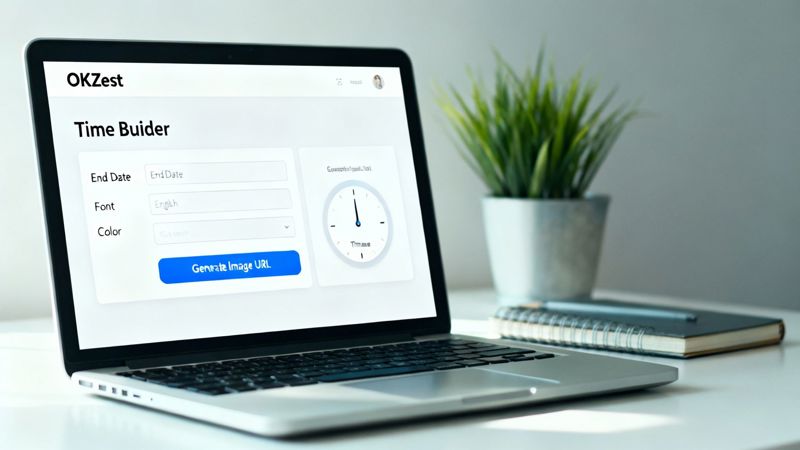
This WYSIWYG approach lets you fine-tune every element until the timer seamlessly fits your campaign’s look and feel.
Configuring the End Date and Time
With your design locked in, it’s time for the most important part: telling the timer when to hit zero. This is the core logic. You’ll need to input the specific end date and time, paying close attention to the time zone to make sure it's accurate for everyone. If a flash sale ends at midnight EST, that’s exactly what you need to set.
Pro Tip: Always, always double-check your time zone settings. A simple slip-up here can end your promotion hours early (or late), leading to frustrated customers and lost sales. Precision is everything.
This step is especially critical for marketers running automated campaigns, like multi-step welcome sequences or abandoned cart flows. These are perfect places to embed timers and give conversions a nudge. For more advanced setups, you can even power your timers programmatically. Check out our guide on how to use the OKZest API for deeper integration to learn more.
Generating and Implementing the Timer URL
Once you've set the deadline and perfected the design, all that's left is to generate the timer's unique URL. OKZest will give you a simple image URL that has all your settings baked right in. This is the magic key.
Just copy that URL and head over to your ESP. In the email editor, you'll add an image block like you always do. But instead of uploading a file, you’ll choose the option to insert an image "by URL" and paste the link from OKZest. Boom—your live, ticking timer will appear right there in the editor.
Now, when you hit send, every subscriber who opens that email will see a perfectly accurate countdown, creating that powerful sense of urgency you need to drive them to act.
A standard "sale ends Friday" timer is good, but let's be honest, that’s just scratching the surface. The real magic happens when you move beyond one-off tactics and build a scalable, automated system. This is where you graduate from generic deadlines to creating experiences that feel personal and immediate to each subscriber.
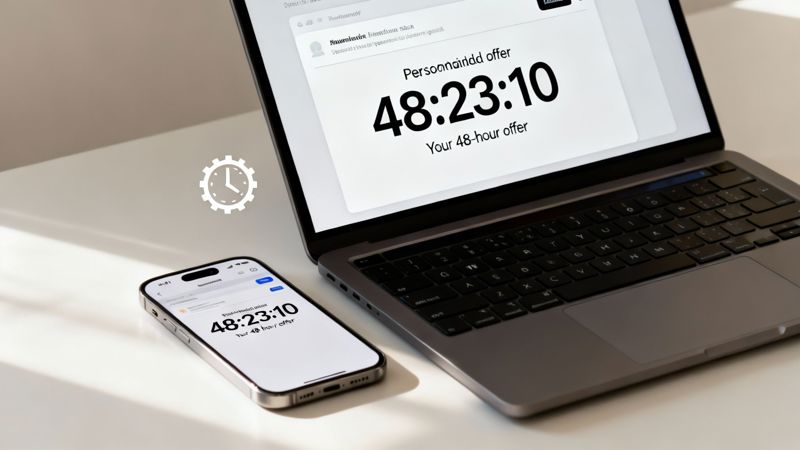
Imagine an evergreen timer that kicks off the second someone opens your welcome email, giving them a unique 48-hour offer. It's not a single deadline for everyone; it's a personalized window of opportunity just for them. It’s the difference between shouting an offer to a crowd and whispering a special deal to an individual.
Driving Conversions with Triggered Campaigns
This personalized approach is a perfect fit for automated, triggered emails—the kind sent based on a user's specific actions, which makes them incredibly relevant.
Here’s how you can put them to work:
- Abandoned Cart Reminders: Instead of a gentle nudge, add a timer showing their cart reservation expires in 2 hours. Suddenly, the decision to complete the purchase feels a lot more urgent.
- Welcome Series: Roll out the red carpet with a special discount that’s only good for the first 72 hours after they subscribe. A timer counting down in each email of the sequence keeps that incentive top-of-mind.
- Trial Expirations: For SaaS businesses, nothing spells urgency like a timer counting down the final days or hours of a free trial, pushing users to upgrade before they lose access.
The data doesn't lie: the overwhelming majority of email revenue comes from these triggered, personalized campaigns, not from generic broadcasts. When you add a dynamic element like a countdown timer, you’re just pouring fuel on your highest-performing fire.
So, How Do Evergreen Timers Actually Work?
The tech behind this is surprisingly simple with a tool like OKZest. It all comes down to merge tags—the same variables you already use to pop a subscriber’s first name into an email.
Instead of setting a fixed date like "December 31st," you create a dynamic rule. For example, you could configure the timer's end date to be [SIGNUP_DATE] + 3 days. When your email service provider sends the campaign, it swaps the [SIGNUP_DATE] merge tag with that person's actual signup date, instantly generating a unique timer just for them.
This simple trick turns your countdown timer for email into an automated asset that works for you 24/7. Every new subscriber, every abandoned cart, every new trial user gets their own compelling deadline, all without you lifting a finger.
This level of automation makes sure every single interaction is timely and impactful. If you're looking to build these kinds of powerful sequences, learning how to automatically send personalized emails is your next step. By integrating timers this way, you transform a simple marketing gimmick into a core part of your automated engine, driving results long after you've hit "send."
Common Mistakes to Avoid for Better Deliverability
A slick countdown timer for email is great, but it’s completely useless if it never actually reaches the inbox. Even the most polished campaign can get tripped up by small, preventable mistakes that kill your deliverability or just plain break the user experience.
Think of this as your pre-flight checklist. Ignoring these details can land your hard work straight in the spam folder or leave subscribers staring at a broken image. A few simple checks will make sure your urgent message lands perfectly and gets the clicks you're looking for.
Forgetting the Fallback Image
One of the most common oversights I see is people forgetting to set a fallback image. While live timers work beautifully in most modern email clients like Gmail and Apple Mail, some older desktop versions of Outlook still can't render them correctly. Without a fallback, those users might see... nothing at all. A big, empty space.
To avoid this, always configure a static image of your timer. It could show the initial duration, like "24 Hours Left!", and will display in clients that don't support the live content. This ensures everyone gets a professional, consistent experience, even if they don't see the clock ticking down in real-time.
A broken element in an email instantly erodes trust and makes your brand look unprofessional. A simple fallback image is your insurance policy against a poor user experience, ensuring that every subscriber sees a complete, polished message.
Overlooking File Size and Load Times
Your live timer is an image, and just like any other image, its file size matters. A heavy, slow-loading timer can frustrate people on slower connections and might even get flagged by some email clients. Keep the design clean and don't go overboard with complex backgrounds that inflate the file size.
Fast loading is crucial for engagement. If the timer doesn’t pop up almost instantly, you risk losing the subscriber's attention before they even see the clock ticking down. Most timer tools are optimized for this, but it’s a good habit to keep your customizations simple and efficient.
Imbalancing Your Text-to-Image Ratio
This one is a big deal for deliverability. You need to maintain a healthy balance between text and images in your email. Campaigns that are just one giant image—or mostly images with very little text—are a huge red flag for spam filters.
Your countdown timer should complement your message, not be the message. Surround your timer with plenty of actual text that explains the offer, highlights the benefits, and includes a clear call to action.
By sidestepping these common pitfalls, you can protect your sender reputation and make sure your campaigns actually land where they're supposed to. For a deeper dive into this topic, you might be interested in our guide on how to prevent your emails from going to spam.
Got Questions About Email Timers? We've Got Answers
Jumping into a new marketing tactic always brings up a few questions. It's totally normal. So, let's walk through some of the most common things people ask about using a countdown timer for email. Getting these details sorted will help you launch your next campaign with complete confidence.
Will a Countdown Timer Work in All Email Clients?
This is the big one, and the short answer is: mostly yes, with one tiny catch.
Live, ticking timers work beautifully in the vast majority of modern email clients. We're talking about Gmail, Apple Mail, and Yahoo, which usually cover a huge chunk of anyone's audience.
The only real holdouts are some older desktop versions of Outlook, which have limited support for animated GIFs. That’s precisely why setting a fallback image is an absolute must. It’s a simple step that ensures every single subscriber sees a professional-looking graphic, even if it’s a static "Offer Ends Soon!" image instead of the live clock. No one gets a broken experience.
Can a Timer Hurt My Email Deliverability?
When you do it right, nope. A countdown timer from a reputable service like OKZest is just an image loaded from a URL, something email clients do all day, every day. The real threats to your deliverability are the usual suspects.
To keep your emails landing in the inbox, always stick to the fundamentals:
- Keep a healthy balance of text and images. Never send an email that's just one big image.
- Work with a clean, engaged subscriber list.
- Make sure your sending domain is properly authenticated.
A timer won't get you sent to spam, but ignoring basic email best practices definitely will.
How Do I Create an Evergreen Timer for My Welcome Series?
This is where timers get really powerful. Evergreen timers—the kind that are unique to each subscriber, like "Your special offer expires in 72 hours"—are a game-changer for automated flows. The secret is using merge tags from your Email Service Provider (ESP).
Instead of setting a fixed end date for everyone, you pass a dynamic value into the timer’s URL. For example, you could set the timer to end at subscriber_signup_date + 3 days. Your ESP handles the rest, automatically plugging in the correct date for each new person who signs up. This generates a unique, personalized countdown timer for email every single time, without you lifting a finger.
This simple technique transforms a one-off promotion into a fully automated, personalized marketing machine. It works for you around the clock, converting new leads long after you’ve set it up.
What Happens When the Countdown Timer Reaches Zero?
A ticking clock that just stops at zero is a bit of a letdown and a missed opportunity. Any good timer service will let you control exactly what happens when the countdown is over.
You should be able to set it to display a custom "Sale Has Ended" message, show a different promotional image, or even redirect clicks to a completely new URL. This keeps the user experience smooth and professional, even for subscribers who open your email a little too late.
Ready to build that urgency and see real results? With OKZest, you can create and automate personalized timers for your email campaigns in minutes, no code required.
Start creating your first timer for free today. Learn more at https://okzest.com.