To get an image from a REST API you send a standard HTTP GET request to an endpoint. What comes back is not JSON but the raw image data, accompanied by a Content-Type header such as image/jpeg that tells the client how to interpret it.
That is the whole mechanism. The rest of this guide covers how to do it in practice - working examples in curl, JavaScript, Node, Python, and PHP - how to serve images from your own endpoint, and how to generate personalized images on the fly rather than just fetching static files.
How APIs serve images
Most API responses are text, usually JSON. An image response is different, and the difference is announced by one header.
Content-Type: application/json- the body is a JSON objectContent-Type: image/jpeg(orimage/png,image/webp) - the body is binary image data
Without the correct header the browser tries to interpret binary data as text and you get a screen of garbled characters. Getting this header right is most of the job.
Three ways an API can deliver an image
| Method | How it works | Best for | Trade-off |
|---|---|---|---|
| Binary streaming | Raw image bytes in the response body | Direct display, <img src="...">, server-side processing |
Most efficient; slightly more work to handle in code |
| JSON containing a URL | A JSON payload with a link to the file, usually on a CDN | Displaying an image in a browser or app | Simple, but needs a second request to fetch the image |
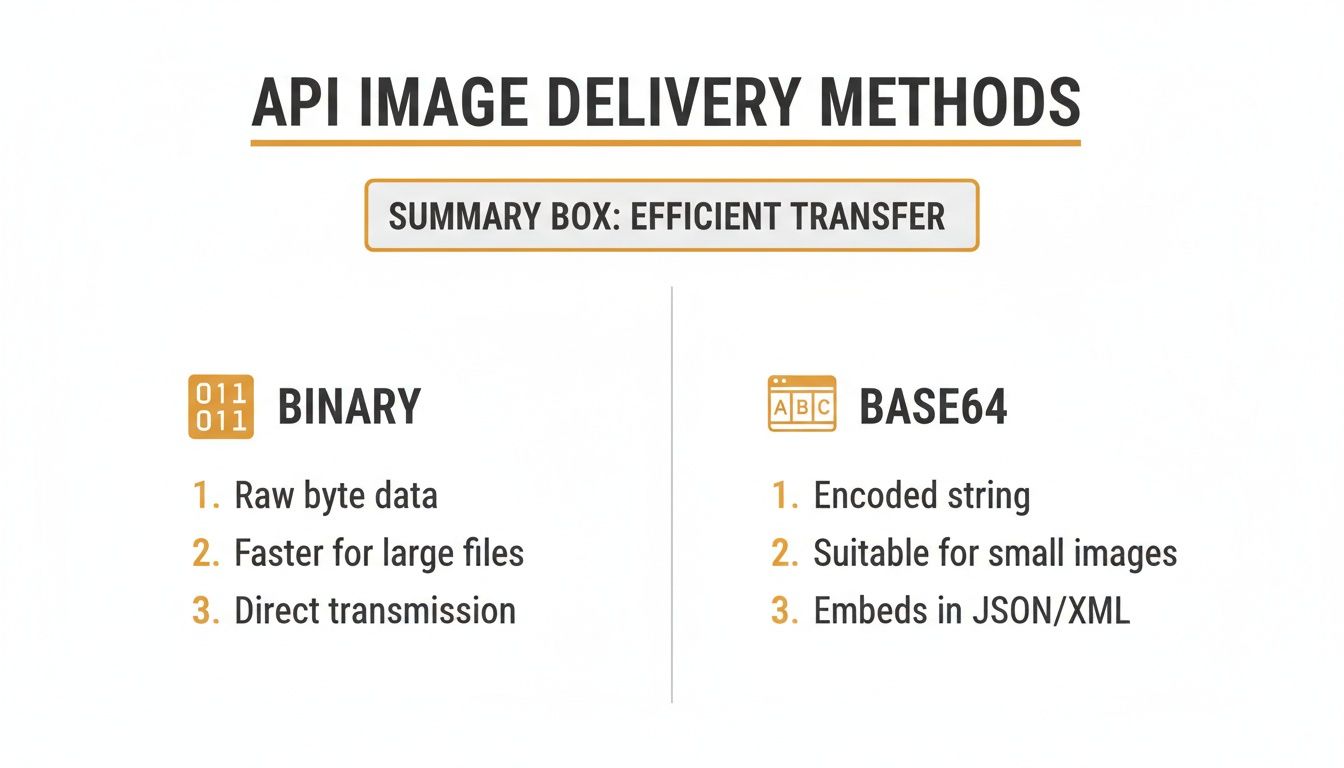
| Base64 string | Binary encoded as text | Embedding an image inside JSON or XML | Roughly 33% larger than the binary, plus a decode step |
Binary streaming is the default choice for direct image requests. Base64 is worth the size penalty only when the image genuinely has to travel inside a text payload. A JSON-with-URL response is common in content APIs and is the easiest to consume.
Fetching an image: working examples
curl (quick test)
Before writing any application code, hit the endpoint from your terminal. The -o flag writes the response body straight to a file.
curl -o downloaded_image.jpg "https://api.example.com/images/123"
If that produces a valid image, the endpoint works and any later problem is in your code rather than the API.
JavaScript (Fetch, in the browser)
The one difference from fetching JSON is that you call response.blob() instead of response.json(). A blob is a chunk of file-like binary data, and URL.createObjectURL() turns it into a local URL you can drop into an <img> tag.
const imageUrl = 'https://api.example.com/images/dynamic-user-avatar';
const imageElement = document.getElementById('user-avatar');

fetch(imageUrl)
  .then(response => {
    if (!response.ok) throw new Error('Network response was not ok');
    return response.blob();
  })
  .then(imageBlob => {
    imageElement.src = URL.createObjectURL(imageBlob);
  })
  .catch(error => {
    console.error('Fetch failed:', error);
    imageElement.src = '/images/default-avatar.png';   // always have a fallback
  });
Node.js (axios)
Server-side, the critical detail is responseType: 'arraybuffer'. Without it axios tries to parse the response as text and corrupts the image.
const axios = require('axios');
const fs = require('fs');
const path = require('path');

async function fetchImage(imageUrl, outputPath) {
  try {
    const response = await axios({
      method: 'GET',
      url: imageUrl,
      responseType: 'arraybuffer',   // required for binary data
    });
    fs.writeFileSync(outputPath, response.data);
    console.log('Saved to', outputPath);
  } catch (error) {
    console.error('Error fetching the image:', error.message);
  }
}

fetchImage(
  'https://api.example.com/images/example.png',
  path.join(__dirname, 'personalized_image.png')
);
Python (requests)
Setting stream=True downloads the headers first and streams the body in chunks, so a large file never has to sit in memory all at once.
import requests

def download_image(url, file_path):
    try:
        with requests.get(url, stream=True, timeout=30) as r:
            r.raise_for_status()
            with open(file_path, 'wb') as f:
                for chunk in r.iter_content(chunk_size=8192):
                    f.write(chunk)
        print(f"Image saved to {file_path}")
    except requests.exceptions.RequestException as e:
        print(f"Error downloading the image: {e}")

download_image("https://api.example.com/images/large-background.png",
               "downloaded_background.png")
PHP (cURL)
CURLOPT_FILE streams the response straight into a file handle, which avoids holding the whole image in memory.
<?php
$url = "https://api.example.com/images/123";
$outputPath = "downloaded_image.jpg";

$fp = fopen($outputPath, 'wb');
$ch = curl_init($url);

curl_setopt($ch, CURLOPT_FILE, $fp);
curl_setopt($ch, CURLOPT_FOLLOWLOCATION, true);
curl_setopt($ch, CURLOPT_TIMEOUT, 30);

curl_exec($ch);

if (curl_errno($ch)) {
    echo 'cURL error: ' . curl_error($ch);
} else {
    echo "Image saved to $outputPath";
}

curl_close($ch);
fclose($fp);
Serving images from your own API endpoint
The other side of the problem: building the endpoint that hands images out.
Express.js
const express = require('express');
const path = require('path');
const app = express();

const imagesDirectory = path.join(__dirname, 'public', 'images');

app.get('/images/:imageName', (req, res) => {
  // path.basename strips any directory traversal attempt
  const safeImageName = path.basename(req.params.imageName);
  const imagePath = path.join(imagesDirectory, safeImageName);

  res.sendFile(imagePath, (err) => {
    if (err) {
      console.error(err);
      res.status(404).send('Image not found');
    }
  });
});

app.listen(3000);
That path.basename() call is not optional. Without it, a request for ../../etc/passwd could walk out of your images directory and read arbitrary server files. Sanitize any user input that becomes part of a file path.
Flask
Flask's send_from_directory handles the path safety and the Content-Type header for you.
from flask import Flask, send_from_directory
import os

app = Flask(__name__)
IMAGE_FOLDER = os.path.join(os.getcwd(), 'static', 'images')

@app.route('/images/<path:filename>')
def get_image(filename):
    try:
        return send_from_directory(IMAGE_FOLDER, filename, as_attachment=False)
    except FileNotFoundError:
        return "Image not found", 404
Security: authentication and signed URLs
A public image URL is fine for blog assets. User-specific or paid content needs protection.
API keys are the simplest approach - a secret token sent in a header, typically Authorization: Bearer YOUR_KEY or a service-specific header such as x-api-key. Send it as a header rather than a query parameter, since URLs end up in server logs, browser history, and analytics.
Signed URLs are the stronger pattern for private assets. Your backend requests a temporary, cryptographically signed link for one specific file, with an expiry baked in. The client uses that link directly and it stops working once it expires. This is how S3 and Google Cloud Storage handle private objects, and it means your master credentials never leave your server.
Signed URLs suit user-specific certificates and reports, paid digital downloads, and any case where a browser needs direct access to a private file without proxying through your application.
Performance: caching and CDNs
Cache-Control tells the browser how long it may keep a local copy. public, max-age=86400 allows caching for 24 hours and eliminates repeat requests entirely for returning visitors.
ETag acts as a version identifier. When a cached copy expires the browser sends the ETag back; if nothing has changed your server replies 304 Not Modified with no body, saving the whole transfer.
A CDN caches copies near your users. The first request from a given region pulls from your origin; every subsequent one is served locally. For a global audience this is the difference between acceptable and fast.
Rate limits need respecting on the consuming side. If you are fetching many images, pace the requests (100-200ms between calls is usually plenty) and back off exponentially on a 429 - wait one second, then two, then four. Many APIs return an X-RateLimit-Remaining header you can use to throttle dynamically.
Generating personalized images with an API
Everything above assumes the image already exists. The more interesting case is an API that creates the image at request time, tailored to whoever is looking at it - a welcome banner with a customer's name, a certificate with an attendee's details, a listing graphic built from property data.
The principle is that you design one template with dynamic layers, then supply values per request. Two patterns are worth knowing, and they suit different jobs.
Pattern 1: a runtime image URL
The simplest approach, and the one that works in email. Your template produces a URL whose dynamic parts are query parameters:
https://media.okzest.com/img?c=YOUR-COMPANY-ID&i=YOUR-DESIGN-ID&name=Alex&company=Acme
Two parameters are always required: c is your company ID, which is the same across every design in your account, and i is the design ID, which changes per design. Everything after those is a dynamic layer you defined in the template.
Because the result is a plain image, you can put it straight into an <img> tag with no client-side code at all:
<img
  src="https://media.okzest.com/img?c=YOUR-COMPANY-ID&i=YOUR-DESIGN-ID&name=Alex"
  alt="A personalized welcome message for Alex"
/>
The image renders when it is requested, so nothing is generated in advance and nothing is stored. In an email you replace the values with your platform's merge tags and every recipient receives a different picture from one image tag. In a web app you build the URL from whatever your application knows about the current user.
Pattern 2: POST to the API for a rendered file
When you need the image file - to save, attach, or upload elsewhere - POST the layer values and receive the rendered image back:
curl -X POST https://api.okzest.com/v1/images \
  -H "Content-Type: application/json" \
  -H "x-api-key: YOUR_API_KEY" \
  -d '{
        "design_id": "dcH69PLkb2YctQunAVZLQ",
        "layers": [
          { "layer_id": "name",    "text": "Alex Rivera" },
          { "layer_id": "company", "text": "Acme Corp" }
        ]
      }'
The response is a rendered JPG (or a PDF if requested). Loop this over a data source and you get one finished image per record - the approach covered in detail in our guide to generating images from a CSV via the API.
Which to use comes down to whether you need a file or a picture. If it is going in an email or on a web page, the runtime URL saves you the batch job, the storage, and the hosting. If you need something you can attach or upload, POST for the file.
Frequently asked questions
What is the difference between getting a URL and getting binary data? A URL is a signpost - a text string telling you where the image lives, requiring a second request to actually fetch it. Binary data is the file itself, delivered in the first response. Use the URL when you only need to display the image; use binary when you need to process, resize, or store it.
How do I handle different image formats?
Check the Content-Type response header, which reports image/jpeg, image/png, image/webp, and so on. You can also send an Accept header to state a preference - Accept: image/webp tells the server your client can handle WebP.
Which format is best for web performance? WebP for most cases: notably smaller than JPEG or PNG at comparable quality, with transparency support. Keep JPEG or PNG as a fallback for older clients. AVIF compresses better still but browser support is not yet universal. Use PNG when you need sharp text or transparency and WebP is unavailable.
Can I request a resized or cropped version?
On many image APIs, yes - usually through query parameters such as ?w=400&h=300&fit=crop. Resizing server-side is far better than downloading a large image and scaling it in the browser, since it saves both bandwidth and client work.
How do I avoid hitting rate limits when fetching many images?
Pace your requests, retry with exponential back-off on 429 responses, and cache aggressively so you are not re-fetching the same image. Watch for X-RateLimit-Remaining headers and slow down as you approach the limit.
How do I generate an image that is different for every user? Use a template-based image API. Design the template once with dynamic layers, then either build a runtime URL with the values as parameters (best for email and web) or POST the values to get a rendered file back (best when you need the file itself).
Do dynamically generated images work in email? Yes, provided they are served as a standard image from a plain URL - which is exactly what the runtime-URL pattern produces. Email clients treat it like any other image. Avoid anything requiring JavaScript in the email body, since clients strip it.
How do I stop other sites hotlinking my images?
Authenticate the endpoint, use signed URLs for anything private, or check the Referer header at the CDN layer. Public assets you actively want shared are the exception; anything metered should be protected.
Generate personalized images without building the backend
Fetching images from an API is straightforward. Building and running the service that generates them - template rendering, font handling, image compositing, caching, and scaling under load - is a much larger job.
OKZest handles that side. Design a template once, then generate personalized images either as runtime URLs or through the REST API, with no image-processing infrastructure of your own. It also connects through Zapier for no-code workflows and exposes an MCP server if you want AI assistants to generate images conversationally.
Create a free account, no credit card required.
Related reading: generate personalized images from a CSV via the API, personalized images explained, OKZest API documentation.