Of course you can. In fact, you absolutely should be using SVG in email. They're your ticket to sharper graphics, smaller file sizes, and some seriously cool dynamic personalization.
Unlike old-school formats like JPEG or PNG that get blurry when you resize them, SVGs are vector-based. That means they stay perfectly crisp on any screen, from a tiny smartwatch to a massive 4K monitor.
Why SVGs Are a Big Deal for Email Marketing
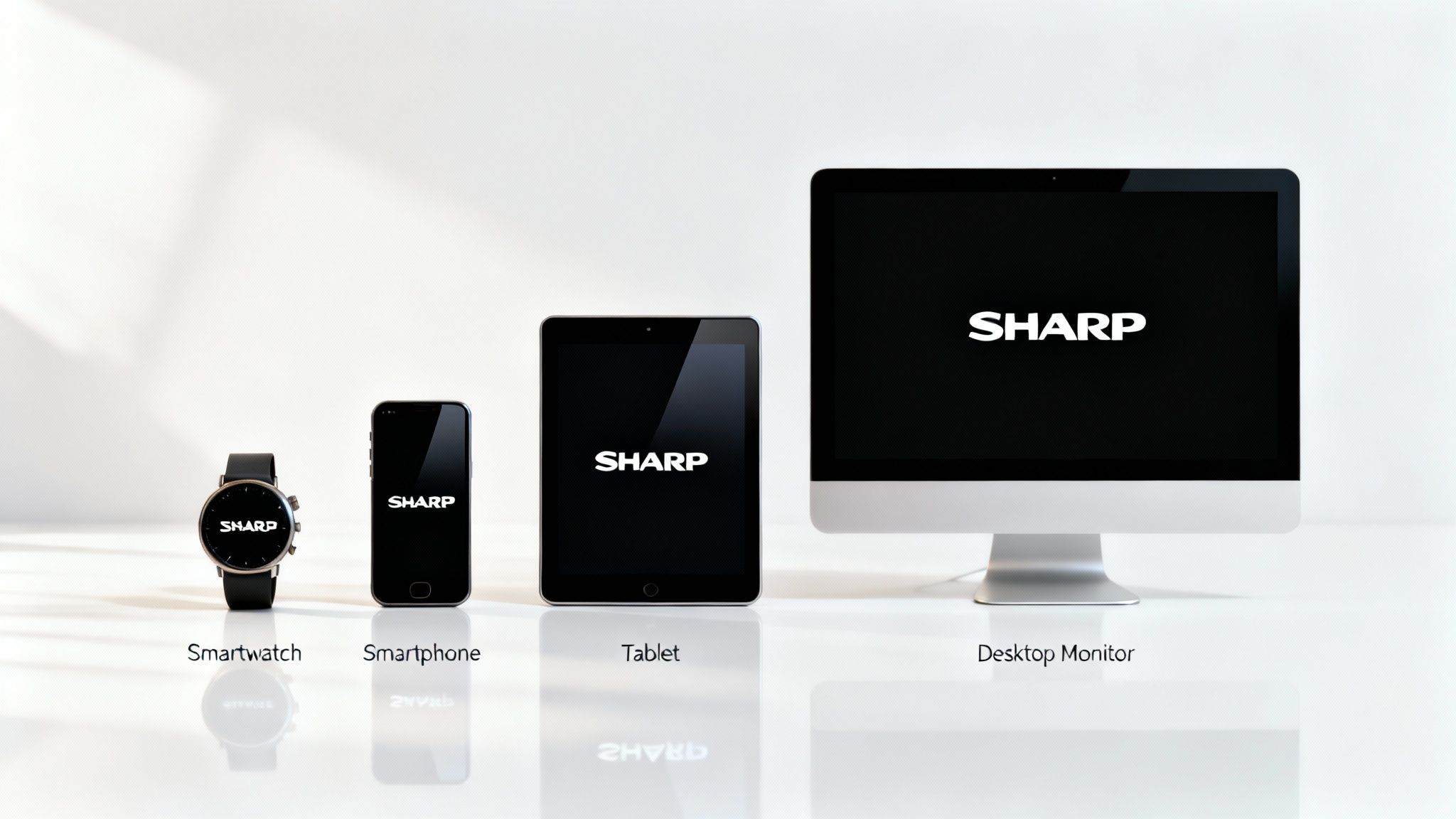
Picture your company logo or a key graphic looking flawless on every single device your subscribers use. That's what SVGs bring to the table. Raster images (your JPEGs and PNGs) are like static photos—stretch them, and they start to fall apart. SVGs, on the other hand, are basically a set of drawing instructions for the screen. They scale up or down forever without losing an ounce of quality, making sure your brand always looks its best.
To really get why this matters so much, it helps to have a solid grasp of the basics. This essential guide to email marketing breaks down the core mechanics, which will help you see exactly where SVGs give you a huge leg up over traditional graphics.
The Real-World Benefits for Marketers
Switching to SVG in email isn't just a technical tweak; it’s a strategic move that directly impacts how your campaigns perform and how your audience sees you.
- Flawless Visuals Everywhere: Your graphics will look razor-sharp on high-resolution displays like Apple's Retina screens, where pixel-based images can often appear fuzzy or unprofessional. It's a small detail that makes a big difference in brand perception.
- Faster Loading Times: For simple graphics like logos and icons, SVGs usually have much smaller file sizes than their PNG or JPEG equivalents. That means your emails load quicker, which is crucial for keeping impatient subscribers from hitting delete before they even see your message.
- Dynamic and Interactive Content: Here's where it gets really interesting. Because SVGs are just code, you can manipulate them. This unlocks a whole new world of personalization and animation right inside the email, creating a more memorable experience for your audience.
Think of it this way: An SVG is like a recipe for an image, telling the email client exactly how to draw it. A JPEG is the finished photograph. You can scale the recipe up or down for any size dish and it comes out perfect, but if you stretch that photograph too much, it just gets blurry.
This built-in flexibility makes SVGs an incredibly powerful tool for any modern email marketer. And as we'll dig into, the advantages go far beyond just having crisp logos. For a deeper dive into the role of visuals, you can check out our other guide on how to create effective https://okzest.com/blog/graphics-in-emails.
Navigating SVG Support in Email Clients
Before you jump in and replace every PNG and JPEG with a shiny new SVG, we need to talk about the messy reality of email client support. Using SVG in email isn't a simple swap; it's a strategic move that hinges entirely on where your audience opens your messages. The landscape is fractured—some clients will render your crisp vector graphics beautifully, while others will just show a broken image box.
Think of it like different dialects. Modern clients like Apple Mail (across macOS, iOS, and iPadOS), AOL Mail, and Yahoo Mail are totally fluent in SVG. They understand and display these graphics almost perfectly, whether you embed them with an <img> tag or as a CSS background. This is great news, as it means a huge chunk of your audience, especially mobile users, will get the intended experience.
The Outlook Problem
But the conversation takes a sharp turn when we get to Microsoft Outlook. Most desktop versions of Outlook (2007 through 2021) and the native Windows Mail app simply don't support SVGs. At all. This isn't some minor inconvenience; for anyone in the B2B space, Outlook often represents a massive slice of their subscriber base. Sending an SVG-only email to these folks means they'll see empty spaces, creating a broken and unprofessional impression.
Funnily enough, Outlook.com (the web version) and Outlook for Mac handle SVGs just fine, which proves you can't just lump all "Outlook" users into one bucket.
The key takeaway is this: Your SVG strategy must be built on a foundation of progressive enhancement. You deliver a superior, scalable graphic to clients that can handle it, but you absolutely must have a reliable fallback for those that can't.
Email Client Support for SVG
To give you a clearer picture, here’s a quick summary of SVG support across the major email clients. Keep in mind that "support" can mean different things, as some clients are pickier than others about how the SVG is embedded.
| Email Client | Inline | CSS background-image Support | Key Considerations | |
|---|---|---|---|---|
| Apple Mail | ✅ Yes | ✅ Yes | ✅ Yes | Excellent, consistent support across devices. |
| iOS Mail | ✅ Yes | ✅ Yes | ✅ Yes | One of the most reliable clients for SVGs. |
| Outlook.com | ✅ Yes | ✅ Yes | ✅ Yes | Strong support, but differs from desktop versions. |
| Outlook for Mac | ✅ Yes | ✅ Yes | ✅ Yes | Behaves more like Apple Mail than its Windows counterpart. |
| Yahoo Mail | ✅ Yes | ✅ Yes | ✅ Yes | Generally very good support for all methods. |
| AOL Mail | ✅ Yes | ✅ Yes | ✅ Yes | Reliable rendering, similar to Yahoo Mail. |
| Gmail | ✅ Yes | 🚫 No | ✅ Yes | Good support for <img> and backgrounds, but strips inline <svg> tags. |
| Outlook (Windows) | 🚫 No | 🚫 No | 🚫 No | No support in versions 2007-2021. Fallbacks are essential. |
| Windows Mail | 🚫 No | 🚫 No | 🚫 No | Lacks SVG support, similar to desktop Outlook. |
This table shows just how critical it is to plan for the clients that lag behind. You can't just design for the best-case scenario.
This fractured support system is exactly why knowing how to code your campaigns properly is so important. When you’re ready to get your hands dirty, understanding the best practices for sending emails with HTML will give you the foundation you need to build in those crucial fallbacks. Without that knowledge, you risk sending a broken email to a huge part of your audience. The goal isn’t just to innovate; it's to do so confidently, knowing every single subscriber gets a great-looking, functional email.
How to Embed SVGs in Your Emails
Okay, now that we've covered the support landscape, let's get our hands dirty. There are really three main ways to get an SVG in email, and each comes with its own trade-offs. The right choice always comes down to balancing what you want to achieve creatively against the need for your email to look good everywhere.
This little infographic is a great starting point for figuring out your strategy based on who you're sending to.
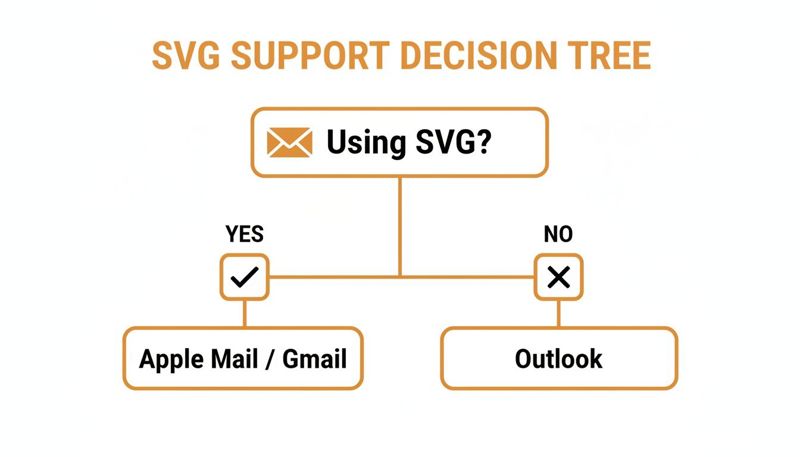
As you can see, the email world is split. Modern clients like Apple Mail and Gmail give you a clear path to using SVGs, but the Outlook family makes you think a bit differently.
The Standard <img> Tag Method
This is the most straightforward and reliable way to add an SVG in email. You simply treat it like any other image file—like a PNG or a JPEG—by pointing the src attribute to your SVG's URL.

This method just works. It's dependable in almost every client that supports SVGs, including the big one, Gmail. The catch? The SVG is completely locked down. You can't touch it with CSS or add any animations, which makes it the least flexible option.
If you need a refresher, we've got a great guide on how to create a URL for an image you can use in your campaigns.
The Inline <svg> Method
For maximum creative freedom, you can drop the SVG code directly into your email's HTML. This approach unleashes the full potential of SVGs, letting you manipulate colors, shapes, and even add animations using CSS.
Here’s the big trade-off: support is much spottier. Gmail, for example, will completely strip out inline <svg> tags, leaving you with nothing but a blank space. This method is best saved for campaigns where you're confident your audience uses highly compatible clients like Apple Mail.
The CSS background-image Method
Your third option is to use an SVG as a background image with CSS. This is perfect for things like full-width hero images or styling buttons where you need text or other elements to sit on top of the graphic.
.hero-section { background-image: url('https://your-cdn.com/pattern.svg'); background-size: cover; }
Support for this technique is pretty solid across modern clients, but it's completely ignored by desktop versions of Outlook. This actually makes it a fantastic candidate for progressive enhancement—you can provide a simple, solid background color as a fallback for clients that don't support it.
Each embedding method represents a trade-off between control and compatibility. Using the
<img>tag offers the widest reach, while inline<svg>provides the deepest creative potential for a more targeted audience.
Implementing Failsafe Fallback Strategies
What happens when your beautifully crafted email, complete with a slick SVG in email, lands in an old version of Outlook? Without a plan, your subscriber sees a dreaded broken image icon. That single broken image can instantly chip away at your brand's credibility. This is exactly why failsafe fallbacks are non-negotiable—they ensure no one gets left behind.
The core idea here is progressive enhancement. Instead of designing for the lowest common denominator, you build a solid, functional base that works everywhere. Then, you layer on advanced features like SVGs for the email clients that can handle them. This way, everyone gets a good experience, and a lot of your audience gets a great one.
Think of it as protecting your brand’s reputation. A broken image doesn't just look sloppy; it can feel unprofessional or even spammy, eroding the trust you've built with your subscribers. A proper fallback guarantees a seamless, professional experience for every single person on your list, no matter what email client they use.
Building a Bulletproof Fallback
The most common and reliable fallback for an SVG is a high-quality raster image, like a PNG or JPEG. Your goal is to create a static image that looks nearly identical to the SVG in both size and content, so the experience feels consistent across the board.
When you're prepping these fallback images, optimization is everything. Slow-loading emails are a huge turn-off. For email clients that don’t support SVG, you’ll want to serve up highly optimized raster images. You can even check out techniques for optimizing fallback images that dive into specific quality and encoding settings to keep file sizes tiny.

There are a few ways to code these fallbacks, but one of the most popular methods uses conditional comments that specifically target Outlook.

In this snippet, Outlook users get served the fallback.png, while every other email client will see the your-graphic.svg. It's a clean and incredibly reliable way to put progressive enhancement into practice.
The philosophy is simple: innovate with confidence. By implementing robust fallbacks, you can leverage the power of SVG in email for subscribers with modern clients while guaranteeing a professional, unbroken experience for everyone else.
Other techniques involve using the <picture> element or CSS background-image properties with multiple URLs. While support for these can vary, they offer another path to solid fallback coverage. The key, no matter which method you choose, is to test your email across a wide range of clients to make sure it behaves exactly as you expect. Ultimately, a smart fallback strategy is your insurance policy against a broken email design.
Creating Personalized SVGs at Scale with OKZest
This is where SVG in email goes from being a cool design trick to a full-blown personalization engine. Let's be real—manually creating a unique graphic for every single subscriber is an impossible task. But what if you could automate it? That's exactly where platforms like OKZest come in.
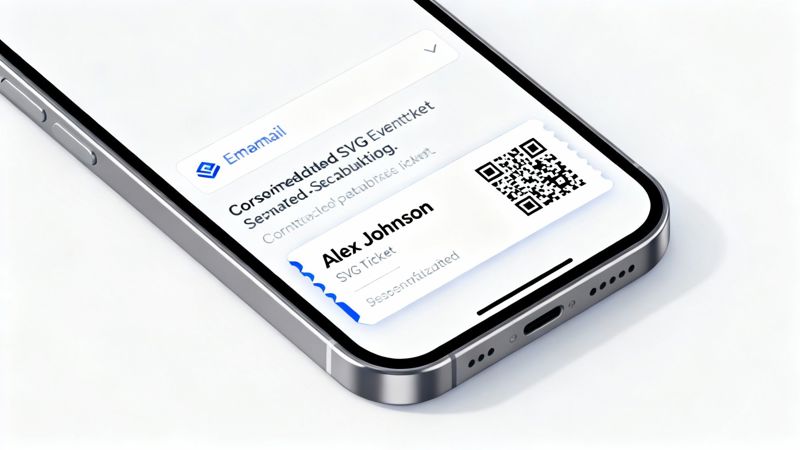
Think about an event confirmation email. Instead of a generic ticket, the SVG shows the attendee's full name and a unique, scannable QR code. Or a sales email that includes a chart dynamically populated with the prospect’s own company logo. This kind of customization turns a standard email into something personal and high-impact.
How Dynamic SVG Generation Works
It's a lot like using merge tags, but for images. You start by designing a single SVG template with designated placeholder areas for your dynamic content. Then, you link those placeholders to your subscriber data—things like names, account details, or even real-time information from an API.
When you hit 'send' on your campaign, a service like OKZest does all the heavy lifting for each recipient:
- Pulls Subscriber Data: It grabs the unique info for an individual from your email service provider or CRM.
- Injects Content into the SVG: The platform programmatically slots that data right into the SVG code, updating text, colors, or even entire shapes on the fly.
- Generates the Final Image: A brand new, personalized SVG is created instantly, hosted, and ready to pop into the email.
This whole process happens in a split second as the email goes out, so you can scale hyper-personalization without any manual work.
The real power here is turning a static graphic into a dynamic data canvas. The SVG becomes a living part of your email, tailored to be uniquely relevant to the person opening it, which can dramatically boost engagement and conversion rates.
Simplifying Fallbacks and Integration
One of the biggest headaches with SVG in email is dealing with fallbacks for email clients that don't play nice. Fortunately, OKZest handles this for you automatically. The platform generates a standard PNG or JPEG version of each personalized image to serve to clients like Outlook that don't support SVGs.
This dual-generation approach means you get all the benefits of dynamic, crisp graphics without ever having to worry about a broken experience for any of your subscribers. It’s a seamless integration that lets you focus on what matters: creating compelling, personalized campaigns that truly connect with your audience.
Understanding the Security Risks of SVGs
While SVGs are incredibly versatile, their power comes from a surprising place: they are code, not just a bunch of static pixels. This means an SVG file can contain executable code like JavaScript, which immediately raises some important security questions for anyone using SVG in email.
Think of a JPEG like a printed photograph—what you see is what you get. An SVG, on the other hand, is more like a mini webpage document. This structure allows for amazing flexibility, but it also opens the door for malicious scripts to be embedded right inside the image file itself.
Why Email Clients Sanitize SVGs
Fortunately, modern email clients are well aware of this. To protect their users, clients like Gmail and Apple Mail automatically sanitize SVGs when they render them. This process acts like a security checkpoint, stripping out any bits that could be harmful.
This sanitization process typically removes:
- Scripts: All
<script>tags and event handlers likeonloadare thrown out. - External Links: Certain types of external resource links are disabled to stop data from being sneakily sent elsewhere.
- Interactive Elements: Features that could trigger unwanted actions are usually neutralized.
Because of this, using SVGs in your email marketing is generally safe. The email clients defang the most dangerous components before they ever have a chance to reach your subscriber.
The Rise of Malicious SVG Attachments
This doesn't mean you can ignore security altogether, though. The same things that make SVGs so flexible for us marketers also make them attractive to bad actors. Malicious SVGs have become a growing method for phishing attacks, often sent as email attachments designed to trick people into giving up their login details.
By early July 2025, SVGs comprised 4.9% of all observed attachment-based phishing, peaking at a staggering 15% in March 2025—surpassing DOCX files. You can read the full research about these phishing trends to really get a sense of the problem.
This just highlights how critical it is to get your graphics from trusted sources. Always use SVGs that you or your team have created, or that come from reputable platforms like OKZest that guarantee their files are clean and safe for email.
Common Questions About Using SVGs in Email
Jumping into a new format like SVG in email is bound to bring up a few questions. Let's clear up some of the most common ones so you can feel confident putting them to work.
Are SVGs Really Better Than PNGs for Logos in Email?
For logos, icons, and any kind of simple, vector-based graphic, SVGs are almost always the better pick. Their file sizes are tiny, which means your emails load faster. Plus, they scale perfectly, so your brand looks sharp and crisp on every screen, especially on those fancy high-resolution displays.
That said, for complex images like photographs, a well-optimized JPEG or PNG is still the way to go. A smart email design usually mixes and matches both, using the right format for the right job to get the best of both worlds.
Will Using an SVG Hurt My Email Deliverability?
Nope. A properly coded SVG in email won't harm your deliverability one bit. Spam filters are on the lookout for malicious scripts, not the image format itself.
As long as your SVG is properly sanitized—meaning it has zero JavaScript inside—and you’re embedding it with standard HTML and CSS, email clients see it just like any other image. This is a huge reason why using a platform that generates clean, email-safe SVGs is so important. It just gives you peace of mind.
The bottom line is that security and best practices matter. A clean SVG is just an image, but one with embedded scripts is a red flag. Always prioritize safe, sanitized graphics.
Can I Actually Animate SVGs Inside an Email?
Yes, you can! It's possible to create some really slick animations inside an SVG using CSS. The catch? Support is pretty limited and really only works well in modern clients like Apple Mail. But in a supported inbox, they can create fantastic little micro-interactions that grab your reader's attention.
The key thing to remember is that clients like Gmail and most Outlook versions won’t play the animation. Because of this, you absolutely have to design your SVG so that its first frame works as a perfect static fallback image. This ensures that subscribers who can't see the animation still get a complete, professional-looking graphic.
Ready to create stunning, personalized images for every subscriber without the technical headaches? OKZest automates the entire process, handling dynamic content and fallbacks so you can focus on building relationships. Learn more at OKZest.